
Independent guidance for making smarter, safer decisions across the Apple ecosystem.
Up to six people can share Apple subscriptions, purchases, and iCloud+ storage under a single Family Sharing group — yet most households set it up in under ten minutes and spend the next year discovering features they didn’t know existed, or privacy implications they never expected. This guide covers every layer of Family Sharing methodically: what each member can and cannot see, how payment and purchases work, what iCloud+ storage sharing actually means for private data, location sharing, Screen Time and child accounts, and how to leave or restructure a family group without losing access to content.
Key Takeaways
- Family Sharing supports up to six members; one adult is the Family Organizer and their payment method covers shared purchases.
- Shared purchases and subscriptions are visible to all members; private iCloud data (photos, messages, health records) is never shared automatically.
- iCloud+ storage sharing pools quota across members but keeps each person’s data completely separate and private.
- Child accounts (under 18, varies by country) require Ask to Buy approval for every App Store and iTunes purchase.
- Location sharing is opt-in per member and can be turned off individually at any time.
- Screen Time managed by a parent or guardian applies to child accounts and can be locked with a separate passcode.
- Leaving a Family group does not delete purchased content, but it does remove access to shared subscriptions immediately.
- Apple One’s Family plan is the most cost-effective entry point for households already using multiple Apple services.
What Can Family Members Actually See — and What Stays Private?
The most common misconception about Family Sharing is that joining a group gives other members visibility into your device activity. It does not. What is shared is limited and explicit: the App Store and iTunes purchase history for items flagged as shared, the iCloud+ storage quota (not the contents), and any subscriptions the Organizer has chosen to share. What remains entirely private includes iCloud Drive files, photos and videos in iCloud Photos, iMessages and FaceTime history, Health and Fitness data, Safari browsing history, Notes, Reminders, and any app data stored in iCloud.
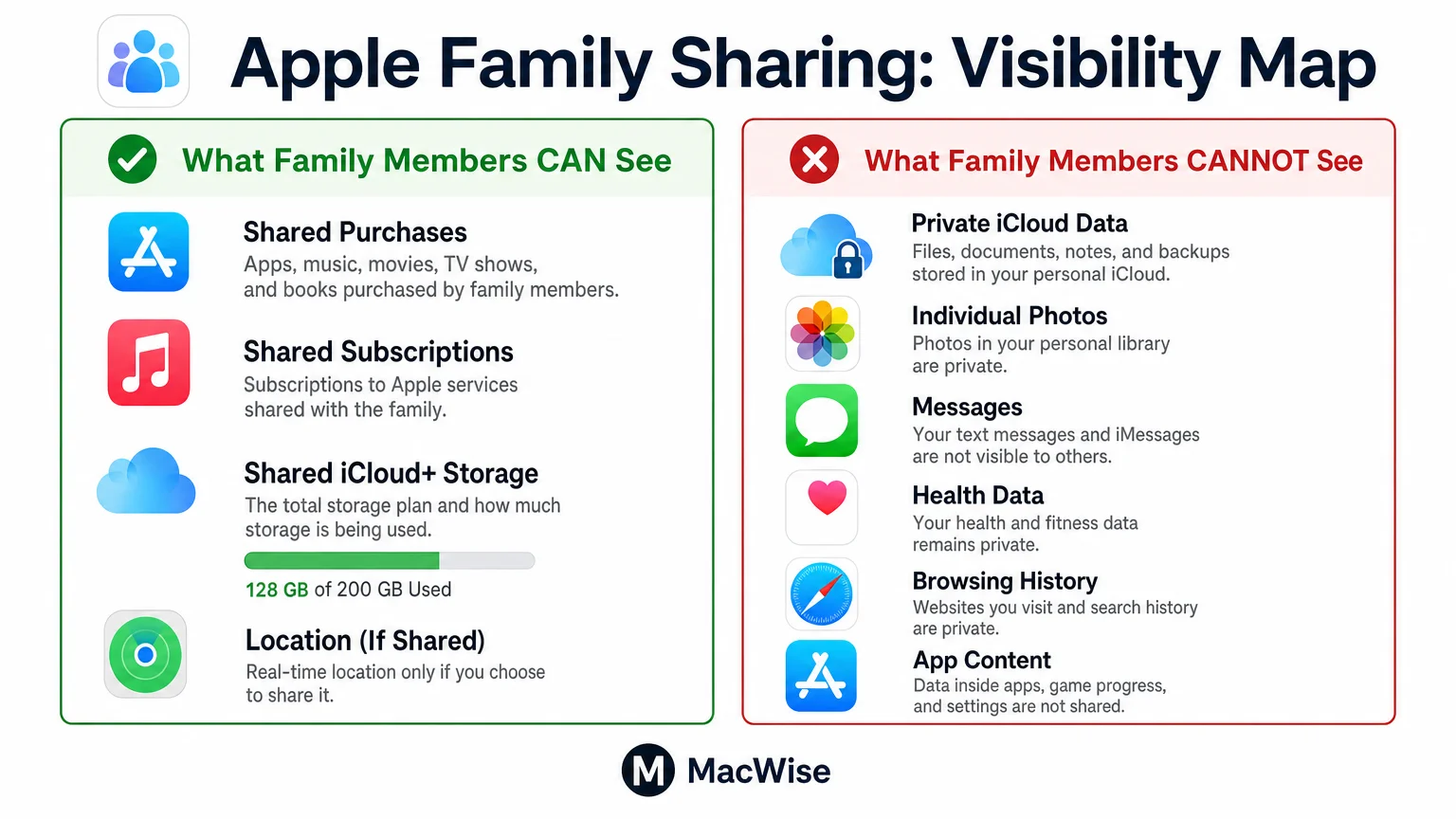
The distinction matters practically. If a parent joins the same Family group as an adult child, neither party gains access to the other’s photos or documents. The shared purchase library shows app names and prices — not usage data, screenshots, or in-app content. For households concerned about digital privacy more broadly, the privacy-first iPhone setup guide covers per-app permission controls that apply independently of Family Sharing status.
How Do Purchases and Payment Work in a Family Group?
The Family Organizer’s Apple ID is linked to the shared payment method, and that card is charged for any purchase made by a family member using the shared purchase feature. Adult members can choose whether their purchases are shared with the group; child accounts have no choice — their purchases are always visible to the Organizer.
Ask to Buy is enabled by default for anyone under 18 (the exact age threshold varies by country). When a child attempts to download a free app, make an in-app purchase, or subscribe to something, a notification goes to every adult in the group. Any adult can approve or decline. Approval sends the purchase through immediately; the Organizer’s payment method is charged. Free apps still require Ask to Buy approval unless the Organizer disables it for that child.
A few important limits:
- In-app subscriptions initiated inside a shared app are still charged to the Organizer.
- If an adult member makes a purchase with their own payment method and does not share it, it does not appear in the family library.
- Refunds follow standard App Store policy regardless of who approved the purchase.
- Family members cannot see each other’s full purchase history — only items explicitly shared.
Apple One Family Plan and Subscription Sharing: Is It Worth It?
Apple One’s Family plan (as of 2026) bundles Apple Music, Apple TV+, Apple Arcade, and iCloud+ 200 GB for up to six members. Apple Fitness+ is available as an add-on. Compared to subscribing to each service individually, the Family plan typically saves a household with two or more active users a meaningful amount monthly — the exact savings depend on which services the household already uses.
For a detailed breakdown of iCloud+ tiers and how Apple One compares to subscribing à la carte, the iCloud+ and Apple One pricing guide covers current plan costs and the scenarios where the bundle makes financial sense versus where it does not.
Subscriptions from third-party apps — Spotify, Netflix, YouTube Premium — are not included in Family Sharing unless those apps have implemented their own family plan through Apple’s subscription infrastructure. Check each app’s subscription settings individually.
iCloud+ Storage Sharing vs. Private Data: Understanding the Difference
When the Organizer shares iCloud+ storage with the family, each member draws from a shared pool. A 200 GB family plan means the combined uploads of all six members cannot exceed 200 GB total. Each member’s storage usage is visible to the Organizer as a breakdown by member — but the Organizer cannot see what files are consuming that storage, only how many gigabytes each person is using.
This is an important nuance: storage visibility is not content visibility. An Organizer who sees that a teenager is using 47 GB of iCloud storage cannot open that person’s photos or documents. The data remains encrypted and private to the account holder.
If storage becomes a household friction point, upgrading to iCloud+ 2 TB (the highest individual tier) and sharing it is usually more practical than asking members to manage their own plans separately. For troubleshooting storage that fills unexpectedly, the guide on why iPhone System Data grows large is relevant for members hitting their allocation.
Location Sharing, Find My, and Who Can See Whom
Location sharing in Family Sharing is opt-in and bidirectional — each member chooses whether to share their location with the group. Joining a Family group does not automatically share your location. Members can verify their sharing status in Find My → People, and can stop sharing at any time without leaving the family group.
Child accounts have one important difference: a parent or guardian can require location sharing as part of Screen Time management. If Screen Time is managed by a parent, the child cannot independently disable location sharing with that parent. This is a deliberate design choice for household safety, not a hidden surveillance feature — but it is worth understanding before setting up a child account.
For households using AirTags to track bags, bikes, or shared items, AirTags are associated with an individual Apple ID and their location is visible only to that account holder. They do not integrate with Family Sharing’s location view automatically.
Screen Time, Child Accounts, and Age Changes
Screen Time for child accounts managed through Family Sharing is significantly more powerful than Screen Time on an adult’s own device. A parent sets a Screen Time passcode separate from the device passcode, which prevents the child from modifying limits. Controls include:
- App Limits: Daily time caps per app category or individual app.
- Communication Limits: Restricts calls, messages, and FaceTime to approved contacts during downtime.
- Content & Privacy Restrictions: Blocks explicit content, restricts app installations, limits web browsing, and controls in-app purchases independently of Ask to Buy.
- Downtime: Schedules periods when only approved apps are accessible.
When a child account holder turns 13 (in the US; age varies by country), Apple prompts them to review their account settings, but the account does not automatically leave the family group or lose Screen Time management. The parent retains control until the child is 18, at which point the account transitions to a standard adult Apple ID. The Organizer can also manually adjust these settings as the child matures.
For a broader look at how iOS privacy settings interact with parental controls, the iPhone app permissions audit guide provides a useful companion reference.
Leaving or Reorganizing a Family Group
Leaving a Family Sharing group is straightforward but has consequences worth understanding before acting:
| Action | What Happens |
|---|---|
| Adult member leaves | Loses access to shared subscriptions immediately; keeps purchased apps and media |
| Child member leaves | Requires parent approval; account reverts to standard Apple ID |
| Organizer leaves | Must transfer Organizer role or dissolve the group |
| Group dissolved | All members lose shared subscription access; purchases remain on individual accounts |
An Organizer can transfer their role to another adult in the group without dissolving the group. This is useful when a household reorganizes — for example, when a student goes to university and a different adult becomes the primary account holder. The transfer takes effect immediately, and the new Organizer’s payment method becomes the shared billing source.
You cannot be in more than one Family Sharing group simultaneously. If you want to join a new group, you must leave the current one first — and the 30-day waiting period between groups applies in some regions.
Family Sharing Setup Checklist
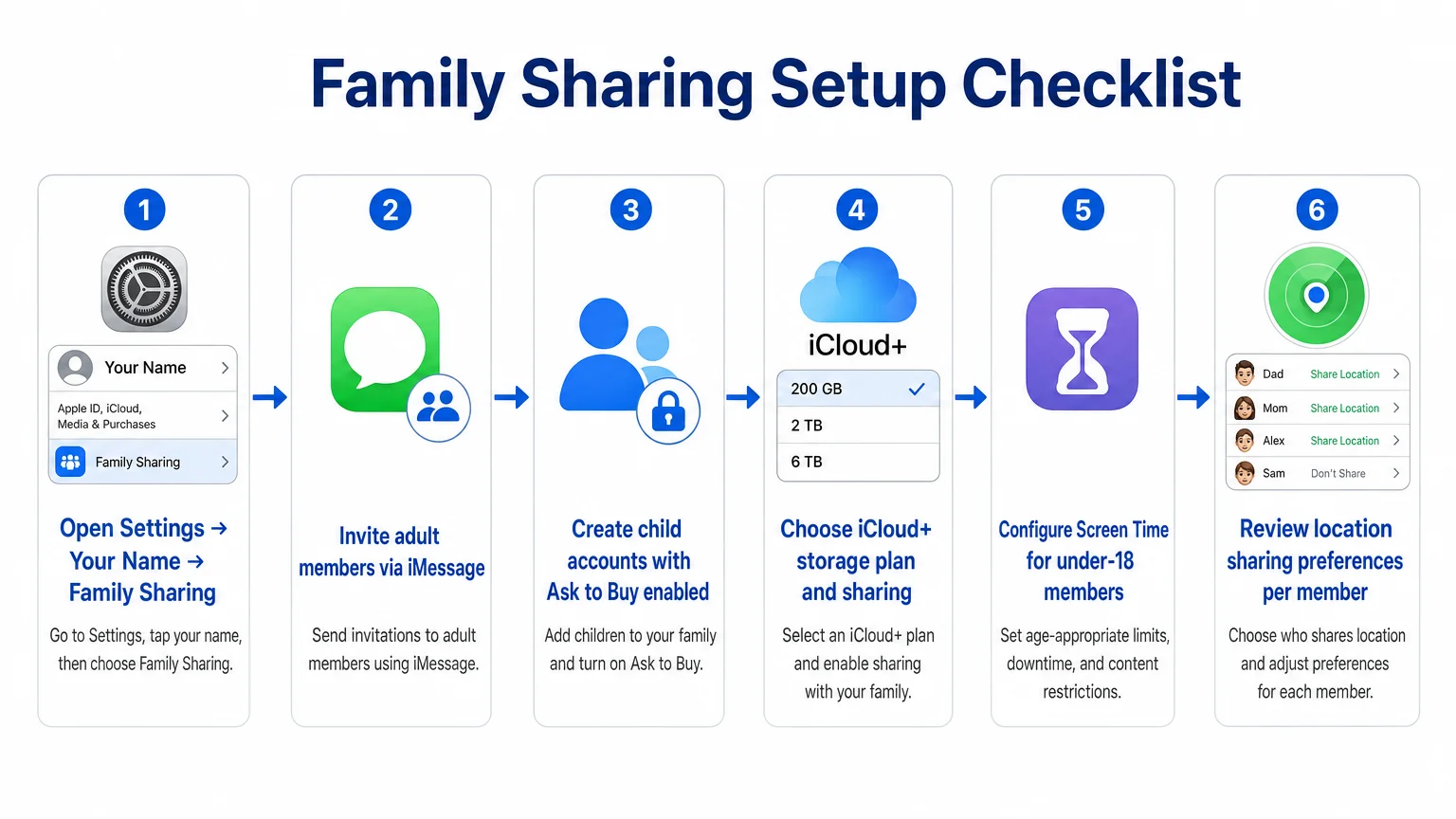
Use this checklist when setting up or auditing a Family Sharing configuration:
- Open Settings → [Your Name] → Family Sharing and confirm the Organizer role
- Invite adult members via iMessage or email; confirm they have accepted
- Create child accounts directly from Family Sharing settings (do not use an existing Apple ID)
- Enable Ask to Buy for all members under 18 and confirm the approval notification goes to the right adults
- Choose an iCloud+ storage plan appropriate for the household’s combined storage needs
- Enable Share iCloud Storage from the Organizer’s iCloud settings
- Review which subscriptions are set to share (Music, TV+, Arcade, Fitness+)
- Configure Screen Time for each child account, including a separate Screen Time passcode
- Confirm location sharing preferences per member in Find My
- Review the shared payment method and set spending limits if desired
- Check that no adult member has inadvertently enabled purchase sharing for content they want to keep private
A Practical Foundation for Household Apple Use
Apple Family Sharing is genuinely well-designed once you understand its boundaries. The privacy model is sound — shared infrastructure does not mean shared data — and the parental controls are among the most capable available on a consumer platform without requiring third-party software. The friction points are mostly administrative: understanding who pays for what, knowing what happens when someone leaves, and setting up child accounts correctly from the start rather than retrofitting controls later.
For households that want to go further on the security side, the guide on what to do if an iPhone is lost or compromised is worth reading alongside this one — particularly for families where multiple devices are in active use and account recovery planning matters.
If this guide helped clarify your household’s setup, consider subscribing to We Are MacWise for ongoing coverage of Apple services, privacy, and practical workflows.
Frequently Asked Questions
Can other family members see my iCloud photos?
No. iCloud Photos are private to each Apple ID. Joining a Family Sharing group does not grant any other member access to your photo library. The only way another member sees your photos is if you use the Shared Albums feature and explicitly invite them.
Does Family Sharing cost extra to set up?
Setting up Family Sharing itself is free. The cost comes from the shared payment method covering purchases and from any subscriptions the group uses. iCloud+ storage sharing requires the Organizer to have a paid iCloud+ plan; the free 5 GB tier cannot be shared.
What happens to my apps if I leave a Family Sharing group?
Apps you downloaded while in the group remain on your device and in your purchase history. You lose access to any app that was shared from another member's library but that you did not purchase yourself. Subscriptions shared through the group end immediately upon leaving.
Can I use Family Sharing if I live alone?
Yes. Some people use Family Sharing with a partner, a sibling, or a close friend. Members do not need to share a physical address. The financial implication is that the Organizer's payment method covers shared purchases, so trust between members is important.
How do I stop my child from disabling Screen Time?
Set a Screen Time passcode that is different from the device passcode. Go to **Settings → Screen Time → Use Screen Time Passcode** on the child's device (or manage it remotely from the parent's device via Family Sharing). Without this passcode, Screen Time settings can be modified by the child.
Is Apple One's Family plan worth it for a household of two?
It depends on which services you actively use. If both people use Apple Music and at least one uses Apple TV+ or Apple Arcade, the Family plan typically costs less than the individual subscriptions combined. If the household only uses one service, the individual plan is more economical.
Can a child account holder make purchases without Ask to Buy approval?
No, unless the parent has explicitly disabled Ask to Buy for that child. Even free app downloads require approval by default. In-app purchases and subscriptions also require approval regardless of price.
What is the minimum age to have an Apple ID through Family Sharing?
Apple allows child accounts for users under 13 in the US (age varies by country). Children under this threshold must have their account created by a parent or guardian through Family Sharing — they cannot create an independent Apple ID.
Independent guidance for making smarter, safer decisions across the Apple ecosystem.
