
Independent guidance for making smarter, safer decisions across the Apple ecosystem.
A single-cable desk — MacBook closed, one Thunderbolt connection, everything working — is achievable for under $1,500 if you plan the system before you buy any individual piece. Most people do the opposite: they buy a monitor, then a dock, then discover the dock cannot drive the monitor at full resolution, and then buy another dock. This guide works through every layer in order so that does not happen to you.
Key Takeaways
- Start with your Mac or iPad model and its Thunderbolt or USB-C generation before choosing any dock or display.
- A 4K 27-inch monitor at 2x HiDPI scaling is the practical minimum for comfortable all-day Mac work; 5K is meaningfully better and worth the premium for text-heavy tasks.
- Thunderbolt 4 docks deliver up to 40 Gb/s bandwidth — enough for one 5K display, fast NVMe storage, and 96 W host charging simultaneously.
- External NVMe SSDs should be paired with Time Machine or a cloud backup; neither alone is sufficient.
- A UPS rated for at least 300–600 VA protects against the power events most likely to corrupt open files and damage hardware.
- GaN multi-port chargers have reduced desk clutter significantly; a single 140 W GaN brick can power a MacBook Pro 16-inch and charge an iPad simultaneously.
- A $100 USB condenser microphone improves call quality more noticeably than a $400 webcam upgrade.
- Buy in this sequence: display → dock → storage → power protection → audio → ergonomic accessories.
What Does Your Mac or iPad Actually Need Before You Buy Anything?
The correct starting point is your machine’s port specification, not a product review. A MacBook Air M3 has two Thunderbolt 3 ports and a MagSafe 3 port; a Mac mini M4 has three USB-C (two Thunderbolt 4, one USB 3.2) plus two USB-A and HDMI. Those differences determine which docks work, how many displays you can drive, and whether you need a separate charger or can pull power through the dock.
Check three things before spending anything:
- Thunderbolt generation: Thunderbolt 3 = 40 Gb/s; Thunderbolt 4 = 40 Gb/s with stricter device requirements; USB4 Gen 2 = 20 Gb/s (found on some iPad Pro and iPad Air models).
- Display output limit: Most Apple Silicon MacBooks support one external display in clamshell mode without DisplayLink software; Mac mini and Mac Studio support multiple natively.
- Power delivery requirement: MacBook Pro 16-inch needs up to 140 W for full-speed charging; MacBook Air is comfortable at 67 W.
If you are running an iPad Pro M4 as a primary desktop with Stage Manager, note that USB4 at 20 Gb/s limits you to a single external display up to 4K/60 Hz — a meaningful constraint compared to a Mac.
Which Display Size and Resolution Actually Work With macOS Scaling?
The short answer: a 4K (3840×2160) 27-inch display running at 2x HiDPI gives you a 1920×1080 effective workspace that looks as sharp as a Retina MacBook screen. A 5K (5120×2880) 27-inch display at 2x HiDPI gives you a 2560×1440 effective workspace — significantly more room — at the same physical size and the same pixel density.
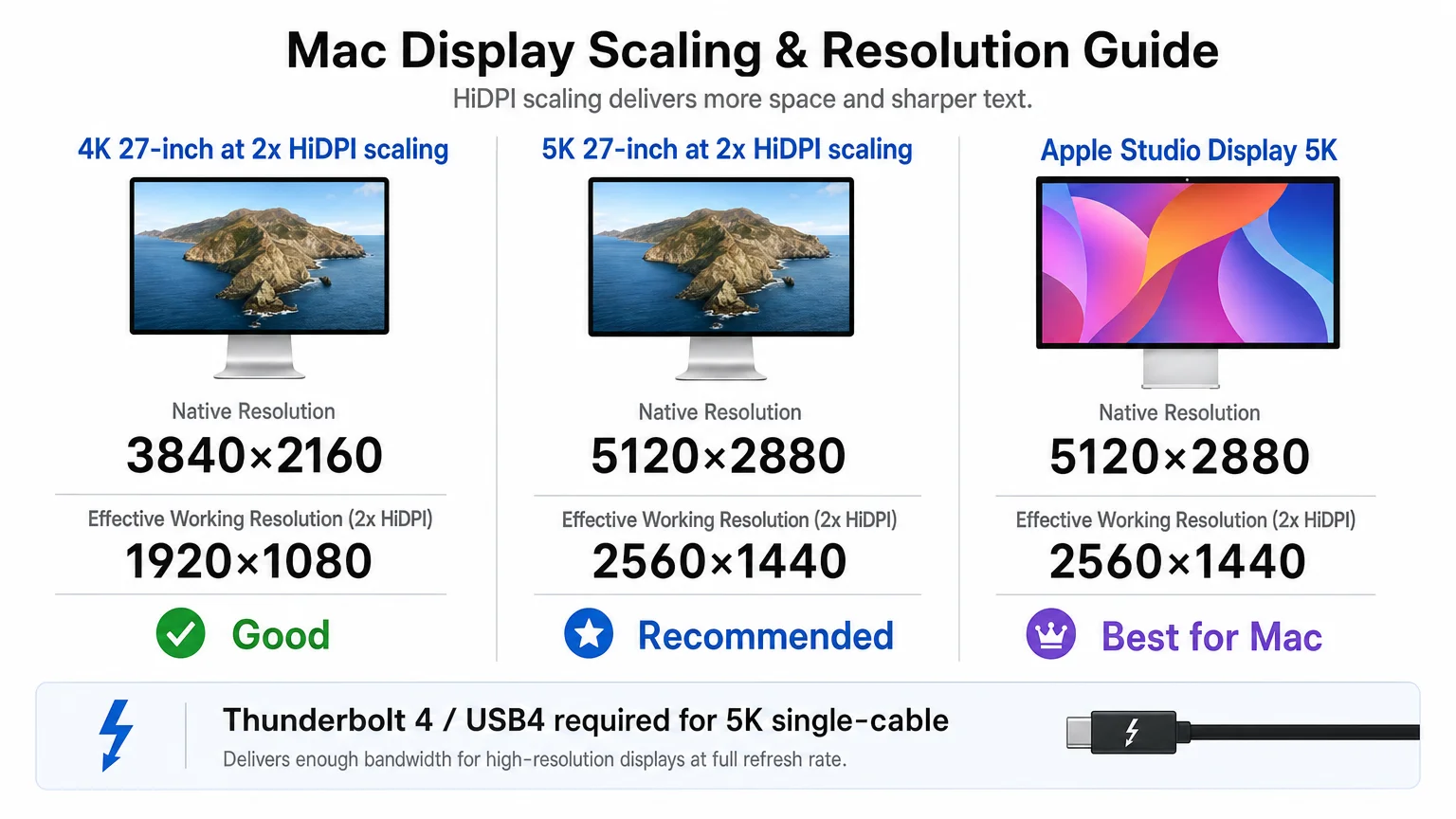
For most Mac users doing writing, coding, design, or video calls, the 5K tier is worth the price difference. The Apple Studio Display ($1,599) is the cleanest option: it connects via a single Thunderbolt cable, delivers 96 W host charging, includes a reasonable 12 MP Center Stage webcam, and runs at the exact 5K resolution macOS was designed around. Third-party 5K options from LG (the UltraFine 5K) have been discontinued; the realistic alternatives are high-quality 4K IPS panels from Dell, LG, or BenQ paired with a separate dock.
Display checklist before purchasing:
- Confirm the panel uses IPS or OLED (not TN) for accurate color and wide viewing angles.
- Verify refresh rate: 60 Hz is fine for productivity; 120 Hz ProMotion panels exist but require Thunderbolt bandwidth headroom.
- Check that the display’s USB-C/Thunderbolt port supports DisplayPort Alt Mode and power delivery — not all do.
- For a Mac mini or Mac Studio, a 32-inch 4K panel at normal viewing distance (60–70 cm) is comfortable; 27-inch is better for closer laptop-style distances.
How Should You Plan Dock Bandwidth and Port Selection?
A Thunderbolt 4 dock is the backbone of a single-cable desk. It connects to your Mac with one cable, provides the display output, charges the host, and distributes USB-A, USB-C, Ethernet, SD card, and audio ports to everything else on the desk.
The bandwidth budget matters. A 5K/60 Hz display consumes roughly 20 Gb/s of the 40 Gb/s Thunderbolt pipe. That leaves approximately 20 Gb/s for a Thunderbolt NVMe enclosure (which saturates at ~3 GB/s, or ~24 Gb/s theoretical), USB peripherals, and Ethernet. In practice, Thunderbolt 4 docks handle this gracefully because most USB peripherals share a separate USB controller that does not compete with the display signal.
Recommended dock features for a complete Apple home-office desk:
| Feature | Minimum | Recommended |
|---|---|---|
| Host charging | 60 W | 96 W+ |
| Downstream Thunderbolt ports | 1 | 2 |
| USB-A ports | 2 | 4 |
| SD/microSD card reader | — | Yes |
| 2.5 GbE Ethernet | Yes | Yes |
| 3.5 mm audio | Yes | Yes |
Caldigit (TS4, Element Hub), OWC (Thunderbolt Go Dock), and Belkin (Thunderbolt 4 Pro) are the most consistently reliable options in 2026. Avoid generic “USB-C hubs” marketed as docks — they use USB 3.2 at 10 Gb/s and cannot drive a 5K display without DisplayLink compression artifacts.
What External Storage and Backup Strategy Makes Sense?
Fast external NVMe storage serves two distinct purposes: working storage (scratch disks, video projects, large asset libraries) and backup. Conflating the two is a common mistake that leaves you with no recovery option when a drive fails.
A practical three-layer approach:
- Working NVMe SSD — a Thunderbolt or USB4 NVMe enclosure (OWC Envoy Pro FX, Samsung T9, or similar) connected to the dock for fast read/write. Speeds of 2,000–3,000 MB/s are achievable over Thunderbolt.
- Time Machine backup drive — a separate USB-A or USB-C spinning hard drive or SSD dedicated exclusively to Time Machine. This should be at least 2× the size of your internal drive.
- Cloud backup — iCloud Drive handles document sync well, but it is not a full system backup. Consider Backblaze Personal Backup ($99/year) or Arq 7 with an S3-compatible bucket for a true off-site copy.
For iPad users, the workflow is necessarily different: iCloud backup covers the device, and external storage on iPad Pro requires the Files app and manual management — there is no equivalent of Time Machine. If your iPad is a primary work machine, iCloud+ with 2 TB storage is worth evaluating. The iCloud+ and Apple One plans guide covers pricing and value in detail.
How Do You Handle Charging, Cable Management, and Surge Protection?
Cable management is where most desks fail aesthetically and functionally. A tidy desk is not cosmetic vanity — loose cables catch on chair wheels, stress connectors, and make it harder to trace faults when something stops working.
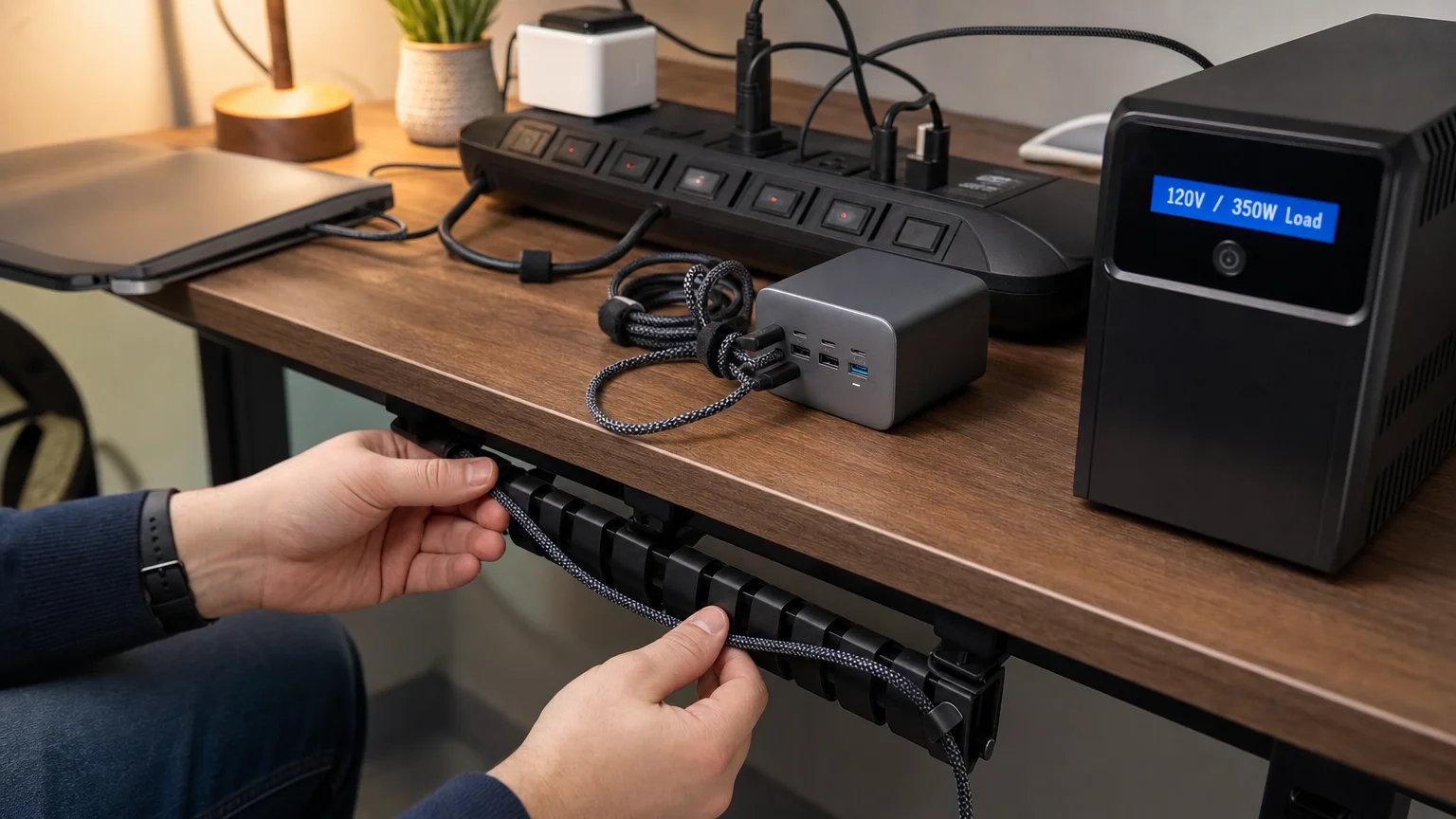
Charging strategy: A single GaN charger rated at 140 W (Anker 737, Ugreen Nexode 140W, or Apple’s own 140 W USB-C adapter) can power a MacBook Pro 16-inch at full speed and charge an iPad and iPhone simultaneously via a multi-port model. Place it at the back of the desk and run a single braided cable to the dock or laptop. Avoid daisy-chaining power bricks under the desk — it creates heat and makes fault diagnosis difficult.
Cable management essentials:
- Cable spine or raceway clipped to the underside of the desk for vertical runs
- Velcro ties (not zip ties) for bundles that you will rearrange
- A small cable box to hide the power strip and excess cable length
- Labeled cables at both ends — a $10 label maker pays for itself after one desk reorganization
Surge protection and UPS sizing: A surge protector alone protects against voltage spikes but not brownouts or outages, which are the events most likely to corrupt an open database or unsaved Final Cut Pro project. A UPS (uninterruptible power supply) adds battery backup. For a typical Mac home-office desk drawing 150–250 W (Mac mini, monitor, dock, speakers, lamp), a 600 VA / 360 W UPS provides 5–10 minutes of runtime — enough to save work and shut down cleanly. APC Back-UPS 600 and CyberPower CP600LCD are reliable, widely available options in 2026. If you run a Mac Pro or Mac Studio with multiple displays, size up to 1000–1500 VA.
What Audio and Video Gear Actually Improves Call Quality?
The built-in microphone on a MacBook is genuinely good by laptop standards, but it picks up keyboard noise, room echo, and HVAC hum in ways that become obvious to the person on the other end of a call. A dedicated microphone addresses this before any other audio upgrade.
Microphone: A USB condenser microphone positioned 15–20 cm from your mouth on a small desk arm makes a larger audible difference than any other single audio purchase. The Blue Yeti (now owned by Logitech) and Rode NT-USB Mini are proven options at $99–$130. For a cleaner desk, the Shure MV7+ ($249) connects via USB-C and includes a headphone output for zero-latency monitoring.
Webcam: The 12 MP Center Stage camera in the Apple Studio Display is adequate for most calls. If you use a different monitor, a 1080p/60 Hz webcam (Logitech C920s, $69) is sufficient; 4K webcams add cost without visible improvement on most video conferencing platforms, which compress to 1080p or lower anyway.
Speakers and headphones: Compact desktop speakers (Audioengine A2+, Yamaha HS3) provide better stereo imaging and bass than any monitor’s built-in audio. For focused work or calls, Apple AirPods Pro 2 or Sony WH-1000XM6 handle noise cancellation well. A wired option — Audio-Technica ATH-M50x — is worth keeping at the desk for calls where Bluetooth latency or battery anxiety is a concern.
How Do You Set Up Ergonomics for Long Mac Work Sessions?
The display top edge should sit at or just below eye level when you are seated upright. For most adults, this means the monitor needs to be raised 10–15 cm above the desk surface — a monitor arm (Ergotron LX, $45–$55) accomplishes this and frees desk space. Laptop stands that tilt the MacBook screen to eye level are useful when working without an external display.
Keyboard and mouse positioning: elbows at roughly 90 degrees, wrists neutral (not bent up or down). Apple’s Magic Keyboard with Touch ID and the Magic Trackpad are well-designed for this posture. If you prefer a mechanical keyboard, confirm the key travel does not force your wrists into extension.
For guidance on building a focused workflow around your Mac setup, How to Build a Writing Focus Mode on Mac That You Will Actually Use covers the software side in practical detail.
What Budgets and Buying Sequence Make the Most Sense?
Buy in system order, not impulse order. A display without the right dock is a frustrating partial solution. Here is a sequenced budget framework:
Entry tier (~$600–$900 total add-on spend)
- 4K 27-inch IPS display: $250–$350
- USB-C dock (USB 3.2, not Thunderbolt): $60–$100
- 1 TB USB-C NVMe SSD: $80–$110
- 600 VA UPS: $70–$90
- USB microphone: $99
- Webcam: $69
Mid tier (~$1,200–$1,600)
- 4K 32-inch IPS display with USB-C PD: $400–$550
- Thunderbolt 4 dock: $200–$280
- 2 TB Thunderbolt NVMe enclosure: $150–$200
- 600 VA UPS: $90
- Shure MV7+ microphone: $249
- Compact desktop speakers: $200–$250
Premium tier (~$2,500–$3,500)
- Apple Studio Display: $1,599
- Caldigit TS4 dock: $380
- OWC Envoy Pro FX 4 TB: $350
- 1000 VA UPS: $150
- Rode NT-USB Mini + Audioengine A2+: $350
- Ergotron LX monitor arm: $55
Before committing to the premium tier, it is worth reading Do You Actually Need a MacBook Pro? A Workload Test Before You Buy — the display and dock investment only makes full sense if the Mac driving it matches your actual workload.
A Complete System, Built in the Right Order
A well-planned Apple home-office desk is not a collection of individual purchases — it is a system where each layer depends on the one below it. Start with your Mac or iPad’s actual port specification, choose a display that matches macOS scaling properly, select a Thunderbolt dock that can handle the bandwidth, add storage and backup in parallel, protect the whole system with a UPS, then layer in audio and ergonomic accessories.
The buying sequence matters more than the brand names. A $200 Thunderbolt dock paired with a $350 4K display will outperform a $500 display paired with a $60 USB hub every time. Get the foundation right, and the rest of the desk falls into place.
For more on building productive Apple workflows, explore How to Build a Writing Focus Mode on Mac That You Will Actually Use or check the macOS upgrade decision guide before updating the Mac that will anchor your new setup.
Frequently Asked Questions
Can a MacBook Air M3 drive a 5K display through a Thunderbolt 4 dock?
Yes. The MacBook Air M3 supports one external display at up to 6K/60 Hz via Thunderbolt. A Thunderbolt 4 dock passes the display signal correctly, and the Apple Studio Display or a compatible 5K monitor will work at full resolution and refresh rate.
Why does my dock show a lower resolution than expected?
The most common cause is using a USB-C hub (USB 3.2, 10 Gb/s) instead of a true Thunderbolt dock. USB 3.2 cannot carry a 5K DisplayPort signal natively and falls back to a lower resolution or uses DisplayLink compression. Confirm the dock is certified Thunderbolt 4.
Is Time Machine to an external drive enough backup?
No. Time Machine covers local hardware failure and accidental deletion, but it does not protect against theft, fire, or a desk flood. Pair it with an off-site cloud backup service for a complete strategy.
What UPS runtime do I actually need?
Enough to save open work and shut down cleanly — typically 5 minutes. A 600 VA UPS provides this for a Mac mini or MacBook setup drawing under 200 W. If you need longer runtime for a home server or NAS, size up to 1000–1500 VA.
Do I need a 4K webcam for video calls?
Not for most platforms. Zoom, Teams, and FaceTime compress video to 1080p or lower under typical network conditions. A quality 1080p/60 Hz webcam with good low-light performance outperforms a 4K webcam in real call quality.
Can an iPad Pro M4 replace a Mac at a home-office desk?
For specific workflows — writing, note-taking, light design, video calls — yes. For tasks requiring full desktop apps, complex file management, or multiple external displays, the iPad's Stage Manager and USB4 limitations make it a complement to a Mac rather than a replacement.
What is the safest way to route cables under a desk?
Use a cable management spine or J-channel raceway mounted to the underside of the desk with adhesive clips. Group power cables separately from data cables where possible to reduce interference, and use velcro ties rather than zip ties so bundles can be reconfigured without cutting.
Should I buy AppleCare+ for a display like the Studio Display?
AppleCare+ for the Apple Studio Display adds accidental damage coverage and extends hardware service. Given the $1,599 price and the cost of out-of-warranty panel repair, it is worth considering — particularly if the display is in a shared or high-traffic space.
Independent guidance for making smarter, safer decisions across the Apple ecosystem.
