
Founder and editor of We Are MacWise, with more than 30 years of Apple-focused IT experience helping professionals and small businesses.
When a 10-person design studio decides to replace every machine on the floor simultaneously, the margin for error is essentially zero. This is the story of how one such studio planned, executed, and recovered from a full migration to Apple Silicon — and what any creative team can take from the experience before making the same move.
Quick Answer
A 10-person design studio can move entirely to Apple Silicon in four to six weeks with careful planning. The critical steps are auditing existing software for native ARM support, running a pilot on one or two machines before full rollout, migrating shared assets cleanly, and retraining staff on any workflow differences. The performance and battery gains are significant enough that most studios report no desire to return to Intel hardware.
Key Takeaways
- Full studio migrations to Apple Silicon are achievable in under six weeks with a phased approach.
- Software compatibility is the single largest risk — audit every app before purchasing new hardware.
- Apple Silicon Macs render significantly faster and run cooler than comparable Intel predecessors in real design workloads.
- Rosetta 2 handles most legacy Intel apps well, but native ARM versions should be prioritised wherever available.
- Shared storage, NAS compatibility, and font management tools require specific attention during migration.
- The Mac Studio with M4 Max is the preferred workstation choice for senior designers handling large files.
- MacBook Pro M4 Pro is the standard recommendation for designers who split time between desk and client meetings.
- Total cost of ownership often improves because Apple Silicon machines require fewer peripheral cooling solutions and consume less power.
- A pilot phase of two to three weeks on one machine prevents costly surprises during full rollout.
Why Did the Studio Choose to Move Entirely to Apple Silicon?
The decision was not made overnight. The studio had been running a mixed fleet of Intel MacBook Pros and iMacs for several years. As Apple Silicon matured — first with M1, then M2, and now M4 — the performance gap between the old machines and new ones became impossible to ignore in day-to-day work.
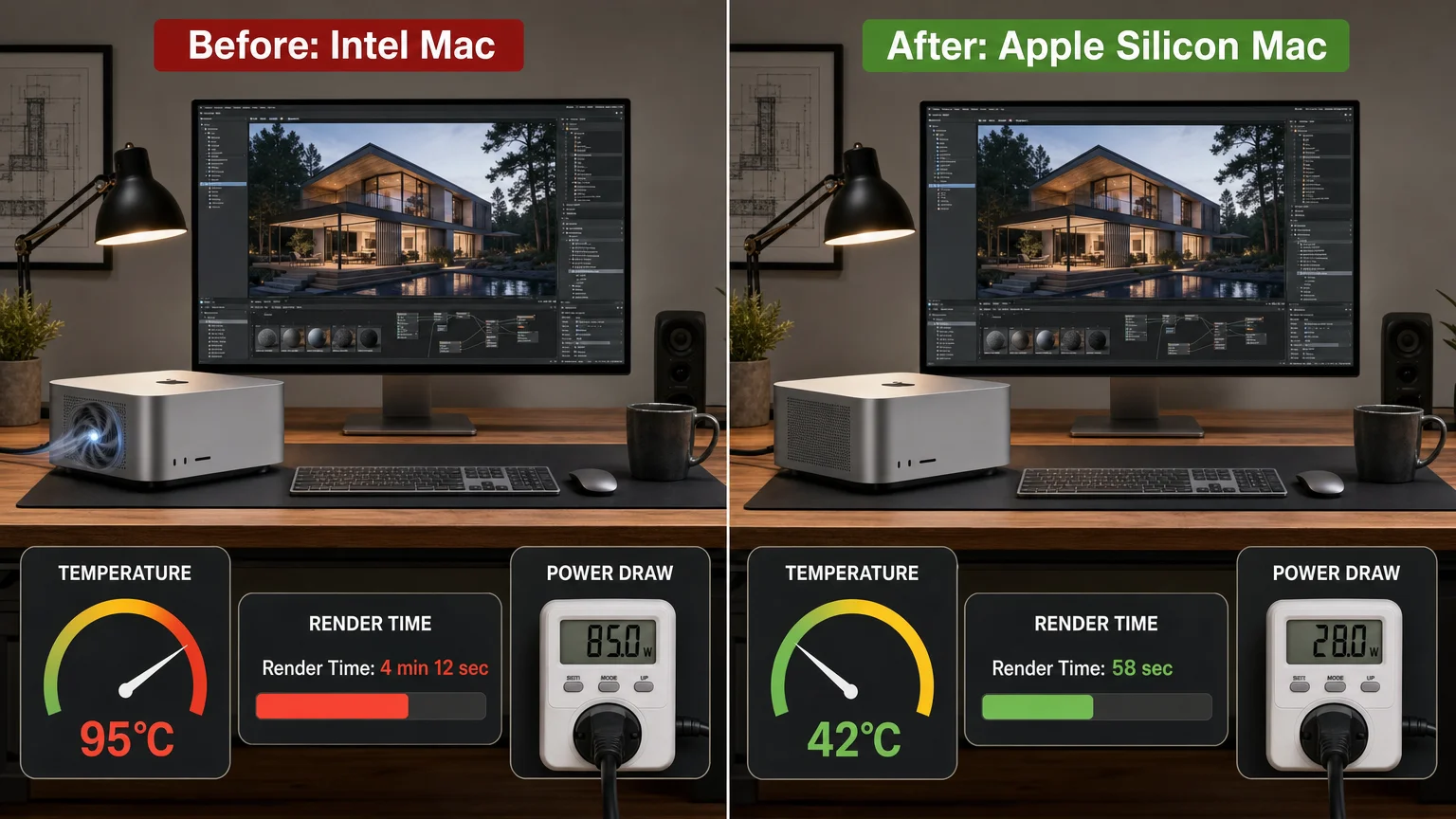
Render times for motion graphics were the clearest signal. On an Intel MacBook Pro, a 60-second After Effects composition with multiple effects layers could take upward of four minutes to render. On an M3 Pro, the same composition rendered in under a minute. Multiply that across ten designers working daily, and the productivity argument made itself.
Power consumption was a secondary factor. Apple Silicon Macs draw dramatically less wattage under load than their Intel counterparts, which matters in a studio environment where machines run continuously. The reduction in fan noise alone changed the working atmosphere noticeably.
How Did the Studio Plan the Migration?
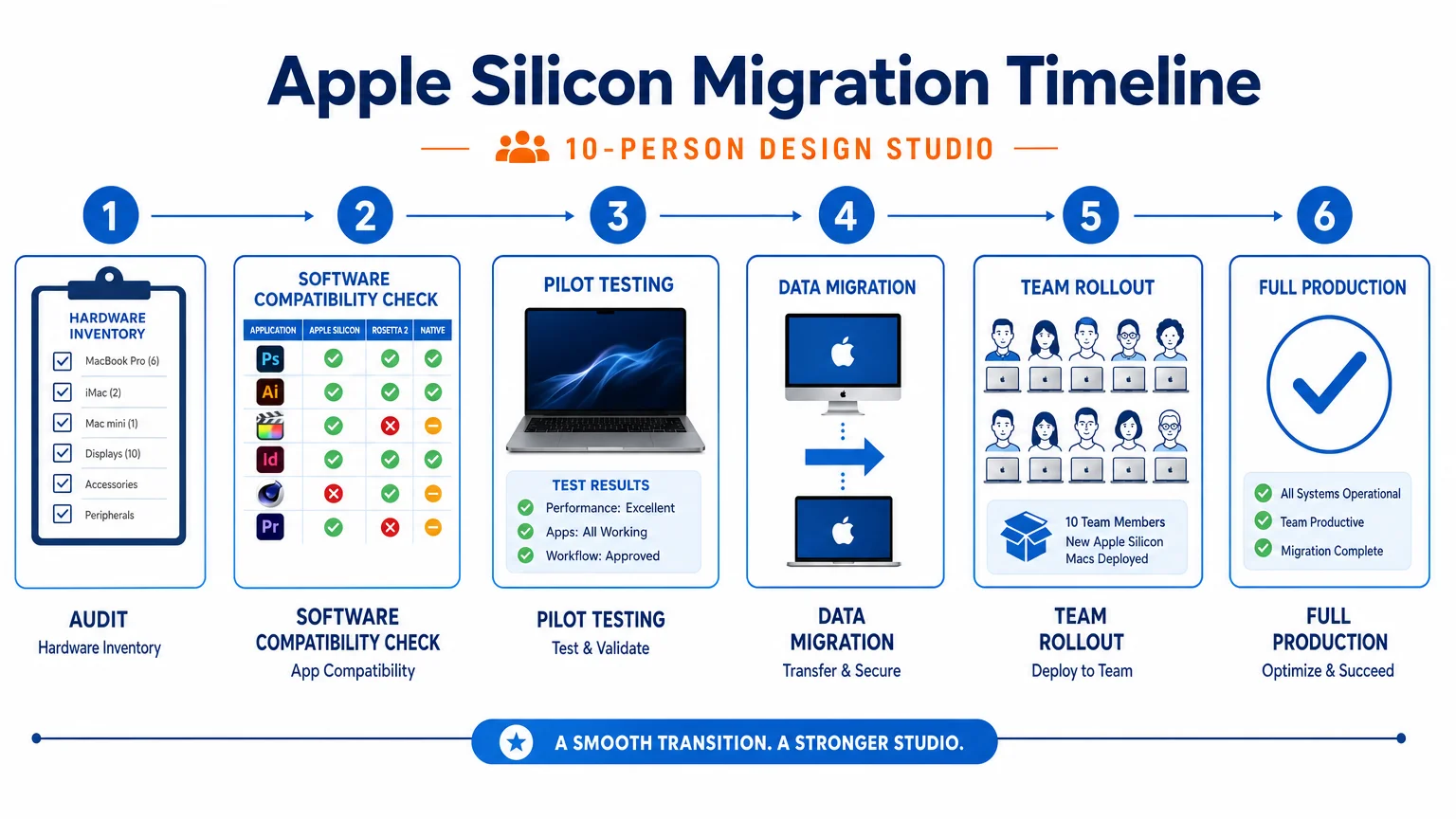
Planning began with a full hardware and software audit. Every application in active use was listed, and each was checked against Apple’s own compatibility data and developer release notes. The audit revealed three categories: apps with native Apple Silicon builds available immediately, apps running acceptably under Rosetta 2, and two legacy tools with no ARM support path at all.
Those two legacy tools — a niche font management plugin and an older version of a 3D rendering application — required decisions before any hardware was purchased. The font management issue was resolved by switching to a current-version alternative. The 3D rendering app required a licence upgrade, which was budgeted into the migration cost.
The studio then created a phased rollout plan:
- Pilot phase (weeks 1–2): One senior designer received the first Apple Silicon machine. All production work continued normally. Issues were logged daily.
- Evaluation phase (week 3): The pilot findings were reviewed. Minor workflow adjustments were documented.
- Staged rollout (weeks 4–5): Remaining machines were replaced in groups of three, starting with designers whose workloads were best understood.
- Full production (week 6): All ten machines running Apple Silicon. Intel hardware staged for resale or repurposing.
For studios considering a similar move, the guide on everything you need to know before buying a refurbished Mac is worth reading if budget constraints push toward certified refurbished Apple Silicon units rather than new stock.
Which Machines Did the Studio Actually Buy?
The studio settled on two configurations rather than a single model for everyone. Senior designers and the creative director received Mac Studio units with M4 Max chips paired with Apple Studio Displays. These machines handle the heaviest workloads: large Figma files, complex Illustrator documents, video editing, and motion graphics.
Mid-level and junior designers received MacBook Pro 14-inch models with M4 Pro chips. The reasoning was practical: these team members frequently attend client presentations, work from home on certain days, and benefit from the portability. The M4 Pro handles their workloads comfortably without requiring the Mac Studio’s additional headroom.
| Role | Machine | Chip | Display |
|---|---|---|---|
| Creative Director | Mac Studio | M4 Max | Studio Display 27” |
| Senior Designers (3) | Mac Studio | M4 Max | Studio Display 27” |
| Mid-level Designers (4) | MacBook Pro 14” | M4 Pro | External monitor |
| Junior Designers (2) | MacBook Pro 14” | M4 Pro | Built-in + external |
Memory was standardised at 36GB unified memory across all machines. The studio had previously encountered bottlenecks on 16GB Intel machines when running multiple Adobe apps simultaneously, and the 36GB configuration eliminated that problem entirely.
What Software Compatibility Issues Actually Came Up?
This is where the real-world experience diverges from the marketing narrative. Most major creative applications — Adobe Creative Cloud, Figma, Sketch, Affinity Publisher, Final Cut Pro, Logic Pro — have been native Apple Silicon for some time and performed without issue. The problems were in the margins.
Font management: The studio’s previous tool had an Intel-only helper process that caused intermittent crashes under Rosetta 2. Switching to a native ARM alternative took two days of testing and re-syncing the shared font library.
Browser-based design tools: Some browser extensions used for design review workflows behaved inconsistently in Safari on Apple Silicon. Switching those specific review sessions to Chrome resolved the issue within a day.
NAS access: The studio’s shared network-attached storage required a firmware update to maintain stable SMB connections with macOS Sequoia on Apple Silicon. This was discovered during the pilot phase — exactly the kind of issue a pilot is designed to catch.
Printer drivers: Two studio printers required driver updates that had been released but not pushed automatically. A quick check of each manufacturer’s support page resolved both within an hour.
For teams running macOS Sequoia specifically, the analysis in macOS Sequoia vs macOS Ventura: is the upgrade worth it? covers several compatibility considerations that apply here.
How Did the Studio Handle Data Migration?
Data migration was handled using a combination of Migration Assistant for individual user environments and manual transfer for shared project files. Migration Assistant performed well for personal settings, application preferences, and local project archives. The process took between 45 minutes and two hours per machine depending on local storage volume.
Shared project files lived on the NAS, so those required no migration — only the NAS firmware update mentioned above. The studio’s cloud-based asset management system (used for client deliverables and brand asset libraries) was simply re-authenticated on each new machine.
One lesson worth noting: do not use Migration Assistant to carry over applications that have known Intel-only components. It is cleaner to perform a fresh install of each application on the new machine and restore only user data and preferences. This adds time but eliminates the risk of migrating problematic legacy components.
What Were the Real-World Performance Differences?
The performance improvements were consistent across workloads, but the magnitude varied by task type.
Rendering and export: The most dramatic gains. Motion graphics renders that took four-plus minutes on Intel completed in under 60 seconds on M4 Max. PDF export of complex multi-page documents dropped from 30 seconds to under 5 seconds.
Application launch times: Noticeably faster, though less dramatic. Adobe Photoshop opened in approximately 3 seconds versus 9 seconds on the previous Intel machines.
Battery life (MacBook Pro): Designers reported full working days — 9 to 10 hours of mixed Figma, Slack, and browser use — without reaching for a charger. This was a significant change from the Intel MacBook Pros, which typically needed charging by mid-afternoon under similar loads.
Thermal performance: No machine in the studio ran audibly hot during normal work. Under sustained heavy rendering, the Mac Studios’ fans became faintly audible but never intrusive. The Intel machines had been noticeably loud under the same conditions.
Teams interested in how Apple’s own AI features interact with these workflows should read Apple Intelligence: what it does, doesn’t, and who it’s for for context on what the M4 chip’s Neural Engine enables beyond raw processing speed.
What Did the Migration Cost, and Was It Worth It?
The total hardware spend for ten machines — four Mac Studios with M4 Max and six MacBook Pro 14-inch M4 Pro units — came to approximately £28,000 to £32,000 depending on exact configuration and whether AppleCare+ was added. Software licence upgrades for the two legacy tools added roughly £800.
Against that, the studio calculated time savings. Conservative estimates based on the pilot phase suggested each designer saved 45 to 60 minutes per day in render wait time and application lag. Across ten people over a working year, that is a meaningful return on the hardware investment.
The Intel machines were resold through a certified reseller, recovering a portion of the cost. Studios considering this route should move quickly — Intel Mac resale values decline steadily as Apple Silicon adoption widens.
For anyone still weighing whether to buy new or refurbished Apple Silicon hardware, everything you need to know before buying a refurbished Mac covers the trade-offs in detail.
Conclusion
Moving an entire design studio to Apple Silicon is a logistical exercise more than a technical one. The hardware performs as advertised, the software ecosystem has largely caught up, and the day-to-day experience for creative professionals is measurably better than on Intel machines. The studios that struggle are the ones that skip the audit and pilot phases — the ones that do the groundwork find the transition straightforward.
If your team is at the planning stage, start with the software audit. Everything else follows from knowing exactly what you are working with. For more on building efficient Mac-based workflows, the guide on how to build a distraction-free writing workflow on Mac offers practical principles that apply well beyond writing to any focused creative environment.
Frequently Asked Questions
How long does it take to migrate a small design studio to Apple Silicon?
A 10-person studio can complete a full migration in four to six weeks using a phased approach: one to two weeks of pilot testing, one week of evaluation, two weeks of staged rollout, and a final week of settling into full production.
Do Adobe Creative Cloud apps run natively on Apple Silicon?
Yes. Adobe has shipped native Apple Silicon versions of Photoshop, Illustrator, InDesign, Premiere Pro, After Effects, and the rest of Creative Cloud. Performance on M-series chips is substantially better than on Intel Macs running the same apps.
Is Rosetta 2 reliable enough for professional design work?
Rosetta 2 handles most Intel-compiled apps well enough for day-to-day use, but it is not a permanent solution. Apps with background helper processes or kernel extensions are most likely to show issues. Native ARM versions should be prioritised wherever available.
What is the best Mac for a senior designer in 2026?
The Mac Studio with M4 Max is the strongest choice for a desk-based senior designer handling large files, video, or motion graphics. For designers who need portability, the MacBook Pro 14-inch or 16-inch with M4 Pro offers comparable performance in a portable form factor.
Can a design studio's NAS work with Apple Silicon Macs?
Most modern NAS devices work with Apple Silicon Macs, but firmware updates are often required for stable SMB connections under recent versions of macOS. Check your NAS manufacturer's support pages before migrating and test connectivity during the pilot phase.
Should studios buy new or refurbished Apple Silicon Macs?
Both are viable. Certified refurbished Apple Silicon Macs from Apple's own refurbished store carry the same warranty as new units and can save 15–20% on cost. Third-party refurbishers vary in quality, so vetting is important.
What happens to the old Intel Macs after migration?
Options include resale through certified resellers, repurposing as dedicated rendering nodes or secondary displays, donating to educational programmes, or trading in through Apple's own trade-in programme. Acting quickly preserves more resale value.
Does Apple Silicon affect collaboration with clients or external agencies on Intel Macs?
No. File formats, cloud storage, and collaboration platforms are hardware-agnostic. The only potential friction is if a client-supplied plugin or script is Intel-only, which is increasingly rare in 2026.
Founder and editor of We Are MacWise, with more than 30 years of Apple-focused IT experience helping professionals and small businesses.
