
Founder and editor of We Are MacWise, with more than 30 years of Apple-focused IT experience helping professionals and small businesses.
Most people spend the first 20 minutes of their day doing the same things in the same order — turning off Do Not Disturb, checking the weather, opening a news app, sending a good-morning message, and queuing up a playlist. Apple Shortcuts lets you collapse all of that into a single tap, or eliminate the tap entirely. This guide explains how to automate your morning routine with Apple Shortcuts in a way that is practical, reliable, and genuinely worth the setup time.
Key Takeaways
- Apple Shortcuts supports time-based and alarm-based triggers that fire automatically without any manual input.
- A single morning automation can chain dozens of actions across apps — music, messages, Focus modes, calendar previews, and more.
- Personal Automations run on-device and require no third-party subscription.
- The most effective morning routines combine a small number of high-value actions rather than trying to automate everything at once.
- Shortcuts syncs across iPhone, iPad, and Mac via iCloud, so a routine built on one device is available on all of them.
- iOS 18 and later allow fully hands-free automations that run without a confirmation tap.
- Testing each action individually before combining them into a stack saves significant debugging time.
- Apple Watch can trigger and display Shortcuts, making wrist-based morning cues possible alongside your phone.
What Is Apple Shortcuts and Why Does It Matter for Morning Routines?
Apple Shortcuts is Apple’s native automation platform, built into iOS, iPadOS, macOS, and watchOS. It allows users to string together actions from first-party and third-party apps into sequences that run on demand or automatically based on triggers such as time of day, location, or device state. For morning routines specifically, the value is straightforward: repetitive, predictable tasks are exactly what automation handles best.
Unlike third-party automation tools that require subscriptions or external servers, Shortcuts runs entirely on-device. That means no latency, no privacy concerns about data leaving your phone, and no dependency on a service that might change its pricing. For anyone already invested in the Apple ecosystem, it is the most direct path to a genuinely automated morning.
How to Set Up a Morning Automation in Apple Shortcuts Step by Step
Setting up your first morning automation takes under ten minutes if you know what you want it to do. The key is to define the trigger first, then build the action stack.
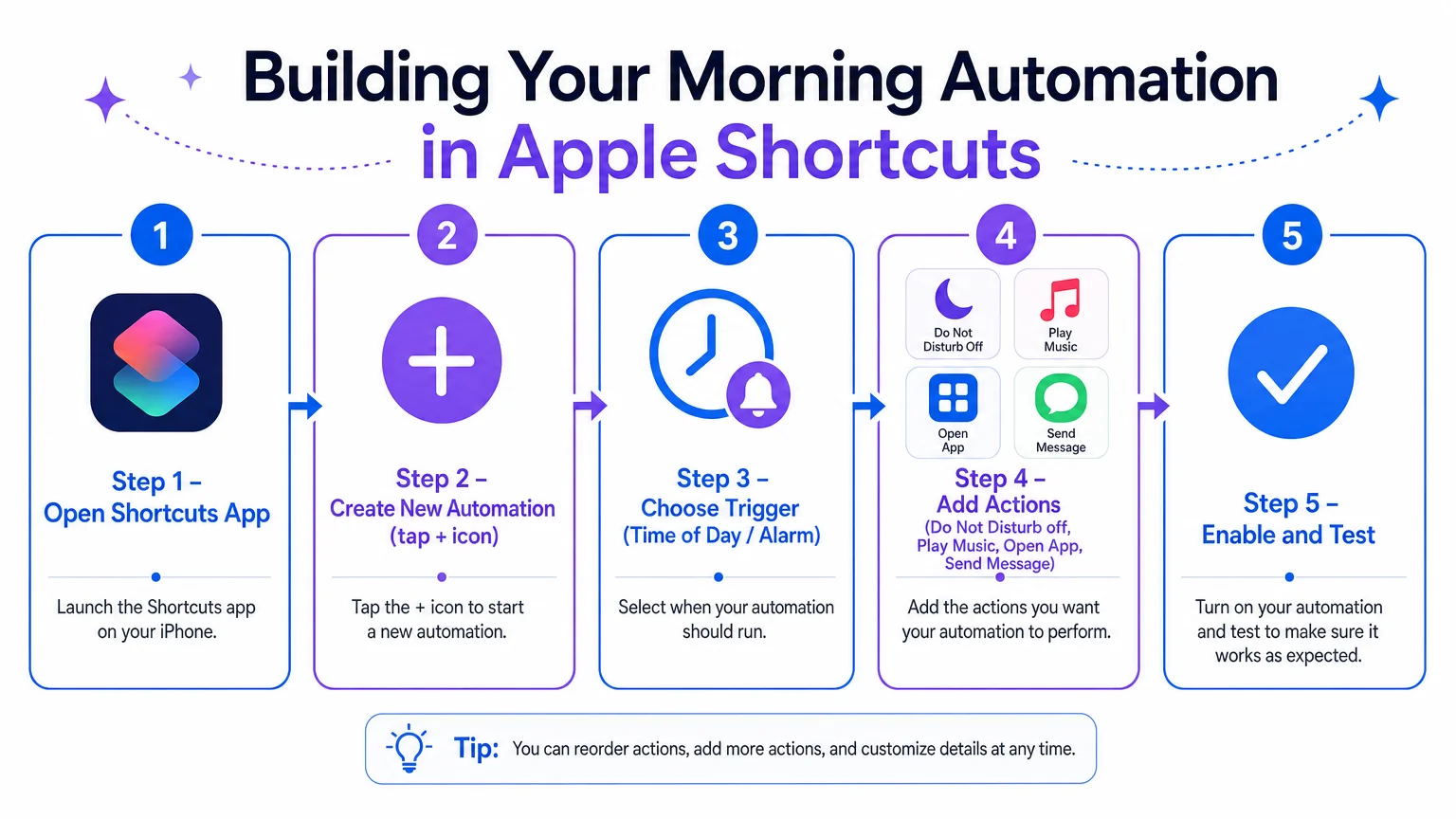
Step 1: Open Shortcuts and navigate to Automations. Tap the Shortcuts app on your iPhone, then select the Automation tab at the bottom of the screen. Tap the + button in the top-right corner to create a new Personal Automation.
Step 2: Choose your trigger. For a morning routine, the two most useful triggers are Time of Day and Alarm. Time of Day fires at a fixed clock time every day (or on selected days). Alarm fires when you dismiss or snooze a specific alarm — useful if your wake time varies. Select whichever matches your schedule.
Step 3: Add actions. Tap Add Action and search for what you want. Common morning actions include:
- Set Focus — turn off Sleep Focus and enable a Work or Personal Focus mode.
- Play Music / Podcast — open a specific playlist or show automatically.
- Get Current Weather — fetch conditions and display them as a notification.
- Show Calendar Events — surface the day’s first meeting without opening the app.
- Send Message — a pre-written good-morning text to a family member.
- Open App — launch your news reader, journaling app, or email client.
- Set Brightness / Volume — adjust to a comfortable morning level automatically.
Step 4: Disable the confirmation prompt. In iOS 17 and later, Personal Automations can run without asking for confirmation. After building your action stack, toggle off Ask Before Running. This is what makes the automation truly hands-free.
Step 5: Test before relying on it. Run the automation manually from the Shortcuts tab first. Verify each action fires in the correct order and that any conditional logic (e.g., “only on weekdays”) behaves as expected.
Which Trigger Type Should You Use to Automate Your Morning Routine?
The choice between a time-based trigger and an alarm-based trigger depends on how consistent your wake time is.
| Trigger Type | Best For | Limitation |
|---|---|---|
| Time of Day | Fixed-schedule sleepers | Fires even if you slept in |
| Alarm (on dismiss) | Variable wake times | Requires an active alarm |
| Alarm (on snooze) | Gradual wake routines | Can fire prematurely |
| NFC Tag | Physical cue preference | Requires a tap |
| Shortcut Widget | Manual control preference | Not automatic |
For most professionals with a consistent schedule, Time of Day is the most reliable option. If your mornings vary — especially on weekends — set up two separate automations: one for weekdays at your work wake time, and one for weekends that either does nothing or runs a lighter version of the routine.
What Are the Most Useful Actions to Include in a Morning Shortcut?
Not every action is worth automating. The highest-value inclusions are tasks that are both repetitive and easy to forget — or tasks that take several taps to complete manually.
High-value actions to automate:
- Disabling Sleep Focus — prevents the embarrassment of missing a morning call because Focus was still active.
- Fetching weather — a single notification with temperature and conditions is faster than opening any weather app.
- Queuing a playlist — music or a podcast starts playing through your preferred output (speaker, AirPods, HomePod) without any interaction.
- Sending a recurring message — if you check in with a partner, parent, or colleague every morning, this is genuinely useful.
- Logging a habit — apps like Streaks and Day One support Shortcuts actions, so your morning log entry can be pre-populated.
Actions that are usually not worth automating:
- Opening email — the inbox changes daily and a shortcut adds no value over a widget.
- Complex conditional logic on day one — build simple first, add conditions later.
If you are new to the Apple ecosystem or recently set up a new device, the guide on how to set up a new iPhone the right way from day one covers the foundational settings that make automations like these work correctly from the start.
How Does Apple Intelligence Affect Morning Automation in 2026?
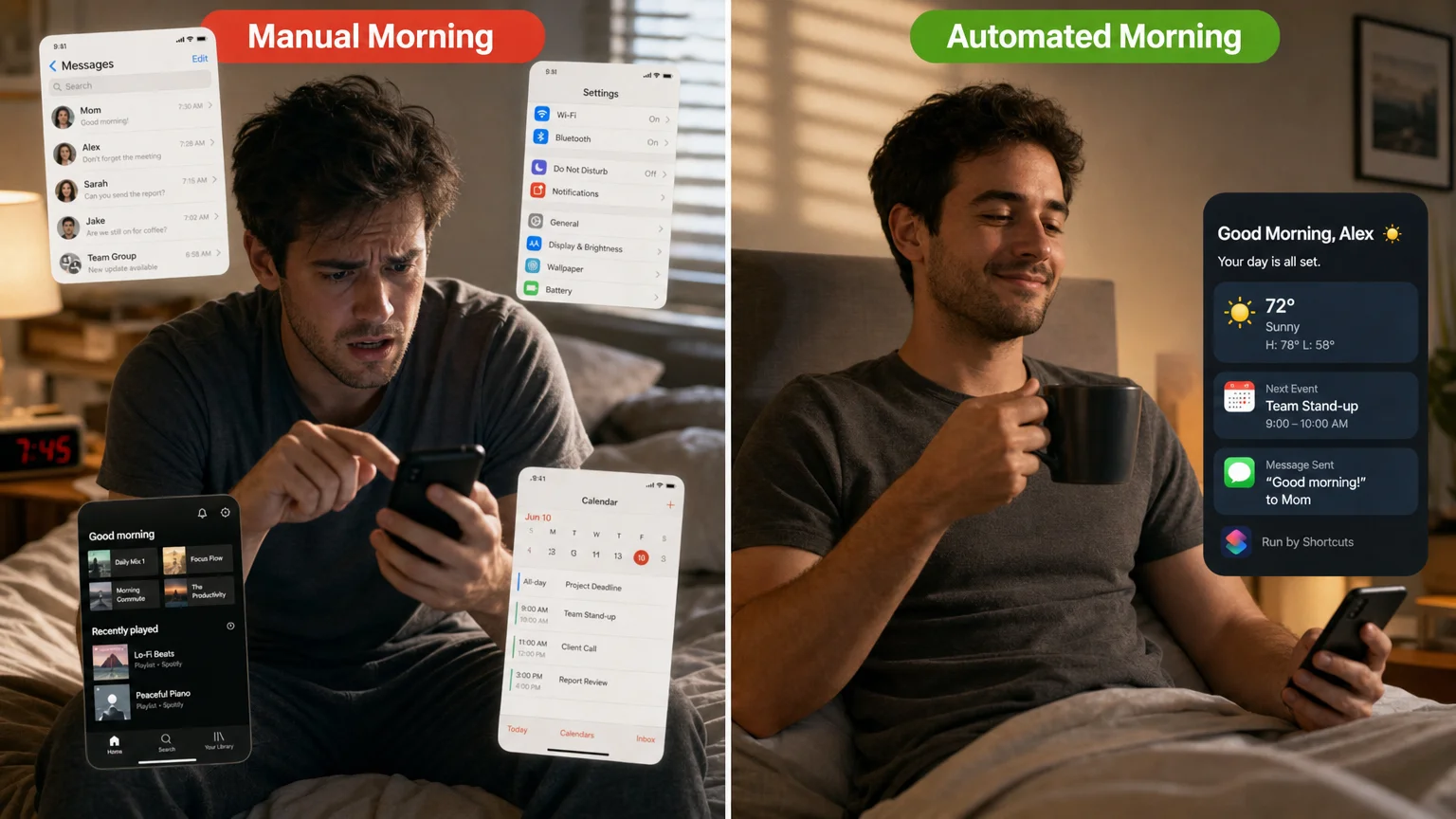
Apple Intelligence, introduced in iOS 18 and expanded in subsequent updates, adds a layer of contextual awareness that complements Shortcuts without replacing it. Siri can now suggest relevant shortcuts based on your patterns, and the system can surface automations proactively — for example, suggesting you run your morning routine shortcut when it detects you have dismissed your alarm.
What Apple Intelligence does not yet do is write complex Shortcuts for you from scratch. It can help with simple one-action shortcuts via natural language, but multi-step morning routines still require manual construction in the Shortcuts editor. For a fuller picture of what the feature can and cannot do, the analysis of Apple Intelligence: what it does, doesn’t, and who it’s for is worth reading before setting expectations.
The practical upshot for 2026: use Shortcuts for the structured, repeatable parts of your morning. Let Apple Intelligence handle opportunistic suggestions and Siri queries. They complement each other well.
Can You Automate Your Morning Routine Across iPhone, Mac, and Apple Watch?
Yes, with some nuance. Shortcuts syncs via iCloud, so any shortcut built on iPhone appears on Mac and iPad automatically. However, automations (the triggered versions) are device-specific — a Personal Automation set up on iPhone will not fire on your Mac.
For a cross-device morning workflow:
- iPhone handles time-based triggers, Focus modes, messages, and music.
- Mac can run a separate automation triggered by opening the lid or logging in — useful for launching a specific workspace layout or opening a project management tool.
- Apple Watch can display a Shortcut as a complication and trigger it with a tap, making it easy to run a “start day” shortcut from your wrist without touching your phone.
Apple Watch users who want to understand the full capability of the device as a productivity tool may find the comparison of Apple Watch Ultra 2 vs. Series 10 useful for deciding which hardware best supports this kind of workflow.
Building a Morning Routine That Actually Sticks
The most effective approach to automating your morning routine with Apple Shortcuts is incremental. Start with one or two high-value actions — disabling Sleep Focus and queuing a playlist, for example — and run that automation for a week before adding more. Complexity added too quickly leads to automations that get disabled because something occasionally goes wrong.
The platform is capable, well-supported, and available to every iPhone and Mac user at no additional cost. The investment is time spent thinking clearly about what your mornings actually look like, then translating that into a short action stack. Once it is running, the routine becomes invisible — which is exactly the point.
For readers interested in how Apple’s broader software capabilities are evolving, the detailed look at how Apple Intelligence actually works — and where it falls short provides useful context on where the platform is heading. And if you are evaluating whether your current hardware is ready to support these workflows, the guide to macOS Sequoia vs. macOS Ventura covers the software features that matter most for automation users.
Subscribe to We Are MacWise for practical Apple workflow guides delivered as they are published.
Frequently Asked Questions
Do Apple Shortcuts automations work without opening the app?
Yes. Personal Automations run in the background and do not require the Shortcuts app to be open. As long as the automation is enabled and the trigger condition is met, it will fire automatically — provided you have disabled the "Ask Before Running" confirmation prompt in iOS 17 or later.
Can I use Apple Shortcuts to control smart home devices in the morning?
Yes. Shortcuts integrates with HomeKit, which means you can include actions to turn on lights, adjust a thermostat, or unlock a smart lock as part of your morning routine. Third-party HomeKit-compatible devices are supported as long as they are added to the Home app.
Will my morning automation run if my iPhone is in airplane mode?
Actions that require a network connection — such as fetching weather data or sending a message — will fail silently if the device is offline. Actions that are entirely local, such as adjusting brightness, setting a Focus mode, or opening an app, will still run normally.
How many actions can a single Shortcut contain?
There is no published hard limit on the number of actions in a single Shortcut. In practice, very long automations can occasionally time out or behave unpredictably. Keeping morning routines to 10–15 focused actions is a reasonable guideline for reliability.
Can I have different morning automations for weekdays and weekends?
Yes. When setting up a Time of Day trigger, you can specify which days of the week it runs. Create one automation for Monday through Friday and a separate one for Saturday and Sunday with different actions or a later trigger time.
Does automating my morning routine drain the battery faster?
The battery impact of a typical morning automation is negligible. Running a dozen lightweight actions once per day — adjusting settings, sending a message, fetching weather — consumes a fraction of a percent of battery capacity. Automations that stream audio continuously or run location checks repeatedly would have a more noticeable effect.
Can Shortcuts access third-party apps like Spotify or Notion?
Many third-party apps expose Shortcuts actions through Apple's Shortcuts API. Spotify, Notion, Fantastical, Streaks, Day One, and dozens of others support this. Check the app's settings or the Shortcuts action library to confirm whether a specific app is supported.
Founder and editor of We Are MacWise, with more than 30 years of Apple-focused IT experience helping professionals and small businesses.
