
Founder and editor of We Are MacWise, with more than 30 years of Apple-focused IT experience helping professionals and small businesses.
Research from the University of California, Irvine consistently finds that it takes an average of 23 minutes to fully regain focus after an interruption. For writers working across a Mac and iPhone, interruptions are not occasional — they are structural, baked into the default state of both devices. Building a distraction-free writing workflow on Mac and iPhone is not about willpower; it is about designing an environment where deep work is the path of least resistance.
Key Takeaways
- Focus Mode on iPhone and Mac can be configured to silence everything except writing-related apps and contacts.
- Full-screen writing apps combined with a hidden menu bar eliminate the visual noise that triggers task-switching.
- iCloud sync keeps drafts consistent across Mac and iPhone without manual file management.
- Scheduled writing blocks, enforced by Focus automations, remove the decision of when to start.
- The best distraction-free setup is one you will actually use — complexity defeats the purpose.
- Notification audits (not just silencing) permanently reduce incoming interruptions at the source.
- A small set of dedicated writing apps outperforms a general-purpose tool configured to approximate focus.
What Does a Distraction-Free Writing Workflow Actually Require?
A distraction-free writing workflow requires three things working together: a controlled environment (system-level settings), a well-chosen tool (the writing app), and a repeatable habit layer (scheduling and rituals). Most writers address only one of these — usually the app — and wonder why the workflow still breaks down.
On Apple devices, the environment layer is more configurable than most users realize. macOS and iOS share a Focus Mode framework that, when set up correctly, creates a consistent writing context across both devices simultaneously. The tool layer is where personal preference matters most, but the choice should be made against clear criteria. The habit layer is where the system becomes self-sustaining.
How to Configure Focus Mode for Writing on Mac and iPhone
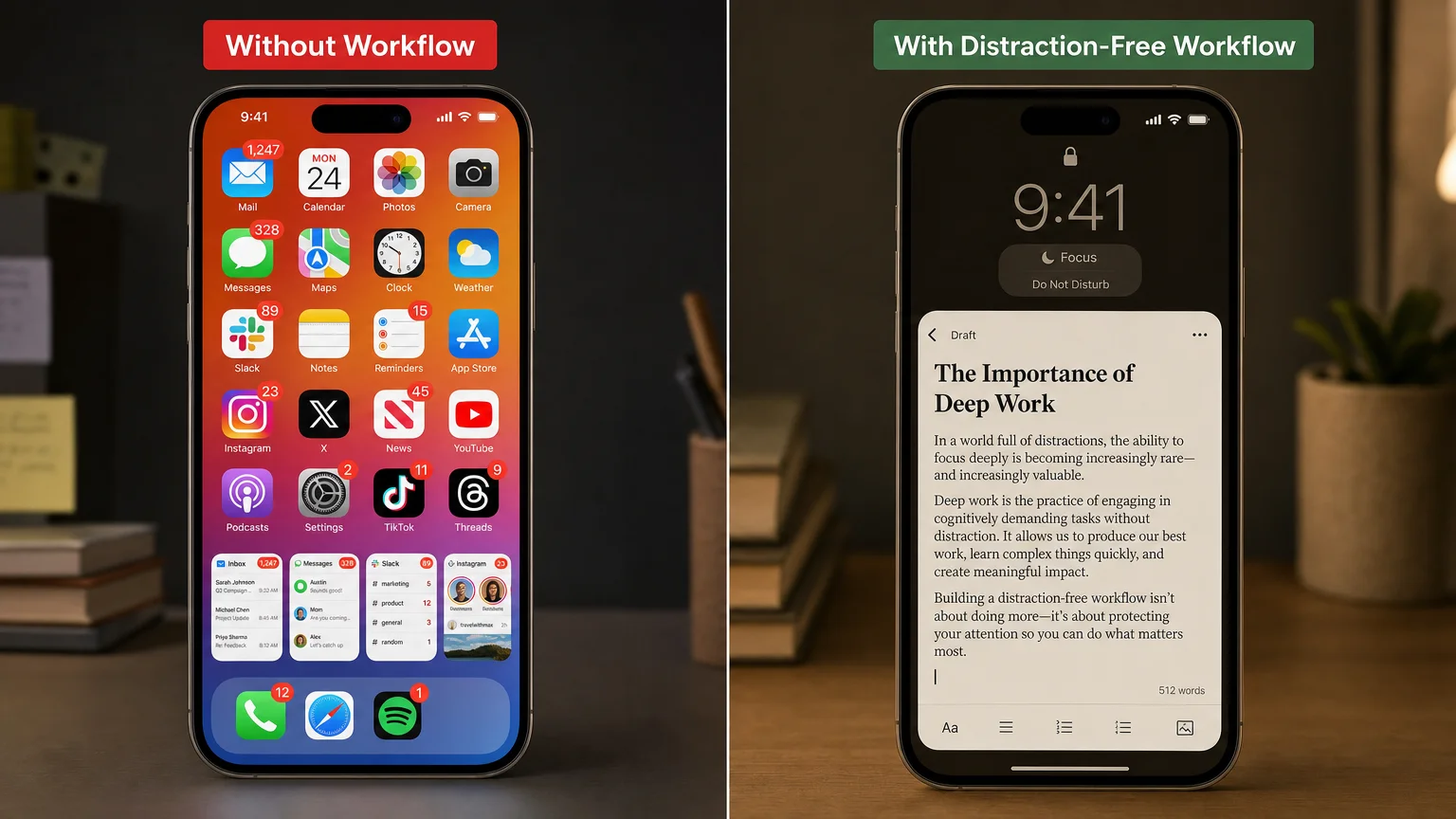
Focus Mode is the most underused productivity feature in the Apple ecosystem. A dedicated Writing Focus — separate from Do Not Disturb — lets you allow specific apps (your writing tool, a reference app, perhaps a music player) while blocking everything else, including Mail, Messages, and social feeds.
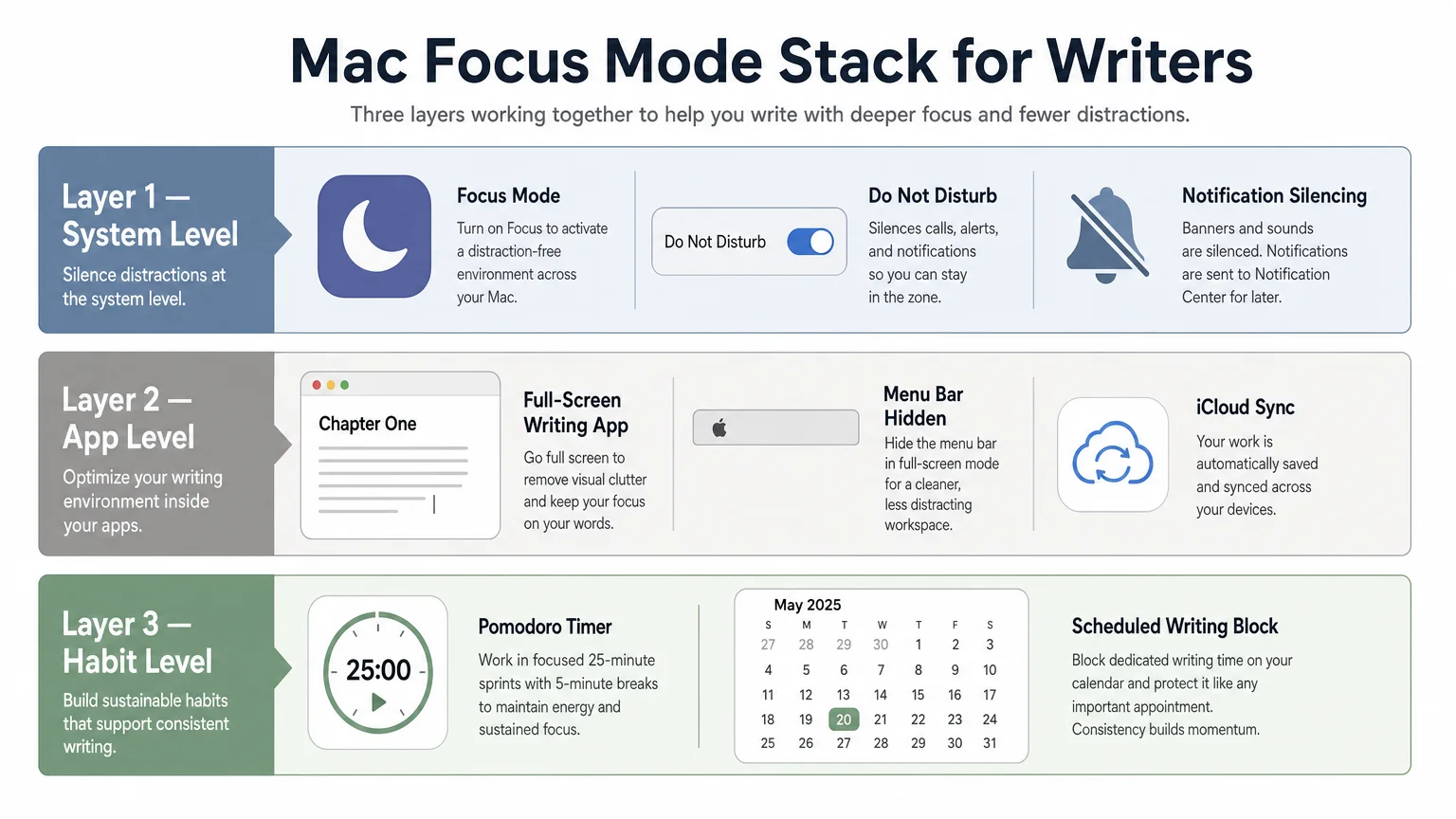
To set this up on iPhone, go to Settings → Focus → + and create a custom Focus called “Writing.” Under Allowed Apps, add only your writing application and any reference tools you genuinely need mid-session. Under Allowed People, add only contacts whose messages you cannot defer. Enable Focus Filters to set your Home Screen to a writing-only page — a single app icon on a clean wallpaper is not minimalism for its own sake; it removes the visual cue that triggers app-switching. On Mac, open System Settings → Focus, select your Writing Focus, and mirror the same app and notification permissions. Crucially, enable Share Across Devices so that activating Writing Focus on your iPhone automatically activates it on your Mac. This single toggle closes the most common gap in cross-device writing setups: the Mac is locked down, but the iPhone remains a distraction portal.
Schedule the Focus to activate automatically during your core writing hours. If you write from 7–9 a.m., set the automation once and remove the daily decision. Automations can also trigger on location (arriving at a coffee shop) or when a specific app opens — opening iA Writer or Ulysses can activate Writing Focus without any manual step.
Which Writing Apps Best Support a Distraction-Free Workflow on Mac and iPhone?
The right app depends on what you write, how long your documents are, and whether you need structured organization or just a fast, clean editor. Here is a practical comparison of the leading options in 2026:
| App | Best For | Mac | iPhone | iCloud Sync | Price |
|---|---|---|---|---|---|
| iA Writer | Focused prose, journalism | ✓ | ✓ | ✓ | One-time purchase |
| Ulysses | Long-form, book-length work | ✓ | ✓ | ✓ | Subscription |
| Drafts | Quick capture, short-form | ✓ | ✓ | ✓ | Free / Pro subscription |
| Bear | Notes + writing hybrid | ✓ | ✓ | ✓ | Free / Pro subscription |
| Scrivener | Research-heavy long projects | ✓ | ✓ | Manual sync | One-time purchase |
| Apple Notes | Lightweight, always available | ✓ | ✓ | ✓ | Free |
iA Writer remains the benchmark for distraction-free prose editing. Its focus mode dims everything except the sentence you are writing, and its Markdown-based format keeps files portable. Ulysses is the better choice for writers managing multiple long-form projects — its sheet-based organization and export pipeline are genuinely superior for book or newsletter work. Drafts excels as a capture layer: every new document opens to a blank page immediately, making it ideal for the iPhone side of a workflow where speed of capture matters more than organization.
For writers already deep in the Apple ecosystem, the combination of iA Writer on Mac for drafting and Drafts on iPhone for capture — with both syncing to iCloud — covers most professional writing needs without subscription overhead on the Mac side.
How Should You Structure Your Mac Desktop for Deep Writing Sessions?
The Mac desktop environment has more visual noise than most writers acknowledge. Menu bar icons, the Dock, desktop files, and browser tabs all compete for attention even when no notification arrives.
A clean Mac writing environment involves four adjustments. First, enable full-screen mode in your writing app — this hides the menu bar and Dock entirely, leaving only the document. Second, use Mission Control to assign your writing app to a dedicated Space, so switching to it is a single swipe with no other windows visible. Third, set your Dock to auto-hide permanently, not just during writing sessions — the habit of not looking at the Dock transfers to writing time. Fourth, consider a menu bar manager like Bartender or Ice to collapse all menu bar icons into a single toggle; the visual reduction is more significant than it sounds.
Browser management deserves its own note. If research is part of your writing process, keep a separate browser profile (Safari supports profiles natively as of macOS Sonoma) dedicated to writing research, with no social media, no news, and no email tabs. Opening that profile is a context signal: you are in research mode, not browsing mode.
If you are setting up a new Mac for a writing-focused workflow, the article on how a 10-person design studio moved to Apple Silicon covers relevant decisions about machine configuration and app environments that apply equally to individual writers.
What Notification Audit Should You Run Before Relying on Focus Mode?
Focus Mode manages notifications during writing sessions, but it does not reduce the total volume of interruptions — it defers them. If 80 notifications accumulate during a two-hour writing block, the end of that block becomes its own distraction spiral.
A notification audit means reviewing Settings → Notifications on iPhone and System Settings → Notifications on Mac and asking, for each app: does this app need to notify me at all? The honest answer for most apps is no. Disable notifications entirely for social media, shopping, and news apps. Set email to deliver silently — badge only, no banners, no sounds. Reduce Messages to banners from specific contacts only.
This audit is a one-time investment of about 20 minutes that permanently lowers the ambient noise level of both devices. It pairs well with reviewing your iPhone privacy settings, since many apps that over-notify are also over-collecting data.
How Does Apple Intelligence Affect Writing Workflows in 2026?
Apple Intelligence, available on iPhone 15 Pro and later and on Apple Silicon Macs, introduces writing tools directly into the system — rewriting, proofreading, and summarization available in any text field. For distraction-free workflows, this is a double-edged capability.
The benefit: having a capable proofreading layer built into the OS means fewer context switches to external grammar tools. The risk: AI writing suggestions can interrupt the drafting state if they appear too aggressively. The practical recommendation is to disable Writing Tools suggestions during active drafting (they can be invoked manually when needed) and use them only during the revision pass. This preserves the blank-page focus of the drafting session while still capturing the efficiency gains during editing.
For a fuller picture of what these tools can and cannot do, the Apple Intelligence explainer and the deeper analysis of how Apple Intelligence actually works are worth reading before integrating these features into a professional writing workflow.
What Hardware and Accessories Support a Distraction-Free Writing Setup?
The device itself matters less than the configuration, but hardware choices do influence the writing environment. A few considerations:
- External keyboard: Many writers find that a physical keyboard — even Apple’s Magic Keyboard — creates a cleaner mental separation between “writing mode” and casual device use on a MacBook.
- Display: A single, uncrowded display is preferable to a multi-monitor setup for writing. Multiple screens multiply the surface area for distraction.
- iPhone placement: The most effective distraction-free iPhone configuration is face-down, in another room, with Writing Focus active. Physical distance remains more reliable than any software setting.
- Headphones: Noise-cancelling headphones (AirPods Pro or over-ear alternatives) serve a dual function — blocking ambient noise and signaling to others that you are unavailable.
Building the Workflow That Sticks
A distraction-free writing workflow on Mac and iPhone is not a single app purchase or a one-time settings change. It is a small system — Focus Mode, a well-chosen writing app, a clean desktop environment, a notification audit, and a scheduled writing block — where each component reinforces the others.
The writers who maintain deep work over months and years are not the ones with the most sophisticated setups. They are the ones whose setup is simple enough to activate without friction and consistent enough to become a conditioned context switch. Start with Focus Mode and one writing app. Add the desktop adjustments. Run the notification audit. The habit layer follows from the environment.
For those setting up a new device as part of this workflow, the guide on how to set up a new iPhone the right way from day one covers the foundational configuration decisions that make everything described here easier to implement from scratch.
Frequently Asked Questions
Does Focus Mode sync automatically between Mac and iPhone?
Yes, if you enable "Share Across Devices" in Focus settings. Activating a Focus on one Apple device will activate it on all devices signed into the same Apple ID, provided each device has the same Focus configured.
What is the best free writing app for a distraction-free Mac setup?
Apple Notes is the most capable free option — it syncs instantly via iCloud, supports full-screen mode, and has no subscription cost. For writers who want Markdown support without paying, iA Writer offers a free trial and Bear has a functional free tier.
Can I use Focus Filters to open a specific writing app automatically?
Yes. In iOS 16 and later (and macOS Ventura and later), Focus Filters allow you to specify that activating a Focus opens a particular app or switches to a particular Home Screen page. You can also trigger a Focus automatically when a specific app opens.
How do I stop iCloud from syncing mid-session and causing interruptions?
iCloud syncs in the background and should not interrupt writing. If you notice sync activity affecting performance, writing to a local file and syncing manually after a session is a reliable workaround — most dedicated writing apps support both local and iCloud storage.
Is Ulysses worth the subscription cost for occasional writers?
Probably not. Ulysses is best justified by daily or near-daily use across multiple long-form projects. Occasional writers get equivalent distraction-free functionality from iA Writer (one-time purchase) or Bear (free tier), without recurring costs.
How long should a focused writing session be?
The evidence most cited in productivity research supports sessions of 25–90 minutes with a defined break. The Pomodoro method (25 minutes on, 5 minutes off) works well for writers who struggle to start; longer 60–90 minute blocks suit writers who need momentum to reach depth. The session length matters less than its consistency.
Does using a MacBook versus a Mac desktop affect the writing workflow?
The workflow configuration is identical. The practical difference is that a MacBook's portability introduces more location variability, which can be an asset (a coffee shop with no Wi-Fi is a natural distraction barrier) or a liability (working on a couch with a phone nearby). The setup described here applies to both.
Founder and editor of We Are MacWise, with more than 30 years of Apple-focused IT experience helping professionals and small businesses.
