
Founder and editor of We Are MacWise, with more than 30 years of Apple-focused IT experience helping professionals and small businesses.
Starting a small business on a Mac is one of the more sensible technology decisions available in 2026 — but only if the initial setup is done properly. A misconfigured machine can cost hours of troubleshooting, create security gaps, or lock you into workflows that don’t scale. This guide covers how to set up a Mac for a small business from scratch, step by step, with a professional approach that holds up as the business grows.
Key Takeaways
- Choose Mac hardware based on your workload, not just budget — the wrong chip tier causes bottlenecks.
- Separate your personal Apple ID from your business identity from day one.
- A structured app stack (productivity, communication, accounting, cloud storage) prevents tool sprawl.
- FileVault, a password manager, and automatic updates are non-negotiable for business security.
- Time Machine plus a cloud backup is the minimum acceptable backup strategy.
- iCloud Business Essentials or a third-party MDM solution makes multi-device management manageable.
- Setting up correctly at the start takes a few hours; fixing a bad setup takes days.
Which Mac Should a Small Business Actually Buy?
The right Mac for a small business depends on the primary workload, not the price tag. For most office-based tasks — email, documents, video calls, light accounting — a MacBook Air with an M-series chip handles everything without thermal throttling or fan noise. For video editing, 3D rendering, or running multiple virtual machines, a MacBook Pro or Mac mini with a higher-tier Apple Silicon chip is worth the extra investment.
Key questions to answer before purchasing:
| Use Case | Recommended Model | Minimum RAM |
|---|---|---|
| Admin, email, docs | MacBook Air M3/M4 | 16 GB |
| Design, photography | MacBook Pro 14” M4 | 24 GB |
| Video editing, dev | MacBook Pro 16” M4 Pro | 36 GB |
| Shared office desktop | Mac mini M4 | 16 GB |
| High-throughput server | Mac Studio / Mac Pro | 64 GB+ |
If budget is a constraint, a certified refurbished Mac with Apple Silicon is worth serious consideration. The performance-per-dollar ratio remains strong, and the machines carry the same warranty options as new units. For a thorough breakdown of what to check before buying secondhand, see everything you need to know before buying a refurbished Mac.
How to Set Up a Mac for a Small Business: The First Boot Sequence
The decisions made during macOS Setup Assistant set the foundation for everything else. Getting them right the first time matters.
Use a dedicated Apple ID for the business. Mixing personal purchases, iCloud photos, and business licenses under one Apple ID creates problems when the business grows, when an employee needs access, or when devices need to be transferred. Create a new Apple ID with a business email address before powering on the Mac for the first time.
Create a standard admin account. Name it clearly (e.g., the business name or owner’s name). Avoid spaces in the username — it simplifies terminal commands and file paths later.
Enable FileVault during setup. macOS will prompt for this. Say yes. Full-disk encryption protects client data if the machine is ever lost or stolen, and it has no meaningful performance penalty on Apple Silicon Macs.
Skip iCloud Drive auto-sync for now. Configure it deliberately after the machine is fully set up, not during the initial wizard, so you control exactly what syncs.
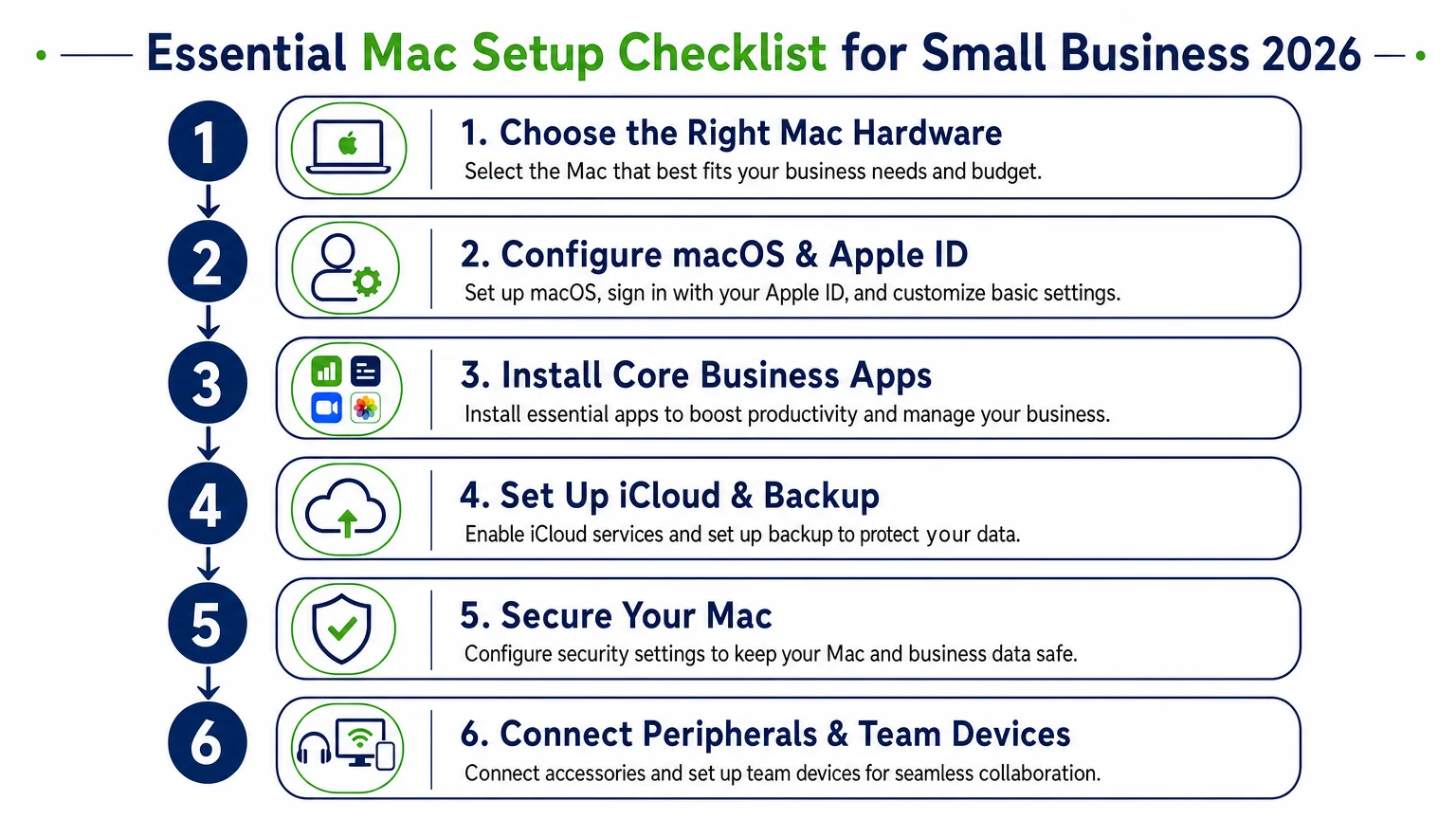
Connect to a secure network. Avoid setting up a business Mac on public Wi-Fi. Use a trusted network or a mobile hotspot during the initial configuration.
What Apps Does a Small Business Mac Need From Day One?
A lean, deliberate app stack beats a cluttered one. The goal is to cover every core business function without overlap or redundancy.
Productivity and documents: Apple’s own Pages, Numbers, and Keynote handle most document needs and are free. For teams that collaborate with Windows users heavily, Microsoft 365 (subscription) or LibreOffice (free) are the practical alternatives.
Communication: Slack or Microsoft Teams for internal messaging. Apple Mail configured with a custom domain email (via Google Workspace, Fastmail, or Proton Business) for external correspondence.
Accounting and invoicing: FreshBooks, QuickBooks for Mac, or Wave (free tier) cover the range from freelancer to small team. Connect bank accounts only after enabling two-factor authentication.
Cloud storage and file sharing: iCloud Drive works well for Apple-only teams. Dropbox or Google Drive are better choices for mixed-platform collaboration.
Password management: 1Password or Bitwarden (open-source, free tier available). This is not optional for a business — shared credentials need to be managed securely, not stored in a spreadsheet.
Video conferencing: Zoom or FaceTime for Apple-to-Apple calls. Both are free at the basic tier.
Project management: Notion, Linear, or Basecamp depending on team size and complexity.
Install apps from the Mac App Store where possible — it simplifies updates and ensures sandboxing. For apps outside the App Store, download only from the developer’s official website.
How Should a Small Business Handle Mac Security?
Security for a small business Mac is not complicated, but it requires deliberate configuration. The default macOS settings are reasonably secure; the gaps are almost always in human behavior and missing layers.
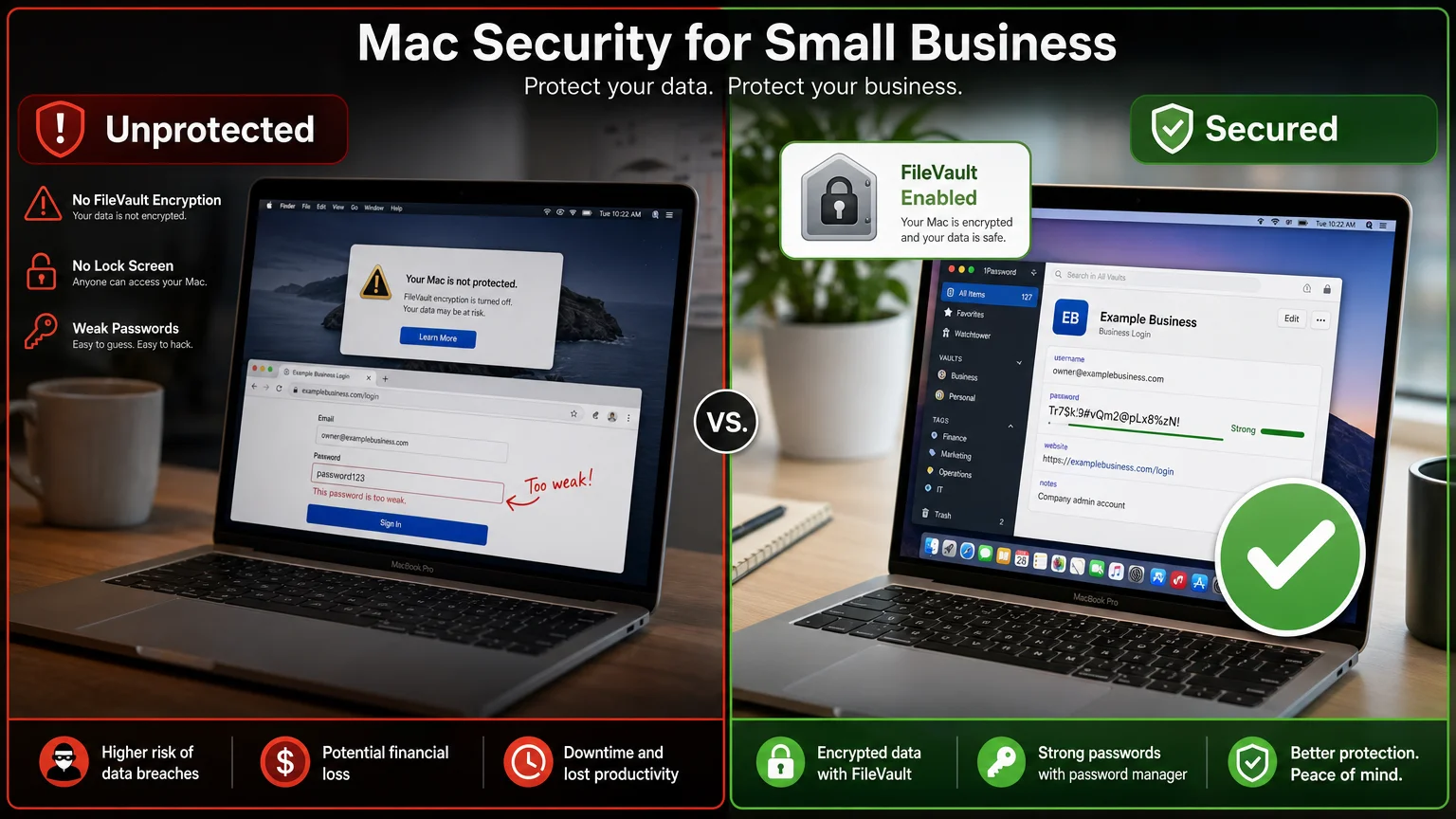
The minimum viable security stack for a small business Mac in 2026:
- FileVault — enabled at setup (see above).
- Password manager — 1Password or Bitwarden, with unique strong passwords for every service.
- Two-factor authentication — enabled on the Apple ID, business email, banking, and any SaaS tools.
- Automatic updates — System Settings → General → Software Update → enable automatic updates for macOS and App Store apps.
- Screen lock — set to activate after 2–5 minutes of inactivity.
- Firewall — System Settings → Network → Firewall → enable.
- Gatekeeper — leave at default (“App Store and identified developers”). Do not disable it.
For teams handling sensitive client data, consider a dedicated DNS-layer filter (NextDNS or Cloudflare Gateway) and a business VPN for remote work. For a broader look at privacy configuration, the principles in iPhone privacy settings every user should review right now translate directly to macOS as well.
What Is the Right Backup Strategy for a Small Business?
A single backup is not a backup strategy. The standard recommendation for business data is the 3-2-1 rule: three copies of data, on two different media types, with one copy offsite.
Practical implementation for a small business Mac:
- Time Machine to an external SSD connected to the Mac or a NAS on the local network. This covers accidental deletion and local hardware failure.
- Cloud backup via Backblaze Business Backup ($99/year per computer as of their current pricing) or iCloud Drive for documents. This covers fire, theft, and catastrophic hardware loss.
- Version history in your cloud storage tool (Dropbox, Google Drive) as a third layer for critical working files.
Test restores periodically. A backup that has never been tested is an assumption, not a safety net.
How Do You Manage Multiple Macs or Add Employees?
When the business grows beyond one Mac, management overhead grows with it. Apple offers two paths: iCloud for very small teams and Mobile Device Management (MDM) for anything more structured.
Apple Business Manager is Apple’s free web portal for deploying devices, managing Apple IDs, and purchasing apps in volume. It integrates with MDM solutions like Jamf, Kandji, or Mosyle. For a team of two or three, the overhead of a full MDM may not be justified — but setting up Apple Business Manager early costs nothing and makes future scaling easier.
iCloud Business Essentials (Apple’s own MDM-lite product) covers basic device management, iCloud storage sharing, and app distribution for small teams at a per-user monthly fee. It is not as capable as Jamf, but it requires no IT expertise to configure.
For context on how a slightly larger team handled the transition to Apple Silicon across multiple machines, the case study in how a 10-person design studio moved to Apple Silicon is worth reading before making hardware purchasing decisions at scale.
Should a Small Business Use Apple Intelligence Features?
Apple Intelligence — Apple’s on-device AI layer introduced in macOS Sequoia and expanded through 2025 — is available on all M-series Macs. For small businesses, the most practically useful features are writing tools (rewriting and summarizing text in any app), notification summaries, and the improved Siri integration with third-party apps.
The features that matter most for business use are available without any subscription. Some capabilities require an iCloud+ subscription for Private Cloud Compute processing. For a clear-eyed assessment of what the technology actually does and where it falls short, Apple Intelligence: what it does, doesn’t, and who it’s for covers the ground honestly.
Setting Up Right the First Time
Learning how to set up a Mac for a small business from scratch is a one-time investment that pays back in avoided downtime, avoided data loss, and avoided security incidents. The steps are not complicated — but they need to happen in the right order, with deliberate choices at each stage.
Start with the right hardware for the actual workload. Build a clean Apple ID and account structure. Install a lean, purposeful app stack. Lock down security before the machine touches client data. And configure backups before the machine holds anything irreplaceable.
For more on building an efficient Apple-based workflow, explore the Apple Intelligence overview or subscribe to We Are MacWise for ongoing coverage of Mac tools, workflows, and buying decisions.
Frequently Asked Questions
Do I need a separate Apple ID for my business?
Yes. Using a dedicated Apple ID for business keeps purchases, iCloud data, and device management separate from personal accounts. It also simplifies transitions if an employee leaves or if the business is ever sold.
Is a MacBook Air sufficient for most small business tasks?
For the majority of small business work — documents, email, video calls, light design, and accounting — a MacBook Air with an M3 or M4 chip is more than sufficient. Only compute-intensive tasks like video editing or software development require a Pro or Studio model.
What is the minimum RAM for a business Mac in 2026?
16 GB is the practical minimum for a business Mac running macOS Sequoia with multiple apps open. 8 GB is workable for very light single-task use but will show constraints with browser-heavy workflows or multiple video calls.
How long does it take to fully set up a Mac for a small business?
A thorough initial setup — including OS configuration, app installation, security settings, backup configuration, and email setup — takes approximately three to four hours. Rushing this process is the most common cause of problems discovered weeks later.
Is iCloud Drive good enough for business file storage?
iCloud Drive works well for Apple-only teams and individuals. For teams that include Windows or Android users, or that require granular sharing permissions and detailed version history, Dropbox Business or Google Workspace is a more practical choice.
Should I use the Mac App Store or direct downloads for business apps?
Prefer the Mac App Store when the app is available there — it simplifies updates and ensures the app is sandboxed. For professional tools not available on the App Store (such as many developer or creative tools), download directly from the developer's official website only.
How often should a small business Mac be updated?
Enable automatic security updates. For major macOS version upgrades, wait two to four weeks after the initial release to allow critical bugs to be patched before updating a production machine.
Founder and editor of We Are MacWise, with more than 30 years of Apple-focused IT experience helping professionals and small businesses.
