
Independent guidance for making smarter, safer decisions across the Apple ecosystem.
Roughly one in three people who lose data thought they were already protected. iCloud is the reason many of them were wrong. iCloud sync is not a backup — and understanding the difference between the two is the single most important thing any Mac, iPhone, or iPad owner can do for their data in 2026.
Quick Answer
iCloud keeps your files, photos, and settings consistent across your devices. It does not independently preserve a historical copy of your data. If you delete a file or photo on one device, that deletion propagates to every other device and to iCloud itself — often within seconds. A genuine backup stores an independent copy you can restore from, even after accidental deletion or device failure.
Key Takeaways
- Sync ≠ backup. iCloud mirrors your current state across devices; it does not protect against deletion or corruption.
- Deletion propagates. Remove a photo or document on your iPhone, and iCloud removes it everywhere.
- Recently Deleted has a hard limit. iCloud Photos keeps deleted images for 30 days; iCloud Drive keeps deleted files for 30 days. After that, they are gone permanently.
- iCloud Device Backup is different from iCloud sync — but it only covers iPhones and iPads, not your Mac.
- Time Machine is your Mac’s primary local backup, storing versioned snapshots to an external drive.
- Cloud backup services (Backblaze, Arq, Acronis) provide off-site, versioned copies independent of iCloud.
- A protection matrix — one layer for photos, one for files, one for the whole Mac — is the clearest way to audit your exposure.
What Is the Actual Difference Between Sync and Backup?
Sync and backup are not synonyms. Sync is a mirror: it reflects your current data state across every connected device in real time. Backup is an archive: it stores point-in-time copies of your data that survive changes, deletions, and disasters.
iCloud operates almost entirely as a sync service. When you enable iCloud Photos, every photo you take is uploaded and then made available on every signed-in device. When you enable iCloud Drive, every file you save there is pushed to all your Macs, iPhones, and iPads. This is genuinely useful — but it means iCloud is always showing you the current state of your data, not a preserved historical version of it.
The practical consequence: if ransomware encrypts your files, iCloud syncs the encrypted versions. If you accidentally delete your entire photo library, iCloud propagates that deletion. The cloud faithfully reflects the damage.
How Does Deletion Propagation Work in iCloud?
When you delete a photo in iCloud Photos, it moves to the Recently Deleted album — on every device simultaneously. The same happens in iCloud Drive: deleted files move to a Trash-equivalent that syncs across devices. You have 30 days to recover items from Recently Deleted in iCloud Photos, and 30 days in iCloud Drive’s recently deleted folder. After that window closes, the data is permanently removed from Apple’s servers and from every synced device.
There is no versioning in iCloud Drive for most file types. If you overwrite a Keynote presentation, save a corrupted Pages document, or accidentally clear a Numbers spreadsheet, iCloud does not retain the previous version unless the app itself implements version history (as some Apple apps do via the Revert To feature in macOS). That app-level versioning is not the same as a systematic backup.
This 30-day window feels generous until you consider that many people don’t notice a missing file for weeks — or discover the problem only after the window has closed.
What Does iCloud Device Backup Actually Cover?
Apple offers two distinct iCloud backup features, and the naming causes genuine confusion.
iCloud Backup (for iPhone and iPad) creates a snapshot of your device — app data, settings, messages, and more — stored in iCloud. It runs automatically when your device is plugged in, locked, and on Wi-Fi. This is a form of backup, not just sync. It lets you restore a new iPhone to a previous state.
iCloud for Mac is not the same thing. There is no iCloud Backup for Mac equivalent to the iPhone feature. Macs can sync Desktop and Documents folders to iCloud Drive, and they can sync system settings, but Apple does not offer a full Mac system backup through iCloud. If your Mac’s drive fails, iCloud Drive will restore your synced files — but not your applications, system preferences, local app data outside iCloud Drive, or the macOS installation itself.
This distinction matters enormously for Mac owners who believe their machine is “backed up to iCloud.”
What Is Time Machine and Why Does It Matter?
Time Machine is macOS’s built-in backup system, and it remains the most straightforward way to protect a Mac. It creates incremental, versioned backups to an external drive — typically a USB-C hard drive or a NAS device on your local network.
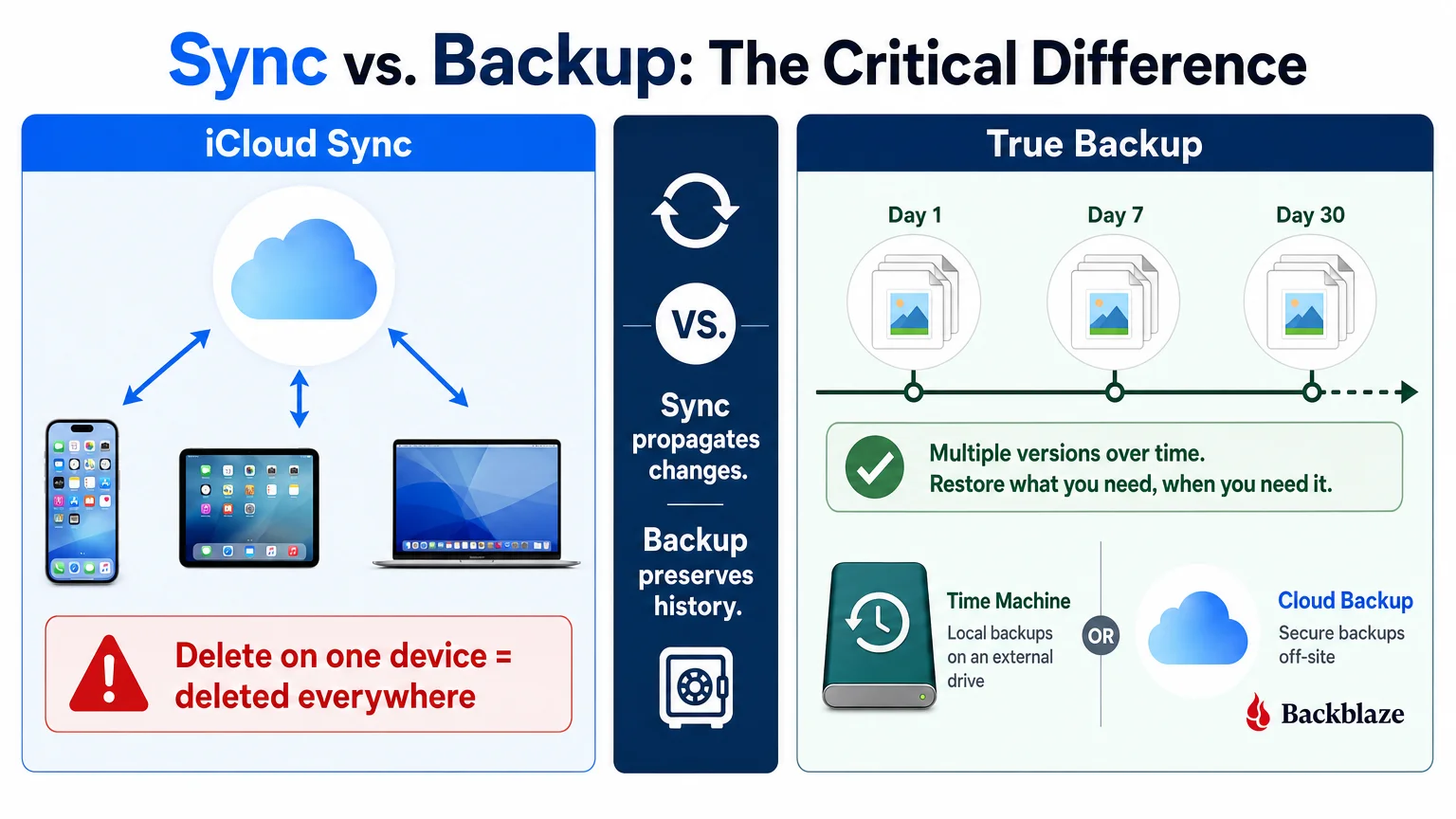
Time Machine stores hourly backups for the past 24 hours, daily backups for the past month, and weekly backups for all previous months, limited only by the drive’s capacity. This versioning means you can restore a file to the state it was in three weeks ago, recover a folder you deleted last Tuesday, or rebuild an entire Mac from scratch after a drive failure.
For most Mac users, the recommended setup is a dedicated external drive of at least twice the Mac’s internal storage capacity — a 2TB drive for a Mac with 1TB of internal storage is a reasonable starting point. Time Machine works entirely locally, which means restores are fast and do not depend on internet bandwidth. The limitation is that the backup drive must be physically present, which means it won’t help if both the Mac and the drive are lost or destroyed in the same event (a fire, a theft).
If you want to understand how macOS version decisions can affect your backup compatibility, Should You Install a Major macOS Upgrade Now — or Wait? covers the tradeoffs worth considering before a major update.
Which Cloud Backup Services Work With Mac?
Off-site cloud backup solves the physical-loss problem that local Time Machine backups cannot address. Several services are worth knowing:
- Backblaze Personal Backup backs up your entire Mac continuously for a flat annual fee. It retains deleted files and previous versions for 30 days (extendable to one year for an additional cost). It is widely considered the most cost-effective option for individuals.
- Arq Backup is a local application that backs up to storage you choose — Amazon S3, Backblaze B2, a NAS, or an external drive. It offers strong versioning and encryption, and suits users who want control over where their data is stored.
- Acronis Cyber Protect Home Office (formerly True Image) provides full-disk backup with ransomware protection, targeting users who want a single tool for both backup and security.
These services are independent of iCloud. They do not mirror your current state — they archive it. That independence is exactly what makes them valuable. For context on how iCloud’s own storage plans compare in value, iCloud+ and Apple One: Plans, Value, and Alternatives breaks down the pricing landscape clearly.
How Should You Protect Photos Specifically?
Photos deserve their own strategy because they are often irreplaceable and because iCloud Photos is so easy to mistake for a backup.
iCloud Photos is a sync service. Your originals live in iCloud and on any device set to “Download Originals.” If you delete photos, they are gone after 30 days. If Apple’s servers experienced a catastrophic failure (extremely unlikely, but not impossible), your photos would be at risk if iCloud is your only copy.
A sound photo protection approach includes at least two of the following:
- Time Machine backing up your Photos library on your Mac (requires “Download Originals to this Mac” to be enabled in Photos settings).
- A cloud backup service (Backblaze, for example) that continuously backs up your Mac’s Photos library.
- A dedicated photo archive service such as Google Photos or Amazon Photos as a secondary copy — not as a replacement for a true backup, but as an additional redundant copy.
- Periodic local exports to an external drive, organized by year, for a static archive that requires no subscription.
The key principle: your photos should exist in at least three places — the original location, a local backup, and an off-site or cloud backup. This is the 3-2-1 backup rule applied to photos.
What Is a Simple Protection Matrix for Mac Users?
The table below summarizes which tools protect which data category and what their limitations are.
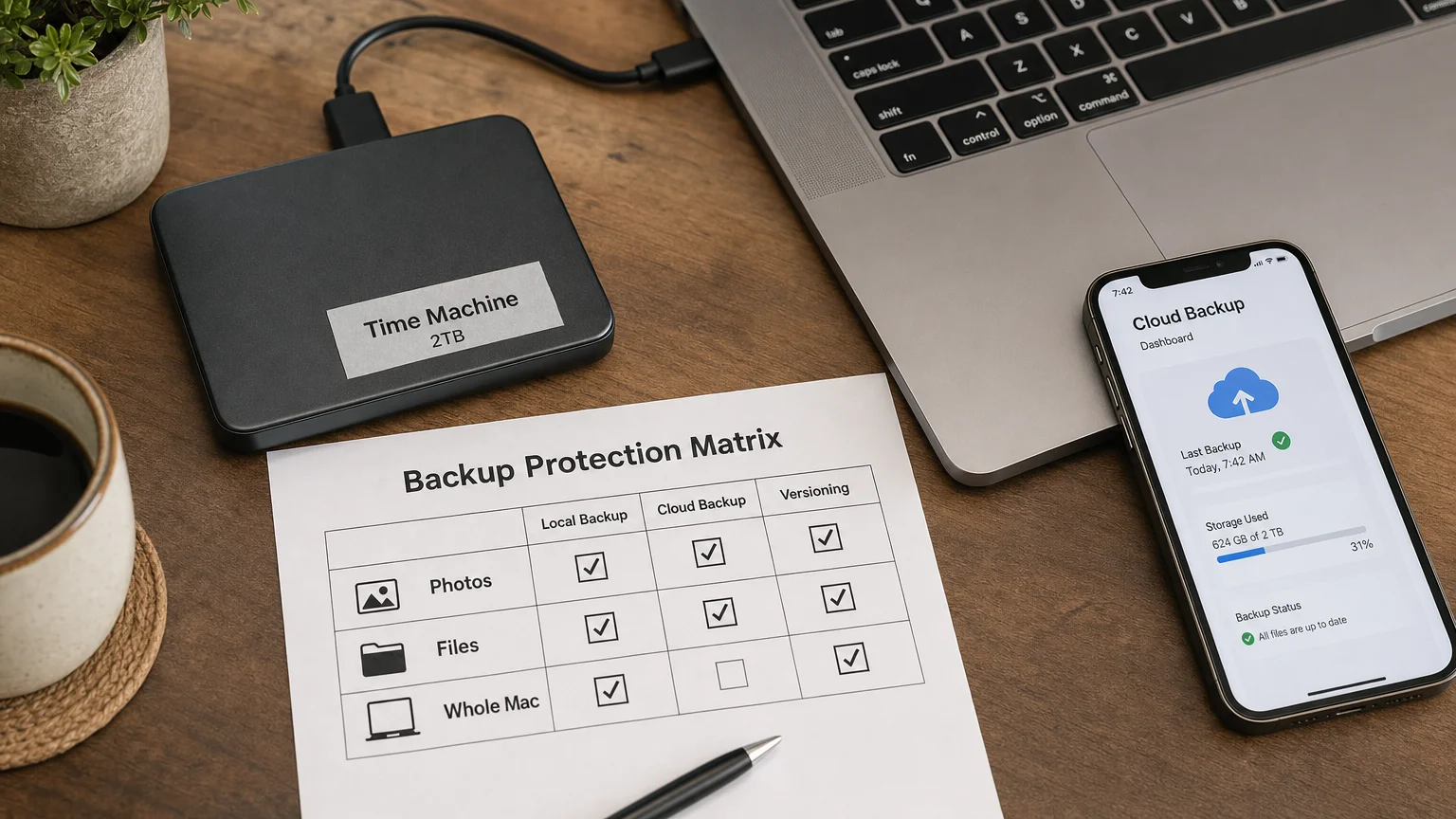
| Data Type | iCloud Sync | iCloud Device Backup | Time Machine | Cloud Backup Service |
|---|---|---|---|---|
| Photos | Syncs, not backed up | iPhone/iPad only | ✅ (if originals on Mac) | ✅ |
| iCloud Drive files | Syncs, not backed up | iPhone/iPad only | ✅ (if downloaded locally) | ✅ |
| Local Mac files | ❌ | ❌ | ✅ | ✅ |
| Mac system & apps | ❌ | ❌ | ✅ | ✅ (some services) |
| iPhone/iPad data | Partial (sync) | ✅ | ❌ | ❌ (Mac-focused services) |
| Versioning | Limited (app-level) | Limited | ✅ | ✅ (varies by service) |
| Off-site protection | ✅ | ✅ | ❌ | ✅ |
The honest read of this table: no single tool covers everything. iCloud alone leaves your Mac unprotected. Time Machine alone leaves you exposed to physical loss. A cloud backup service alone may not cover your iPhone. The complete picture requires at least Time Machine plus a cloud backup service, with iCloud treated as a convenience layer — not a safety net.
For users concerned about the broader security picture on their devices, How to Set Up a Privacy-First iPhone in 2026 and What to Do If Your iPhone Is Lost, Stolen, or Compromised are worth reading alongside this guide.
Should You Test Your Backups?
A backup you have never tested is a backup you cannot trust. The only way to know a backup works is to restore from it — at least partially. This means periodically:
- Restoring a single file from Time Machine to confirm the drive is readable and the backup is current.
- Logging into your cloud backup service and verifying the last backup timestamp and file count.
- Checking that iCloud Photos shows “Downloaded” originals on your Mac if you rely on Time Machine to back them up.
- Confirming that your iPhone’s iCloud Backup completed recently (Settings → [your name] → iCloud → iCloud Backup → Last Backup).
Testing does not need to be exhaustive. A five-minute check every few months is enough to catch silent failures — a drive that has stopped mounting, a backup app that lost its credentials, or a storage quota that ran out.
The Bottom Line
iCloud is a genuinely useful service. It keeps your devices in sync, makes your photos available everywhere, and simplifies switching between Apple devices. What it is not — and has never claimed to be — is a backup. Sync propagates your current state, including your mistakes. Backup preserves your history, including the version of a file that existed before something went wrong.
The practical answer for most Mac users in 2026 is a three-layer approach: iCloud for convenience and cross-device access, Time Machine for local versioned backup, and a cloud backup service for off-site protection. Photos need explicit attention — confirm that originals are downloaded to your Mac before Time Machine can protect them.
If you want to think more carefully about your overall Apple security posture, Do You Actually Need a MacBook Pro? A Workload Test Before You Buy and How to Build a Writing Focus Mode on Mac That You Will Actually Use are worth exploring next. And if you have questions about iCloud storage plans and whether upgrading your tier makes sense, iCloud+ and Apple One: Plans, Value, and Alternatives lays out every option clearly.
Frequently Asked Questions
Does iCloud count as a backup for my Mac?
No. iCloud syncs files, photos, and settings across your devices, but it does not create an independent, versioned backup of your Mac. If you delete a file or a photo, that deletion propagates to iCloud and to every synced device. For a true Mac backup, you need Time Machine or a cloud backup service such as Backblaze.
How long does iCloud keep deleted photos?
iCloud Photos moves deleted photos to a Recently Deleted album, where they remain for 30 days. After 30 days, they are permanently deleted from iCloud and from every device signed in to that Apple ID. There is no way to recover them after that window closes unless you have a separate backup.
What is the difference between iCloud Backup and iCloud Drive?
iCloud Backup creates a snapshot of an iPhone or iPad — including app data, messages, and settings — stored in iCloud. iCloud Drive syncs files between your devices. They are separate features. Neither one provides a full Mac backup.
Is Time Machine enough on its own?
Time Machine is excellent for local, versioned backup of your Mac. Its limitation is physical: if the backup drive and your Mac are lost or destroyed together, you lose everything. Pairing Time Machine with an off-site cloud backup service covers that gap.
Can I use Google Photos as a backup for my iCloud Photos library?
Google Photos can serve as a secondary copy of your photos, which adds redundancy. It is not a traditional backup — it does not preserve RAW files at full quality unless you pay for Google One storage, and it does not integrate with macOS restore workflows. Treat it as an additional copy, not a replacement for a proper backup.
What happens to my iCloud Drive files if I cancel my iCloud+ subscription?
If your iCloud storage drops below the amount of data you have stored, Apple gives you a grace period to download your files. After that period, data in iCloud Drive that exceeds the free 5GB tier becomes inaccessible. This is another reason not to treat iCloud as your only copy of important files.
Does Backblaze back up files stored only in iCloud (not downloaded locally)?
Backblaze and most Mac backup services can only back up files that are physically present on your Mac's drive. If iCloud Drive is set to optimize storage — keeping files in the cloud and removing local copies — those files will not be included in a local backup. To ensure full coverage, set iCloud Drive to keep files downloaded locally, or use a backup service that integrates directly with iCloud.
Independent guidance for making smarter, safer decisions across the Apple ecosystem.
