
Independent guidance for making smarter, safer decisions across the Apple ecosystem.
Roughly half of people who buy an iPad also own a Mac — yet the question of which device to prioritize, or which to buy first, remains one of the most common dilemmas in the Apple ecosystem. Spec sheets don’t answer it. The M4 chip inside the iPad Pro and the M4 chip inside the MacBook Air are genuinely comparable in raw compute. What separates them is how each device handles the work you actually do.
This guide approaches the iPad or MacBook decision the way it should be approached: through workloads, not benchmarks.
Quick Answer
If your work centers on text, code, complex spreadsheets, or multi-window research, a MacBook is the more capable daily driver. If your work involves drawing, annotation, casual writing, video calls, or frequent travel, an iPad — especially with a keyboard and Apple Pencil — can match or exceed a MacBook for that specific use. Most people benefit from knowing which device handles 80% of their day before spending anything.
Key Takeaways
- Raw chip performance is nearly identical across current iPad Pro and MacBook Air models; the operating system and input method determine real-world capability.
- iPadOS multitasking has improved significantly but still lacks true windowed app management — a genuine constraint for complex workflows.
- A fully accessorized iPad (Magic Keyboard, Apple Pencil, USB-C hub) can approach MacBook pricing; factor total cost, not just device cost.
- MacBooks handle coding, terminal access, professional spreadsheet work, and file management more naturally than any iPad configuration.
- iPads excel at drawing, annotation, handwriting, travel portability, and accessibility features like Switch Control and eye tracking.
- External display support differs meaningfully: MacBooks extend the desktop; iPads (outside Stage Manager) mirror or offer limited extension.
- The scored self-test below will give you a concrete recommendation based on your actual workload mix.
How Does Each Device Handle the Core Workloads?
The most honest way to compare an iPad and a MacBook is to score each device against specific tasks — not abstract categories like “productivity,” but the actual things you open your device to do.
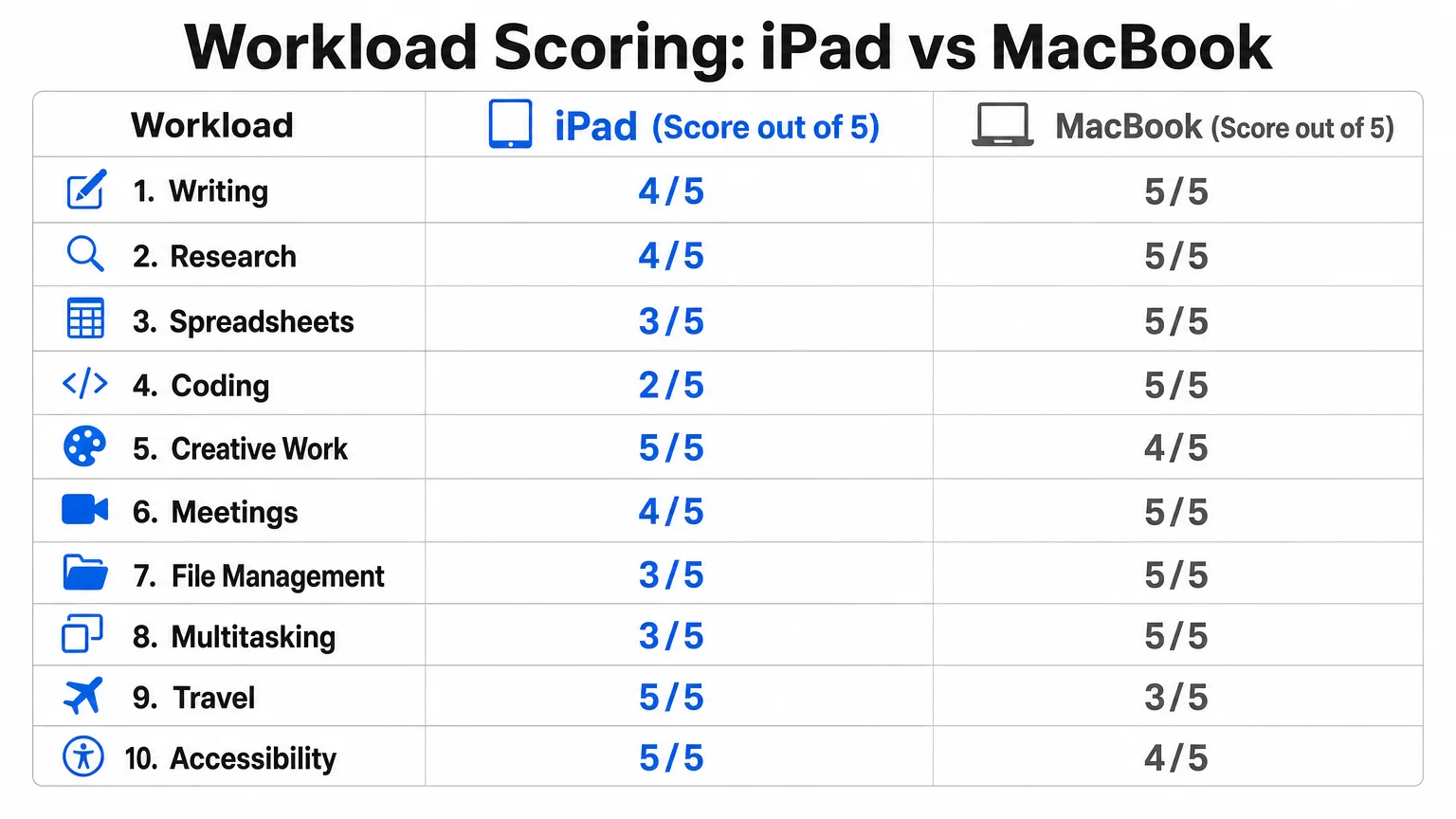
Here is a scored breakdown across ten common workloads, rated out of 5 for each device:
| Workload | iPad | MacBook | Notes |
|---|---|---|---|
| Writing (long-form) | 4 | 5 | MacBook wins on window management; iPad with Magic Keyboard is genuinely good |
| Research (multi-tab) | 3 | 5 | Safari on iPadOS handles fewer simultaneous windows; no true multi-browser |
| Spreadsheets | 3 | 5 | Numbers and Excel on iPad lack full formula depth and macro support |
| Coding | 2 | 5 | No native Xcode on iPad; terminal access is limited to third-party apps |
| Creative (drawing/design) | 5 | 3 | Apple Pencil and ProCreate are unmatched; MacBook requires a drawing tablet |
| Meetings (video calls) | 5 | 4 | iPad camera angle and portability are superior; both handle FaceTime/Zoom well |
| File management | 3 | 5 | Files app has improved but macOS Finder remains far more capable |
| Multitasking | 3 | 5 | Stage Manager helps but windowed apps on macOS are still more flexible |
| Travel / portability | 5 | 3 | iPad is lighter, has optional LTE, and fits in smaller bags |
| Accessibility | 5 | 4 | iPad’s touch, eye tracking, and Switch Control options are broader |
Score totals: iPad 38 / MacBook 44 — but averages obscure the point. If five of your top six workloads fall in rows where iPad scores 5, the aggregate doesn’t matter.
What Does the Self-Test Actually Tell You?
Answer each question honestly, then add your score.
For each statement that describes your typical week, add the indicated points:
- I write more than 2,000 words per day on this device. (MacBook +2)
- I regularly work with more than five browser tabs open simultaneously. (MacBook +2)
- I write or run code, scripts, or use a terminal. (MacBook +3)
- I use complex spreadsheets with macros, pivot tables, or large datasets. (MacBook +2)
- I sketch, annotate PDFs, or create visual work by hand. (iPad +3)
- I travel with this device more than twice a month. (iPad +2)
- I need cellular connectivity away from Wi-Fi. (iPad +3)
- I join video calls from varied locations, not a fixed desk. (iPad +2)
- I manage a large file library with nested folders and frequent renaming. (MacBook +2)
- I use accessibility features like Switch Control, eye tracking, or large text. (iPad +2)
Results:
- MacBook total ≥ 7: A MacBook Air or MacBook Pro is the cleaner fit. Consider an iPad as a secondary device later.
- iPad total ≥ 7: An iPad Pro or iPad Air with a Magic Keyboard will cover most of your work. Budget for a USB-C hub if you need ports.
- Both totals within 3 points of each other: Your workload is genuinely split. Read the scenarios below before deciding.
Which Scenarios Favor the iPad?
The iPad earns its place as a primary device in several concrete situations.
The illustrator or designer. Apple Pencil on iPad Pro (with ProMotion display) is the best stylus experience Apple makes. ProCreate, Affinity Designer, and Adobe Fresco run natively. A MacBook requires an external drawing tablet and a separate driver — more money, more friction.
The frequent traveler. An iPad Pro with a Magic Keyboard weighs under 700g combined. Add optional 5G and you have a connected workstation that clears security faster and fits in a smaller bag. For anyone on planes more than twice a month, this matters.
The student or annotator. Marking up PDFs, handwriting notes in Notability or GoodNotes, and switching between a keyboard and stylus mid-session is something only the iPad does naturally.
The accessibility-first user. iPadOS has broader hardware accessibility options than macOS in 2026, including eye-tracking support via compatible hardware, expanded Switch Control, and AssistiveTouch customization.
Which Scenarios Favor the MacBook?
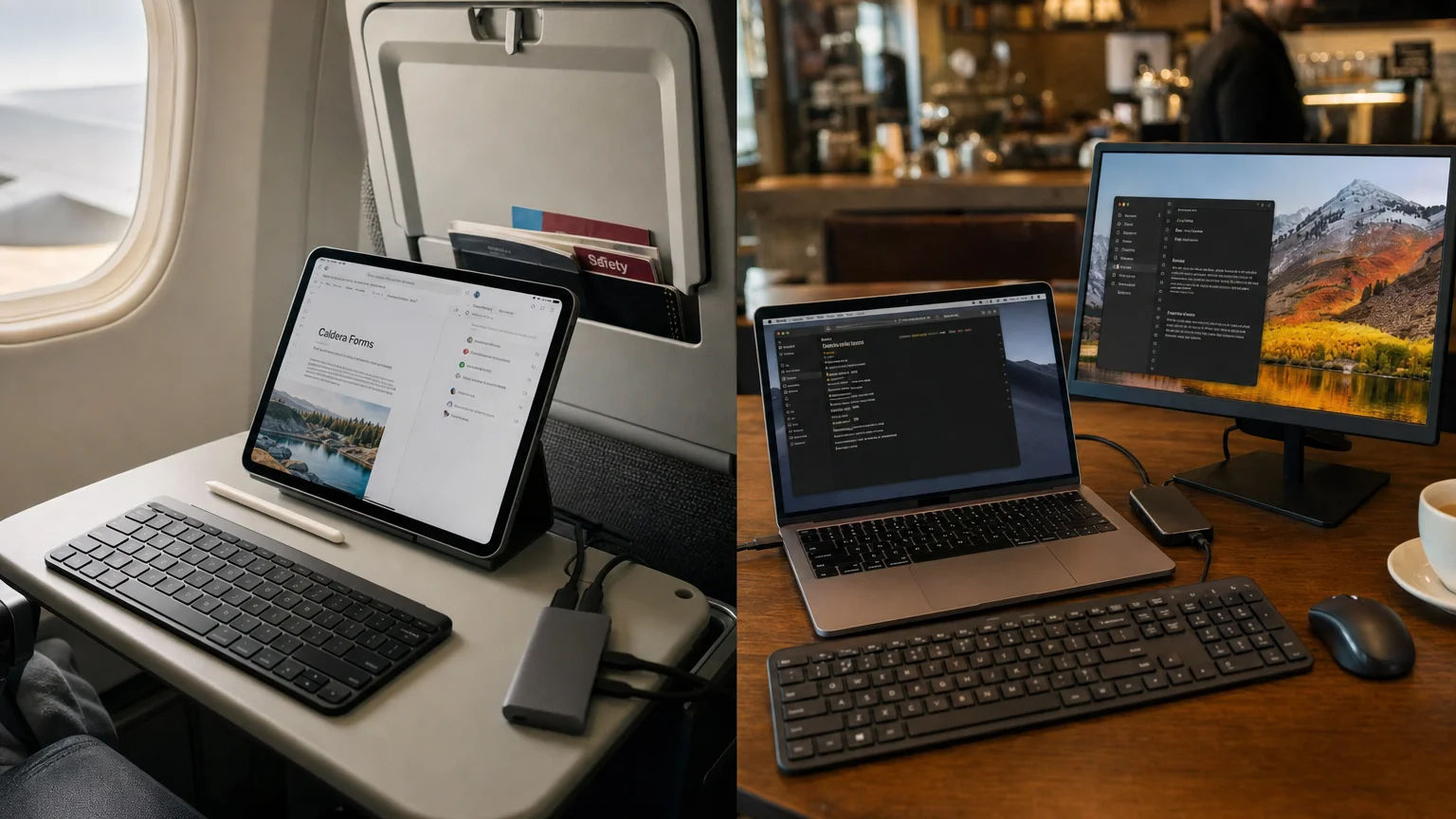
The MacBook’s advantages are most visible when work gets complex or when peripherals matter.
The developer. Xcode runs only on macOS. Terminal, Homebrew, Docker, and the full Unix toolchain are native. An iPad can run SSH clients and lightweight code editors, but it cannot build and deploy iOS apps — which is an absolute constraint, not a preference.
The spreadsheet-heavy analyst. Microsoft Excel on macOS supports the full formula library, VBA macros, and large datasets without the performance ceiling that Excel on iPadOS hits. Numbers on iPad is capable for moderate work but not for financial modeling.
The multi-window researcher. macOS lets you run two full browsers side by side, drag content between apps, and manage dozens of windows across multiple Spaces. iPadOS Stage Manager is a genuine improvement, but it still constrains window count and size in ways macOS does not.
The external display user. A MacBook connected via USB-C to an external monitor extends the desktop fully — two independent screens, each with their own app arrangement. An iPad connected to an external display runs a mirrored or Stage Manager view that is more limited. For anyone building a desk setup, the MacBook is the cleaner anchor. For more on choosing the right Mac for a demanding workload, see Do You Actually Need a MacBook Pro? A Workload Test Before You Buy.
What Does Total Cost Look Like for Each Setup?
Device price is only part of the equation. A capable iPad setup and a capable MacBook setup have different accessory profiles.
iPad Pro (M4, 11-inch) — capable daily-driver configuration:
- iPad Pro 11-inch: from $999
- Magic Keyboard for iPad Pro: $299
- Apple Pencil Pro: $129
- USB-C hub (third-party): ~$50–$80
- Total: ~$1,477–$1,507
MacBook Air (M4, 13-inch) — standard configuration:
- MacBook Air 13-inch M4: from $1,099
- USB-C hub (if needed): ~$50–$80
- External display (optional): $150–$500+
- Total without display: ~$1,149–$1,179
The gap is smaller than it appears. A fully equipped iPad Pro costs more than a base MacBook Air. If you need both a stylus and a keyboard, the iPad configuration is the more expensive starting point. If you need an external display, the MacBook scales more cost-effectively.
For storage and subscription costs that affect both devices, the iCloud+ and Apple One: Plans, Value, and Alternatives guide covers how to plan cloud storage across an Apple device setup.
How Do Peripherals and Accessories Change the Equation?
Accessories shift the balance more than most buyers anticipate.
Keyboards: The Magic Keyboard for iPad Pro is excellent — trackpad included, keys feel close to a MacBook. It adds weight and cost but genuinely changes the iPad’s writing capability. If you already own a Bluetooth keyboard, it pairs with both devices.
Stands: A MacBook needs no stand in laptop mode, but a stand plus external keyboard/mouse creates an ergonomic desk setup. An iPad benefits from a stand when used without the Magic Keyboard, especially for video calls or reading.
Hubs: Both devices use USB-C. A quality hub adds HDMI, SD card, USB-A, and ethernet. The iPad’s hub options are slightly more limited in driver support, but most standard hubs work well with both.
Apple Pencil: This is iPad-exclusive. There is no equivalent input method on a MacBook without a third-party drawing tablet. If stylus input matters to your work at all, this is a decisive factor.
For building a focused writing workflow on a Mac once you’ve made your choice, How to Build a Writing Focus Mode on Mac That You Will Actually Use is a practical next step.
The Bottom Line
The iPad or MacBook decision is not a question of which device is better — it is a question of which device is better for your actual work. The self-test above exists precisely because aggregate scores miss the point: a score of 5 in the one workload that defines your day outweighs a string of 3s in tasks you rarely do.
If you are still weighing the decision, the Apple Intelligence vs. ChatGPT: Which Tool Fits the Task? guide is worth reading alongside this one — AI capabilities on each device are increasingly relevant to how both the iPad and MacBook handle research and writing workflows in 2026.
Choose the device that handles your top three workloads best. Accessorize accordingly. Revisit the other device when your needs change.
Frequently Asked Questions
Can an iPad replace a MacBook for most people?
For light-to-moderate workloads — writing, email, video calls, browsing, and creative tasks — an iPad with a Magic Keyboard handles daily work well. It cannot replace a MacBook for coding, complex spreadsheets, or multi-window professional workflows. Whether it replaces a MacBook depends entirely on what that person's work actually requires.
Is the iPad Pro worth the premium over the iPad Air for productivity?
The iPad Pro adds ProMotion display, better camera specs, and the Apple Pencil Pro hover feature. For pure productivity work like writing or spreadsheets, the iPad Air with a Magic Keyboard performs nearly identically. The Pro premium is most justified for illustrators, video editors, and users who need the best display.
Does the MacBook Air handle everything the MacBook Pro does?
For most workloads, yes. The MacBook Air M4 handles writing, research, spreadsheets, light coding, and video calls without throttling. The MacBook Pro is worth the premium for sustained heavy workloads — video encoding, large Xcode builds, or running multiple demanding apps simultaneously for hours.
Can you connect an iPad to an external monitor for a proper desk setup?
Yes, via USB-C to HDMI or DisplayPort. In Stage Manager mode, the external display shows a separate app arrangement. It is more capable than simple mirroring but still more constrained than macOS's full desktop extension. For a full dual-screen desk setup, a MacBook is more capable.
What about using both — iPad and MacBook together?
Many Apple users find this the most practical answer. A MacBook Air handles desk-based complex work; an iPad handles travel, drawing, and reading. Handoff, AirDrop, and Universal Clipboard make the two devices work together naturally. The question is whether your budget supports both, or whether one device covers enough of your needs to start.
Is iPadOS multitasking good enough for professional work in 2026?
Stage Manager in iPadOS 18 is a meaningful improvement over earlier versions. It supports up to four apps on screen simultaneously and works with external displays. For most professional workflows it is adequate; for developers, power spreadsheet users, or anyone managing many open windows, macOS multitasking remains more capable.
Which device is better for students?
It depends on the subject. Students in design, art, or annotation-heavy fields benefit from an iPad's Apple Pencil support. Students in computer science, data analysis, or writing-intensive programs benefit from a MacBook's full app support and file management. Many students start with a MacBook Air as the safer general-purpose choice.
Independent guidance for making smarter, safer decisions across the Apple ecosystem.
