
Independent guidance for making smarter, safer decisions across the Apple ecosystem.
Most Apple users set up their accounts once and never look back. That works fine — until it doesn’t. A compromised Apple Account, an outdated trusted phone number, or a missing backup can turn a minor incident into a serious data loss or identity problem. The Annual Apple Account and Device Security Review is the structured, cross-device checklist that closes those gaps before they matter.
Key Takeaways
- Review your Apple Account trusted devices and phone numbers at least once a year — outdated entries are a common attack vector.
- Recovery contacts and recovery keys are your last line of defense if you lose account access; most people have neither configured.
- Two-factor authentication (2FA) with a hardware security key is the strongest option available on Apple devices in 2026.
- Find My and Activation Lock should be verified on every device in your household, not just your primary iPhone.
- Encrypted local backups, tested restores, and a documented inventory are the three most-skipped steps in any security review.
- Password managers and passkeys together eliminate the majority of credential-based risk for most users.
- App permission audits and Privacy Report reviews take under 15 minutes and frequently surface surprising data access.
What Should the Annual Apple Account and Device Security Review Cover?
The review covers every layer where a breach, accident, or oversight could cause harm: identity and authentication, device inventory, data protection, privacy exposure, and family account governance. Treating these as a single annual exercise — rather than reacting to individual problems — means issues get caught while they are still easy to fix.
A practical way to structure the review is to work outward from the Apple Account itself, then move to individual devices, then to the services and apps running on them. The checklist below follows that order.
How Do You Audit Your Apple Account Trusted Devices and Recovery Options?
Start at appleid.apple.com or Settings → [Your Name] on any Apple device. The first priority is the list of trusted phone numbers and trusted devices associated with your Apple Account.
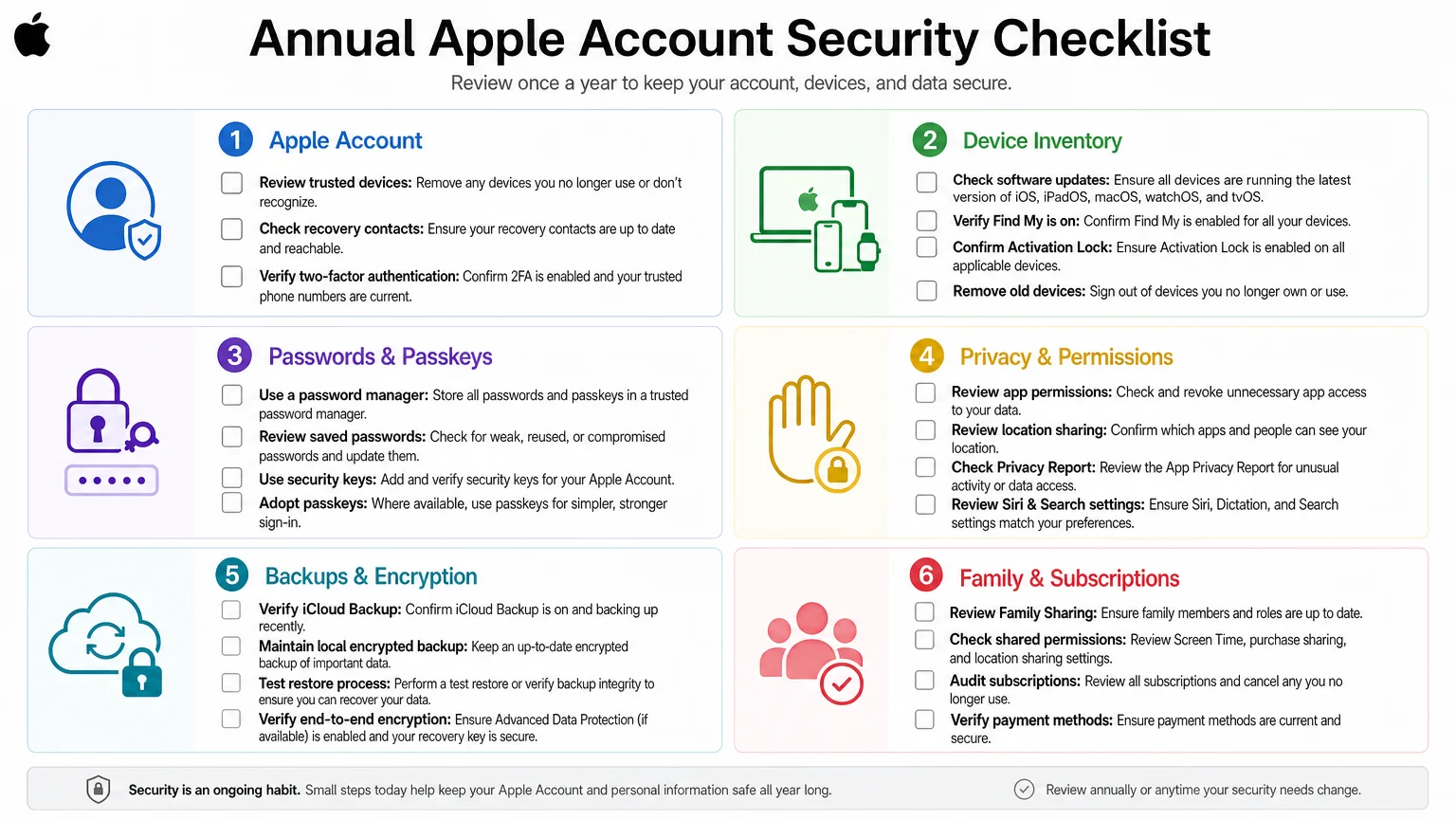
Trusted phone numbers should reflect numbers you currently control. Old numbers — from previous carriers, former employees on a family plan, or a phone you no longer own — should be removed immediately. A trusted number is a 2FA delivery path; if someone else controls it, they have a route into your account.
Trusted devices shows every device signed in with your Apple ID. Remove any device you no longer own or recognize. This list also matters for iMessage and FaceTime continuity, so accuracy here serves both security and communication reliability.
Recovery contacts and recovery keys are the two mechanisms Apple provides for account recovery if you lose access. A recovery contact is another Apple user who can generate a recovery code for you; a recovery key is a 28-character code you store yourself. Both are opt-in and both are frequently skipped. Configure at least one. If you use a recovery key, store it somewhere physically secure — losing it without a recovery contact means permanent account lockout.
Two-factor authentication should already be enabled; if it is not, enable it now. For users who want the strongest available protection, Apple supports FIDO2 hardware security keys (such as YubiKey or similar) as a 2FA method. This eliminates SMS-based interception risk entirely and is worth considering for anyone with a high-value account — freelancers, small-business owners, or anyone with significant iCloud data.
How Do You Build a Complete Device Inventory and Verify Updates?
A device inventory is simply a written or digital record of every Apple device in your household: model, serial number, iOS/macOS version, and whether Find My is enabled. It takes 20 minutes to create and is invaluable if a device is lost, stolen, or needs warranty service.
Software updates are the most straightforward security control available. Every device should be running the current release of iOS, iPadOS, macOS, watchOS, and tvOS. Apple patches actively exploited vulnerabilities through point releases; skipping updates is a documented risk, not a theoretical one. For guidance on whether to update immediately or wait, Should You Install a Major macOS Upgrade Now — or Wait? covers the tradeoffs clearly.
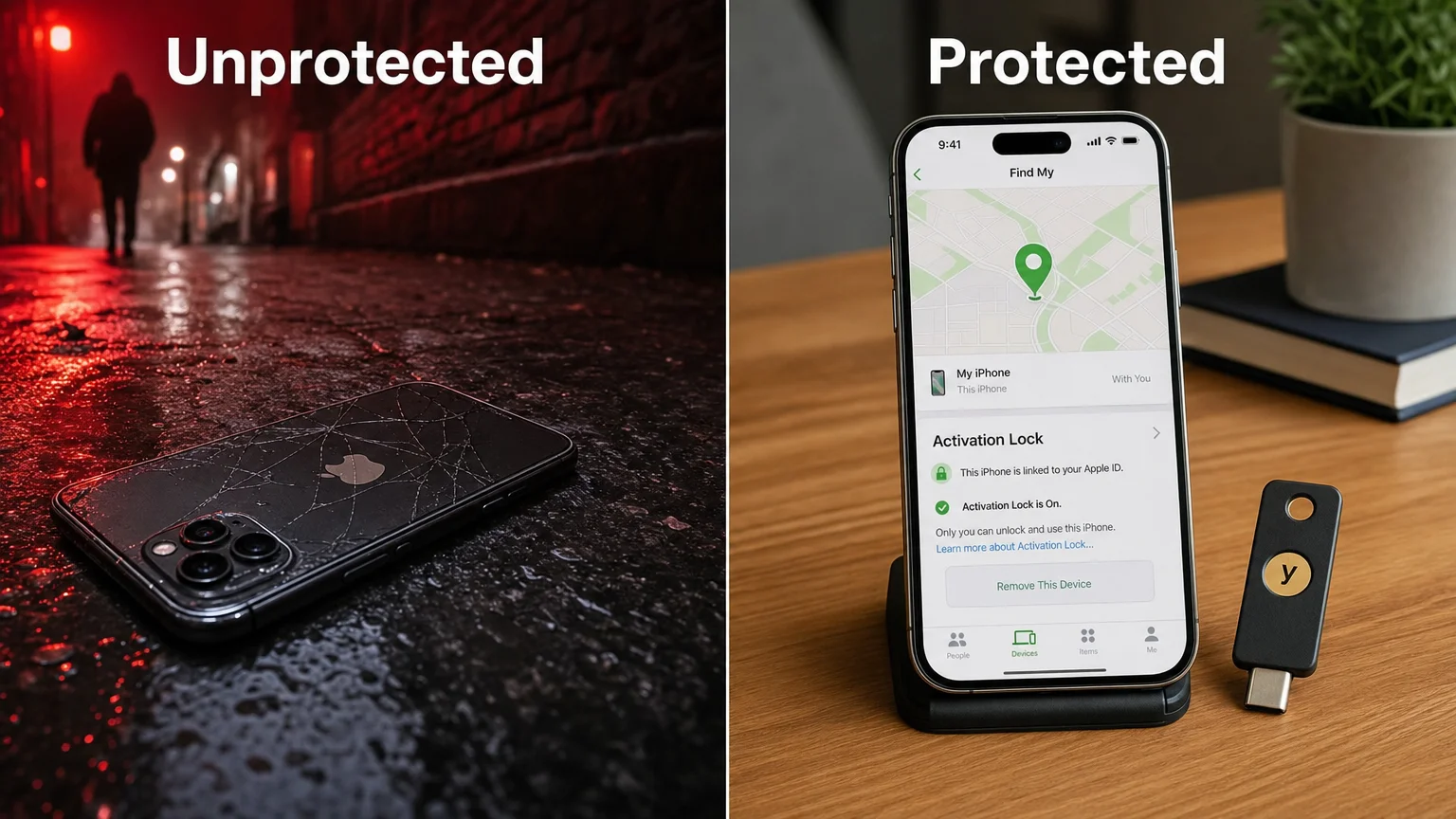
Find My and Activation Lock should be verified on every device, not just the one in your pocket. Open the Find My app and confirm each device appears with a current location. Activation Lock — which ties a device to your Apple ID and prevents reuse after erasure — is enabled automatically when Find My is on. Verify it is active on older devices that might have been reset at some point.
How Do You Review Passwords, Passkeys, and App Permissions?
Passwords and passkeys deserve their own annual pass. Apple’s built-in Passwords app (introduced in iOS 18 and macOS Sequoia) surfaces compromised passwords, reused credentials, and accounts that have passkey support available. Work through the Security Recommendations list and update anything flagged.
A dedicated password manager — 1Password, Bitwarden, and similar tools — adds cross-platform flexibility and shared vault options for teams or families. The choice between Apple’s native Passwords app and a third-party manager comes down to whether you need Windows or Android access and how complex your sharing needs are. Either is far better than no manager at all.
Passkeys are now supported by a growing list of services. Where available, adopt them: a passkey cannot be phished, cannot be leaked in a credential dump, and requires biometric authentication on-device. The transition is gradual, but the annual review is a good time to check which accounts have made the switch.
App permissions are reviewed in Settings → Privacy & Security. Work through Location Services, Contacts, Microphone, Camera, and Photos systematically. The question for each entry is simple: does this app need this access to do what you use it for? If the answer is no, revoke it. For a step-by-step walkthrough, How to Read iPhone App Privacy Report is a practical companion to this section.
Privacy Report in Safari shows which trackers have been blocked across your browsing. It is not an action item so much as a calibration tool — it shows whether your current browsing habits and extensions are doing meaningful work.
Browser extensions warrant specific attention. Extensions in Safari, Chrome, or Firefox can read page content and intercept credentials. Audit installed extensions annually and remove anything you no longer use or cannot identify. Prefer extensions from developers with clear privacy policies and a track record.
How Do You Verify Backups, Encryption, and Stolen-Device Protections?
Backups are the most skipped item in any security review, and the most consequential. Verify that iCloud Backup is enabled and that the last backup completed successfully (Settings → [Your Name] → iCloud → iCloud Backup). For Macs, confirm Time Machine is running and that the destination drive is connected and current.
A backup that has never been tested is not a backup — it is an assumption. Once a year, perform a partial restore test: recover a specific file from iCloud Drive or Time Machine to confirm the process works. This takes under ten minutes and has saved more than a few users from discovering a silent backup failure at the worst possible moment.
Encrypted local backups for iPhone and iPad are created through Finder (on Mac) or iTunes (on Windows) with the “Encrypt local backup” option checked. Encrypted backups include Health data, passwords, and Wi-Fi credentials that unencrypted backups omit. The encryption password should be stored in your password manager.
Stolen Device Protection, introduced in iOS 17.3, adds a one-hour security delay for sensitive account changes when your iPhone is away from familiar locations. Verify it is enabled in Settings → Face ID & Passcode → Stolen Device Protection. For a broader look at what to do if a device goes missing, What to Do If Your iPhone Is Lost, Stolen, or Compromised covers the full response sequence.
What About Location Sharing, Family Sharing, and Subscriptions?
Location sharing via Find My can accumulate over time. Open Find My → People and review who can see your location. Remove anyone you no longer intend to share with. This is especially relevant after relationship changes or when old work devices have been passed on.
Family Sharing governance is worth a dedicated pass if you manage a family group. Review which family members have purchase approval requirements, whether Screen Time settings are appropriate for younger members, and whether the payment method on file is current. Check that no unexpected members have been added to the group.
Subscriptions are reviewed in Settings → [Your Name] → Subscriptions. Cancel anything you are not actively using. For a full picture of iCloud+ tiers and whether your current plan matches your storage and privacy needs, iCloud+ and Apple One: Plans, Value, and Alternatives is worth reading alongside this step.
Annual Security Review Checklist
| Category | Action Items |
|---|---|
| Apple Account | Audit trusted devices and phone numbers; configure recovery contact or key; verify 2FA method |
| Passwords & Passkeys | Run Security Recommendations; adopt passkeys where available; review password manager vault |
| Device Inventory | Document all devices; verify software updates; confirm Find My and Activation Lock |
| App Permissions | Review Location, Camera, Microphone, Contacts, Photos; revoke unnecessary access |
| Backups | Verify iCloud Backup recency; test a restore; enable encrypted local backup |
| Privacy | Review Safari Privacy Report; audit browser extensions; check location sharing |
| Family & Subscriptions | Review Family Sharing members and settings; cancel unused subscriptions |
| Stolen-Device Protection | Confirm Stolen Device Protection is on; verify device passcode strength |
| Documentation | Update device inventory; store recovery key securely; record backup encryption password |
Conclusion
The Annual Apple Account and Device Security Review is not a single task — it is a structured habit that takes two to three hours once a year and pays for itself the first time something goes wrong. Work through the checklist systematically: start with your Apple Account credentials and recovery options, move through your device inventory and software updates, then audit permissions, backups, and family settings.
For a deeper look at hardening a new device from the start, How to Set Up a Privacy-First iPhone in 2026 covers the foundational configuration choices that make the annual review easier every year after. Subscribe to We Are MacWise for ongoing coverage of Apple security, privacy, and the tools that make the ecosystem work better.
Frequently Asked Questions
How often should the Apple Account and device security review be done?
Once a year is the minimum. If you change jobs, end a relationship, lose a device, or receive a security notification from Apple, do a partial review immediately rather than waiting for the annual cycle.
What is the difference between a recovery contact and a recovery key?
A recovery contact is another Apple user who can help you regain account access by approving a recovery request. A recovery key is a static 28-character code you store yourself. Both serve the same purpose but through different mechanisms. A recovery key gives you full control; a recovery contact adds a human fallback. You can configure both.
Is Apple's built-in Passwords app sufficient, or do I need a third-party password manager?
For users who live entirely in the Apple ecosystem, the built-in Passwords app in iOS 18 and macOS Sequoia is capable and well-integrated. If you use Windows, Android, or need shared team vaults, a third-party manager like 1Password or Bitwarden adds meaningful flexibility. Neither choice is wrong; the important thing is using one consistently.
What is Stolen Device Protection and should everyone enable it?
Stolen Device Protection requires Face ID or Touch ID (with no passcode fallback) for sensitive actions like changing your Apple Account password, and adds a one-hour delay for those changes when your device is away from familiar locations. It is designed to limit damage if a thief observes your passcode before stealing your iPhone. It should be enabled by virtually everyone on iOS 17.3 or later.
Do hardware security keys work with all Apple devices?
Hardware security keys for Apple ID 2FA require iOS 16.3, iPadOS 16.3, or macOS Ventura 13.2 or later. They work with Lightning, USB-C, or NFC depending on the key model. Not all services support hardware keys, but Apple Account does. They are most appropriate for users with elevated risk profiles — journalists, executives, or anyone managing shared financial or business accounts.
How do I verify that Find My Activation Lock is actually enabled?
Open the Find My app, select a device, and look for "Activation Lock: On" in the device details. Alternatively, if you erase a device and it prompts for an Apple ID and password before setup can continue, Activation Lock is working. You can also check via [icloud.com/find](https://icloud.com/find).
What should be in a device inventory document?
At minimum: device model, serial number, purchase date, current OS version, whether Find My is enabled, and the Apple ID it is signed into. Store this document somewhere accessible but secure — a locked note in your password manager or an encrypted document works well. Update it whenever you add or retire a device.
Independent guidance for making smarter, safer decisions across the Apple ecosystem.
