
Independent guidance for making smarter, safer decisions across the Apple ecosystem.
Most Apple users own at least three USB-C chargers and have no idea whether any of them are actually right for their devices. That gap between “it charges” and “it charges correctly” matters more than the marketing on the box suggests.
This guide covers the full picture: how USB Power Delivery works, what watts actually mean, why cables are not interchangeable, where MagSafe fits in, and how to build a travel setup that does not compromise your hardware.
Key Takeaways
- Watts = volts × amps. A charger rated at 20V/5A delivers 100W — but only if the cable and device both support it.
- Apple devices negotiate their own charging speed via USB Power Delivery (USB PD). The charger does not decide unilaterally.
- iPhones fast-charge at up to 27W (iPhone 15 Pro / iPhone 16 Pro). A 20W charger is sufficient for most iPhone models.
- iPad Pro M4 accepts up to 45W over USB-C. MacBook Air M3 needs up to 70W; MacBook Pro 14-inch up to 96W; MacBook Pro 16-inch up to 140W.
- Cables rated above 60W require an e-marker chip. Without it, charging is capped at 60W regardless of charger rating.
- GaN chargers deliver the same power as traditional silicon chargers in a smaller, cooler package — worth the modest price premium.
- Multi-port chargers share wattage across ports. Plugging in a second device usually drops the primary port’s output.
- MagSafe is not USB-C. It uses a proprietary magnetic connector and charges iPhone at up to 25W (iPhone 16 series with a 30W+ charger).
- “Slow charging preserves battery” is largely a myth at normal temperatures. Heat is the real enemy.
How Does USB Power Delivery Actually Work?
USB Power Delivery is a negotiation protocol, not a fixed output. When a device connects to a USB PD–capable charger, both sides exchange a series of messages — the charger advertises the voltage and current combinations it can supply, and the device requests the profile that best matches its needs. The result is a stable, agreed-upon wattage that neither side exceeds.
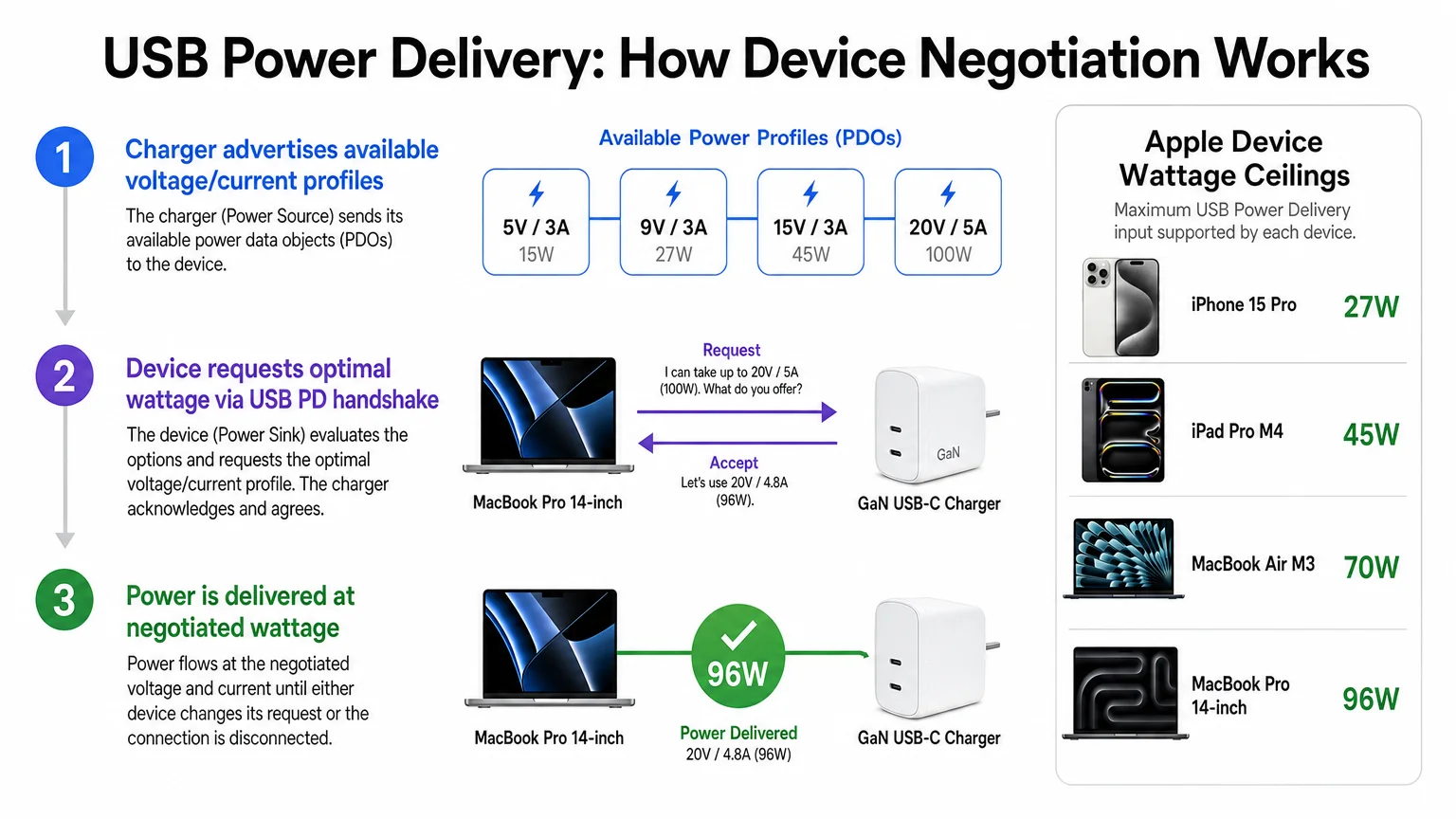
This matters because a 100W GaN charger will not push 100W into an iPhone. The iPhone requests what it can safely accept — typically 9V at around 2.2A for fast charging, or roughly 20W — and the charger obliges. The device is always in control of the negotiation. Older USB-C chargers that predate USB PD simply supply 5V/0.9A by default, which is why plugging a MacBook Pro into a phone charger results in an agonizingly slow trickle charge or a “Not Charging” warning.
Watts vs. Voltage and Current: Why Both Numbers Matter
Watts are the product of volts multiplied by amps. A charger that outputs 5V/3A delivers 15W. The same charger switching to 9V/3A delivers 27W. Apple’s fast-charging threshold for iPhone requires at least 9V, which is why a 5W USB-A adapter from 2015 cannot fast-charge any iPhone regardless of the cable used. When comparing chargers, check the full spec sheet — a charger rated “30W” may only reach that figure at one specific voltage/current combination that your device never requests.
What Are the Actual Charging Limits for Each Apple Device?
Apple publishes maximum input wattage figures, but they are rarely printed on the device itself. Here are the practical ceilings that matter for everyday use in 2026:
| Device | Max USB-C Input | Notes |
|---|---|---|
| iPhone 16 / 16 Plus | ~25W (MagSafe) / ~27W USB-C | 30W+ charger needed for peak USB-C speed |
| iPhone 16 Pro / Pro Max | ~27W USB-C | 30W charger recommended |
| iPad (10th gen) | ~20W | Standard USB-C |
| iPad Air M2 | ~30W | |
| iPad Pro M4 11-inch | ~45W | |
| iPad Pro M4 13-inch | ~45W | |
| MacBook Air M3 13-inch | ~70W | 35W dual-port or 70W single-port |
| MacBook Air M3 15-inch | ~70W | |
| MacBook Pro 14-inch M4 | ~96W | 100W cable required |
| MacBook Pro 16-inch M4 | ~140W | 140W cable + charger required |
A charger rated higher than the device maximum is not harmful — the device simply draws what it needs. Under-rating is the real problem: a 30W charger connected to a MacBook Pro 16-inch will charge the battery only when the machine is asleep or lightly loaded, and may actually drain during heavy use.
Why Do Cables Have Wattage Ratings — and What Is an E-Marker Chip?
Not all USB-C cables are equal, and the difference is not just data speed. Cables carrying more than 60W require an embedded controller called an e-marker chip. This chip communicates with the charger and device to confirm the cable is rated for higher current. Without it, USB PD caps the connection at 60W as a safety measure, even if the charger and device both support more.
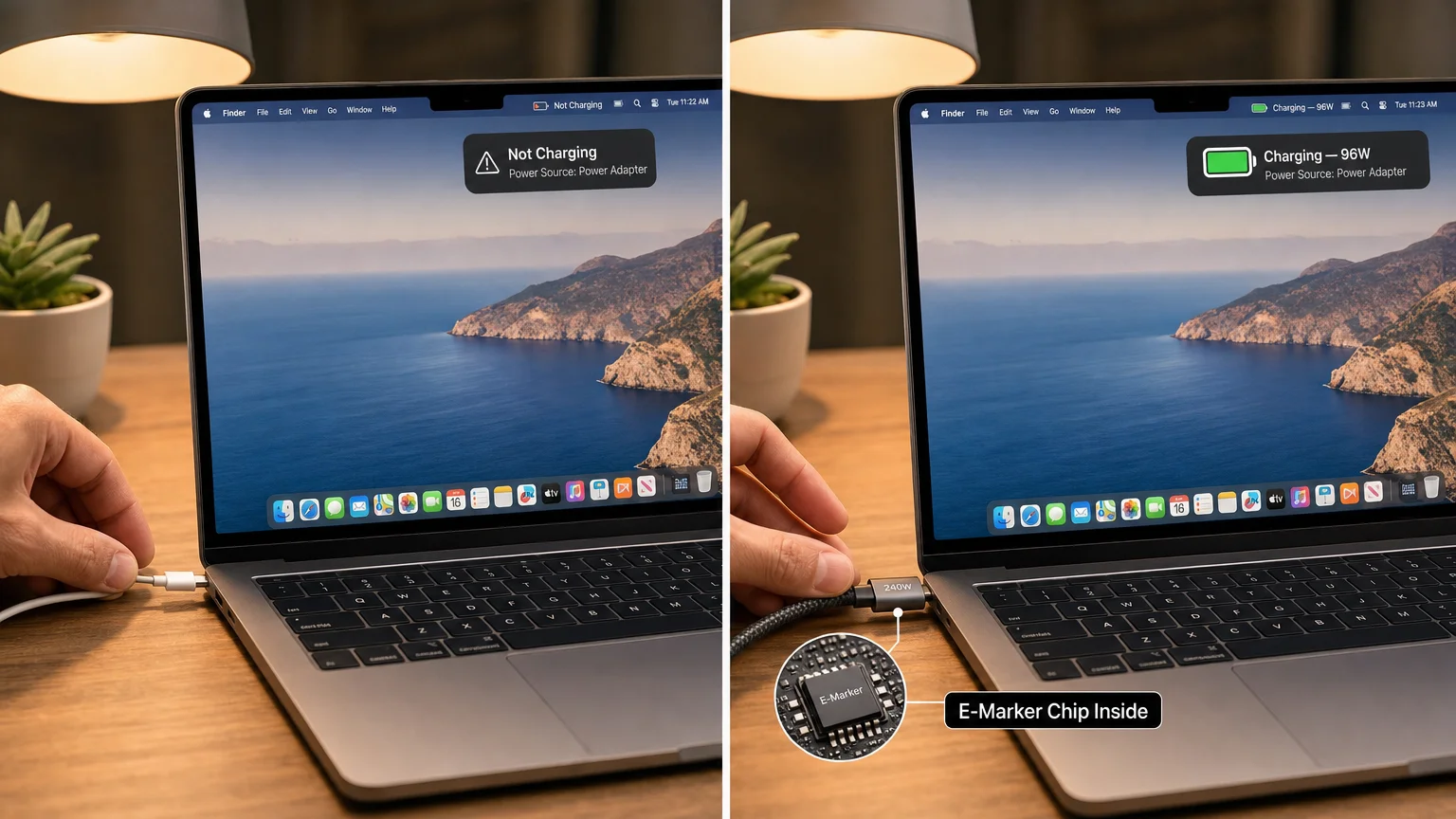
The practical consequence: the USB-C cable that came with your iPhone is almost certainly a 60W cable or lower. Connecting a MacBook Pro 16-inch to a 140W charger with that cable will limit charging to 60W. For MacBook Pro users, a dedicated 100W or 240W e-marker cable is not optional — it is the difference between actually charging and slowly draining. Look for cables labeled “USB PD 3.1,” “240W,” or “e-marker” on the packaging. Anker, Belkin, and Apple’s own 2m USB-C cable are reliable choices with clear specifications.
Data Speed vs. Charging Speed: They Are Not the Same
A cable can be fast for charging and slow for data, or vice versa. USB 2.0 cables — which transfer data at 480 Mbps — can carry 240W of power with the right e-marker. Conversely, a Thunderbolt 4 cable capable of 40 Gbps data transfer is also rated for 100W charging. When buying cables, decide what you need each one to do. For a desk setup where a single cable connects a MacBook to a hub, Thunderbolt 4 makes sense. For a travel charging cable, a high-wattage USB 2.0 cable is lighter, cheaper, and perfectly adequate.
GaN Chargers, Multi-Port Sharing, and Travel Setups
Gallium nitride (GaN) chargers use a semiconductor material that switches power more efficiently than traditional silicon. The result is a charger that runs cooler, wastes less energy as heat, and can be built significantly smaller. A GaN 100W charger from Anker or Ugreen is typically half the physical size of Apple’s own 96W brick. For anyone who travels with a MacBook and iPhone, a single 65W or 100W GaN charger with two USB-C ports replaces two separate chargers without adding meaningful weight.
Multi-port chargers share their total wattage across active ports. A 65W dual-port GaN charger might deliver 45W on port 1 and 20W on port 2 when both are in use, or 65W on port 1 alone. The allocation rules vary by manufacturer and are not always clearly documented — check the spec sheet for “power sharing” behavior before buying. For a MacBook Air M3, a 65W dual-port charger is a practical travel choice: it charges the laptop at a reasonable rate and handles an iPhone simultaneously.
Power banks with USB PD output are worth carrying on long travel days. Look for models rated at 65W or higher output with at least 20,000 mAh capacity. Anker’s 737 and the Ugreen Nexode series are well-regarded options with verified PD output. Note that airline carry-on rules cap lithium batteries at 100Wh without approval — a 20,000 mAh / 3.7V bank sits right at that threshold.
For international travel, a universal adapter that accepts Type A, C, and G plugs is sufficient for most destinations. The adapter only converts the plug shape — the GaN charger itself handles voltage conversion, as virtually all modern USB-C chargers accept 100–240V AC input.
MagSafe vs. USB-C: Which Should You Use for iPhone?
MagSafe and USB-C are not competing standards — they serve different contexts. MagSafe on iPhone charges at up to 25W (iPhone 16 series, with a 30W or higher USB-C charger supplying the MagSafe puck). It also provides precise magnetic alignment for accessories and cases, which USB-C does not. USB-C on iPhone 15 and later can reach approximately 27W with a compatible charger and cable, making it marginally faster at peak wattage.
For overnight charging or desk use, the difference is negligible. MagSafe is more convenient for mounting and for use with MagSafe-compatible wallets and stands. USB-C is more practical when a cable is already plugged into a hub or laptop charger. Neither choice damages the battery in normal use.
Does Fast Charging Damage Battery Health?
The short answer: not meaningfully, under normal conditions. The longer answer involves temperature. Lithium-ion batteries degrade faster when charged at high temperatures — above roughly 35°C (95°F). Fast charging does generate more heat than slow charging, but modern Apple devices actively manage this by throttling charge speed when the battery or ambient temperature rises. Charging in a cool environment, removing thick cases during charging, and avoiding leaving a device on a hot surface matter far more than choosing 20W over 5W.
The “charge to 80% only” advice has a genuine basis — lithium cells experience less stress below full charge — and Apple’s Optimized Battery Charging feature in iOS and macOS handles this automatically by learning your schedule and slowing the final 20% of charging overnight. Enabling this setting (Settings → Battery → Battery Health & Charging) is worthwhile. Manually limiting charge to 80% using the charge limit slider introduced in iOS 17 is a reasonable choice for users who rarely need a full charge, but it is not necessary for most people.
If you’re managing iPhone storage or battery concerns alongside charging habits, the guide on why iPhone System Data grows large and what you can safely do covers related device health considerations worth reading alongside this one.
Troubleshooting: Why Is My Apple Device Charging Slowly?
Slow charging on Apple devices almost always traces back to one of four causes:
- Cable is under-rated. A USB 2.0 cable capped at 60W will not fast-charge a MacBook Pro. Replace with a rated cable.
- Charger wattage is too low. A 5W or 12W charger cannot fast-charge any current iPhone. Minimum 20W for iPhone fast charging.
- Multi-port sharing. The charger is splitting wattage across multiple devices. Try the primary port alone.
- Optimized Battery Charging is active. iOS or macOS is intentionally slowing the final charge segment overnight. This is normal and correct behavior.
A less common cause is a dirty or damaged USB-C port. Lint accumulation in the iPhone’s Lightning or USB-C port is surprisingly common and can prevent a firm connection. Use a dry, non-metallic tool to gently clear debris before assuming the cable or charger is faulty.
For broader iPhone troubleshooting, the iPhone security and device health guide covers additional diagnostic steps worth bookmarking.
Safety and Certification: What to Look For on Cables and Chargers
Counterfeit and uncertified USB-C chargers are a genuine hazard. Poorly built chargers can deliver incorrect voltages, lack surge protection, or fail in ways that damage connected devices or, in rare cases, cause fires. The markers of a trustworthy product:
- USB-IF certification: The USB Implementers Forum certifies compliant cables and chargers. Look for the USB-IF logo or “USB Certified” labeling.
- UL, CE, or FCC marks: These indicate the product has passed relevant electrical safety testing for its target market.
- MFi certification for Apple accessories: Apple’s Made for iPhone/iPad/Mac program certifies accessories that meet Apple’s electrical specifications. MFi cables include a chip that authenticates with iOS and macOS.
- Brand transparency: Reputable brands publish full specifications — input voltage range, output profiles, cable AWG rating, and e-marker status. Avoid products that list only a single wattage number with no supporting detail.
Buying from established retailers rather than unverified marketplace sellers reduces counterfeit risk significantly. The price difference between a certified 100W GaN charger and an uncertified one is typically under $15 — not a meaningful saving against the cost of a damaged MacBook.
If you’re building out a privacy-conscious Apple setup alongside your hardware choices, the privacy-first iPhone setup guide pairs naturally with the accessory decisions covered here.
Conclusion
USB-C charging for Apple devices rewards a small amount of upfront knowledge with noticeably better performance and longer hardware life. The core principles are straightforward: match charger wattage to device needs, use certified cables with e-marker chips where required, understand that multi-port chargers share their budget, and treat heat — not fast charging itself — as the primary battery health concern.
For a deeper look at how your Mac fits into a broader productive setup, the guide on whether a MacBook Pro is the right choice for your actual workload is a natural next read. And if you want to stay current as Apple updates charging specifications with new hardware, subscribing to We Are MacWise ensures those changes reach you with the context needed to act on them.
Frequently Asked Questions
Can I use any USB-C charger with my MacBook Pro?
Any USB-C charger will physically connect and attempt to charge a MacBook Pro, but wattage matters. A charger below the MacBook's maximum input (96W for the 14-inch, 140W for the 16-inch) will charge slowly or may not keep up with power draw during heavy use. Use a charger rated at or above the device's maximum for reliable performance.
What wattage charger do I need to fast-charge an iPhone?
Any USB-C charger rated at 20W or higher will fast-charge iPhone 8 and later. iPhone 15 Pro and iPhone 16 Pro can accept up to approximately 27W, which requires a 30W charger to reach peak speed. The cable must support USB PD — the cable that ships with iPhone is sufficient.
Does a higher-wattage charger damage a lower-wattage device?
No. Devices request only the wattage they can safely accept via USB PD negotiation. Connecting a 140W charger to an iPhone is harmless — the iPhone will draw its normal fast-charge wattage and no more.
What is an e-marker chip and do I need one?
An e-marker chip is an embedded controller in a USB-C cable that identifies the cable's current and voltage rating to connected devices. Cables rated above 60W are required by the USB PD specification to include one. If you are charging a MacBook Pro 14-inch or 16-inch at full speed, you need a cable with an e-marker. Most cables marketed as "100W" or "240W" include one, but verify before purchasing.
Is MagSafe faster than USB-C for charging iPhone?
Marginally, no. MagSafe charges iPhone 16 series at up to 25W. USB-C on the same devices reaches approximately 27W. The difference in real-world charging time is negligible. MagSafe's advantage is convenience and magnetic alignment, not charging speed.
Are GaN chargers actually better than standard chargers?
GaN chargers deliver the same power as equivalent silicon chargers but in a smaller, cooler, more energy-efficient package. They are worth the modest price premium for anyone who values compact travel gear or runs a multi-device desk setup. There is no meaningful downside for typical Apple users.
Can I charge a MacBook with a power bank?
Yes, provided the power bank outputs USB PD at sufficient wattage. A power bank rated at 65W USB-C output will charge a MacBook Air M3 at a reasonable rate. For MacBook Pro, look for 100W output. Verify the power bank's actual USB PD output — some list a total wattage that is split across ports, with each port delivering less than the headline figure.
Does charging overnight hurt my iPhone battery?
With Optimized Battery Charging enabled, no. iOS learns your schedule and holds the battery at around 80% until shortly before you typically wake up, then completes the charge. This reduces the time spent at 100% charge, which is the state most stressful to lithium-ion cells. The feature is on by default and is worth keeping enabled.
Independent guidance for making smarter, safer decisions across the Apple ecosystem.
