
Founder and editor of We Are MacWise, with more than 30 years of Apple-focused IT experience helping professionals and small businesses.
A USB-C hub listing that reads “10Gbps, 100W PD, 4K@60Hz, USB4 compatible” tells you almost nothing useful — unless you know what each number actually does on a Mac. This guide translates the spec sheet into practical decisions, covering bandwidth, power delivery, display output, and the chipset details that separate a hub that works from one that throttles your workflow.
Key Takeaways
- USB-C and Thunderbolt 4 are not the same thing — the port shape is identical, but the capabilities differ dramatically.
- Bandwidth is shared across all active ports on most hubs; more connected devices means less speed per device.
- “100W Power Delivery” on a hub does not mean 100W reaches your Mac — controller overhead typically reduces delivered wattage.
- A hub rated for 4K@60Hz may only achieve that resolution if your Mac’s GPU and the hub’s chipset both support DisplayPort 1.4 or HDMI 2.0.
- Thunderbolt 4 hubs cost more but offer guaranteed minimum specs; generic USB-C hubs vary widely in real-world performance.
- The number of display outputs a hub supports is limited by your Mac model, not just the hub itself.
- M-series Macs have specific external display limits that no hub can override without a Thunderbolt dock.
- Checking the hub’s chipset (often listed in reviews, rarely on the box) is the single most reliable quality indicator.
What Is the Actual Difference Between USB-C and Thunderbolt 4?
The connector is the same, but the protocols are not. USB-C is a physical connector standard. Thunderbolt 4 is Intel’s protocol that runs over a USB-C connector and mandates a minimum performance floor: 40Gbps bandwidth, support for two 4K displays or one 8K display, and at least 15W of power to connected devices. A plain USB-C hub might use USB 3.2 Gen 1 (5Gbps), Gen 2 (10Gbps), or USB4 (up to 40Gbps) — but none of those carry the same guaranteed capability set as Thunderbolt 4.
For Mac users, this distinction matters because Apple Silicon Macs include Thunderbolt 4 ports on MacBook Pro models and Thunderbolt 3 on some MacBook Air configurations. Plugging a USB-C hub into a Thunderbolt port does not give that hub Thunderbolt capabilities — the hub must itself be a Thunderbolt device to take advantage of the full bandwidth. Most affordable hubs are USB-C only and will cap out at USB 3.2 speeds regardless of the port they’re plugged into.
How Does Bandwidth Actually Work Across Hub Ports?
Most USB-C hubs use a single-controller architecture, which means all ports share one bandwidth pool. If your hub connects via USB 3.2 Gen 2 (10Gbps total), and you simultaneously run an external SSD, a USB-A flash drive, and an SD card reader, those three devices divide that 10Gbps between them. Real-world throughput per device drops significantly under concurrent load.
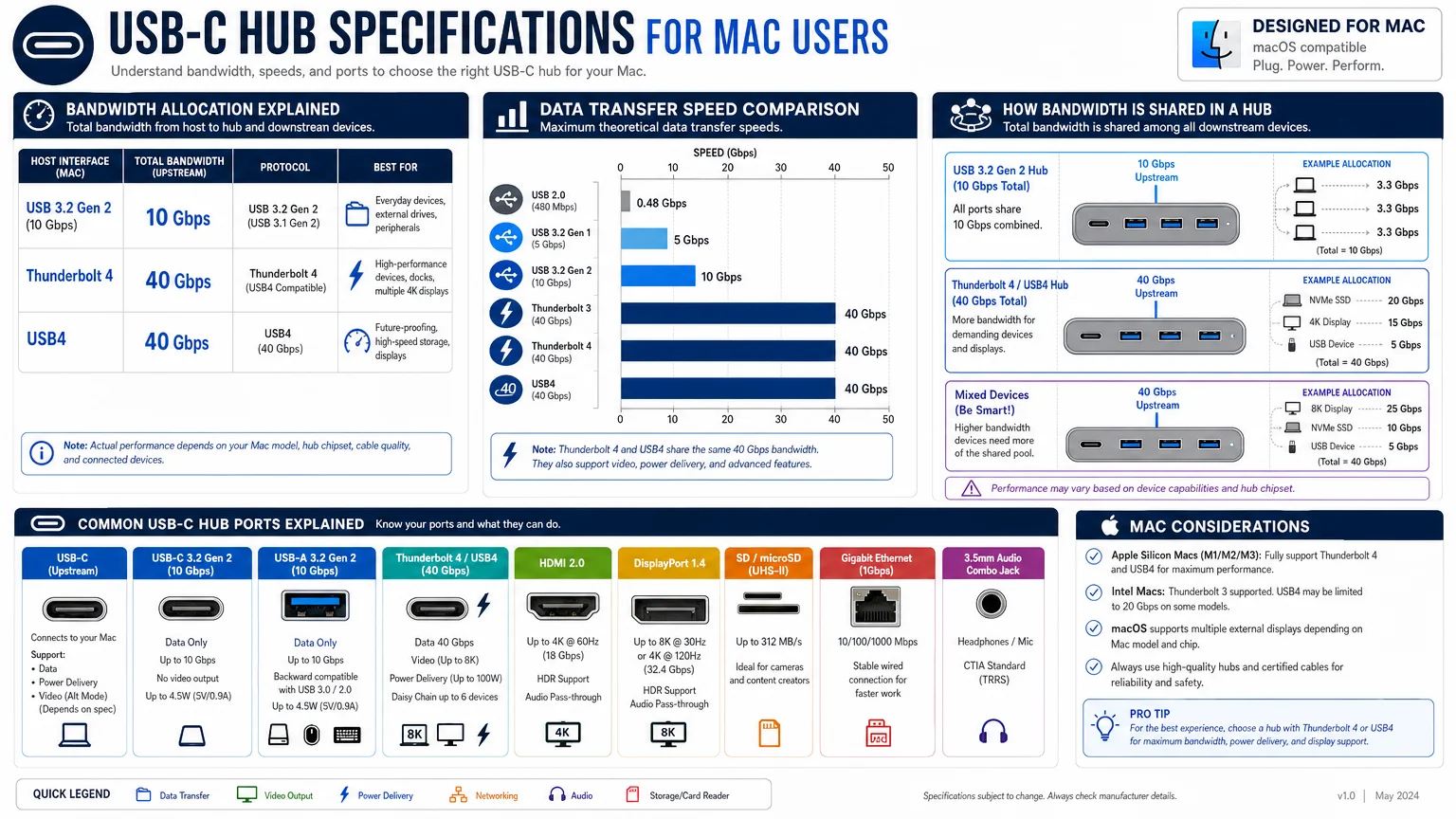
Higher-end hubs use multiple controllers or a Thunderbolt 4 upstream connection to avoid this bottleneck. When a spec sheet lists “40Gbps Thunderbolt 4 upstream,” it means the hub has a dedicated high-bandwidth pipe to your Mac. Individual ports on that hub can still be USB 3.2, but the upstream connection won’t become the choke point. If you regularly transfer large files while a display is connected, this architecture difference is worth the price premium. For a creative team workflow — the kind covered in our piece on how a 10-person design studio moved to Apple Silicon — a shared-bandwidth hub can quietly become a productivity drag.
What Does “Power Delivery” Mean — and How Much Wattage Actually Reaches Your Mac?
Power Delivery (PD) is a USB specification that allows a hub to pass charging current from a wall adapter through to your Mac. A hub listed as “100W PD passthrough” means it can accept a 100W input from a USB-C power adapter and route that power to your laptop’s charging port.
The catch: the hub’s internal controller consumes some of that wattage to power its own circuitry and any bus-powered devices connected to it. A hub advertising 100W PD passthrough typically delivers 85–90W to the Mac under load, sometimes less. For a 14-inch MacBook Pro, Apple’s recommended charger is 96W; for the 16-inch model, it’s 140W. A hub claiming 100W PD passthrough will charge a 16-inch MacBook Pro, but slowly under sustained CPU/GPU load.
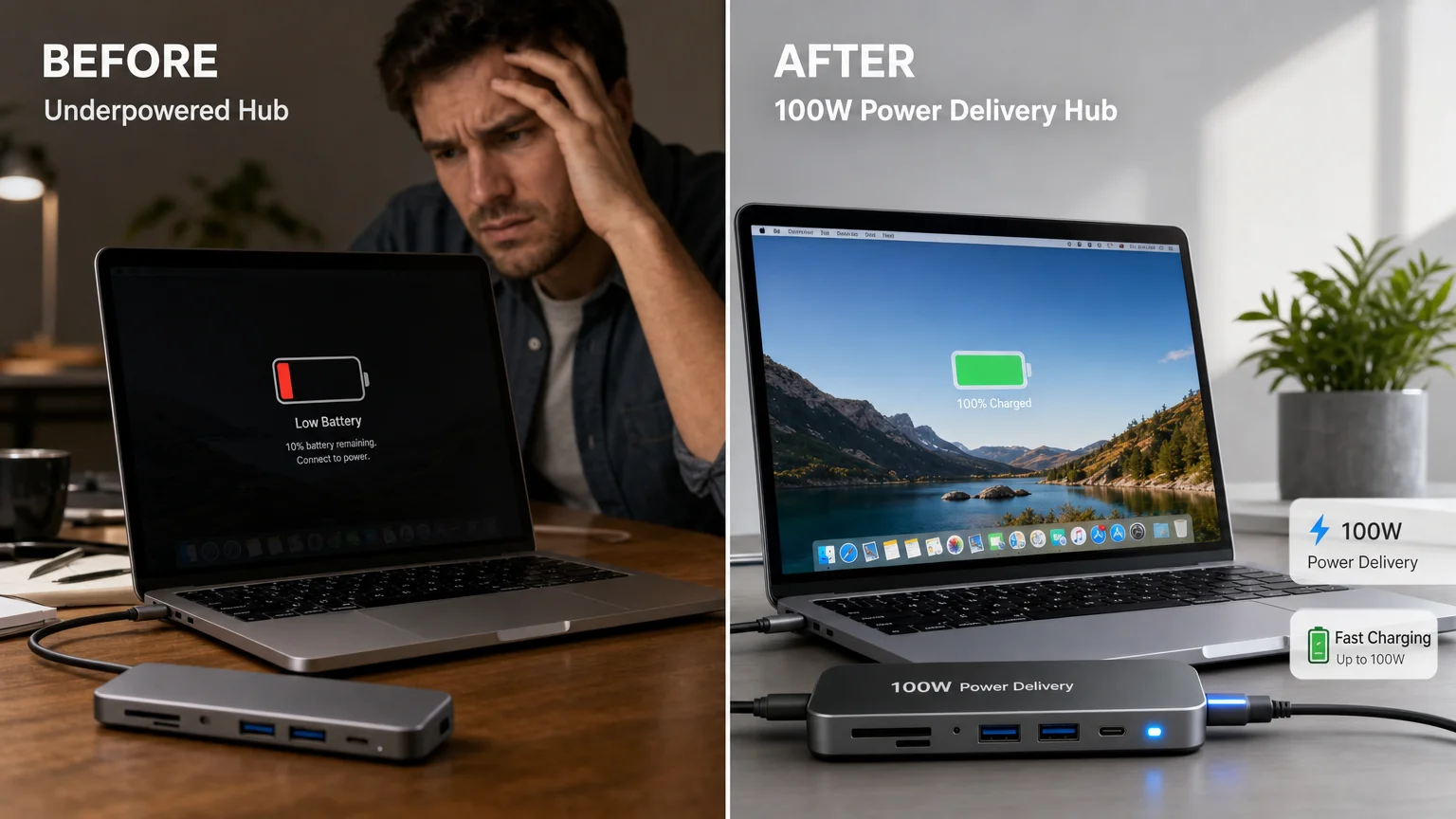
The practical rule: look for PD passthrough wattage at least 10–15W above your Mac’s rated charger. If you use a MacBook Air M3 (which charges comfortably at 30–35W), even a 60W PD hub is adequate. For MacBook Pro users doing video rendering or running multiple displays, aim for a hub or dock with 100W+ PD from a dedicated power brick, not bus-powered passthrough.
Does a Hub’s Display Output Spec Match What Your Mac Can Actually Do?
Not automatically. A hub may list “4K@60Hz HDMI output,” but whether your Mac delivers that signal depends on two factors: the hub’s HDMI chipset version and your Mac’s display output limit.
HDMI 2.0 supports 4K at 60Hz. HDMI 1.4 supports 4K only at 30Hz. Many budget hubs ship HDMI 1.4 chips while marketing “4K support” — which is technically accurate at 30Hz but misleading for anyone expecting smooth 60Hz output. Check the fine print for HDMI version, not just resolution.
The Mac-side constraint is equally important. Base M2 and M3 MacBook Air models support only one external display when the laptop lid is closed (two displays require a specific workaround or a Thunderbolt dock with specific driver support). No hub changes this hardware limitation. If you need two external displays from a MacBook Air, the solution is a specific Thunderbolt 4 dock combined with Apple’s Display Link driver — not a standard USB-C hub. MacBook Pro models with M3 Pro or M3 Max chips support multiple displays natively, so a capable hub or dock can unlock that potential without workarounds.
Thunderbolt 4 Hub vs. USB-C Hub: A Practical Comparison
| Feature | USB-C Hub (USB 3.2 Gen 2) | Thunderbolt 4 Hub |
|---|---|---|
| Max upstream bandwidth | 10Gbps | 40Gbps |
| External display support | 1 x 4K (often 30Hz) | 2 x 4K@60Hz or 1 x 8K |
| Power delivery | Up to 100W (varies) | Up to 100W (guaranteed spec) |
| Daisy-chaining | Not supported | Supported (up to 6 devices) |
| Price range | $25–$80 | $150–$350+ |
| Best for | Light use, travel, occasional peripherals | Power users, dual displays, NAS, fast storage |
For most MacBook Air users who connect a single display, a keyboard, and a mouse, a quality USB-C hub in the $40–$70 range is entirely sufficient. For MacBook Pro users running a color-graded editing suite or a dual-monitor development setup, a Thunderbolt 4 dock is the correct tool.
Which Chipset Should You Look For — and Why Does It Matter?
Hub manufacturers rarely advertise chipsets on retail packaging, but the chipset determines actual performance more than any other single factor. Two hubs with identical spec sheets can behave very differently depending on whether they use a reputable controller from companies like Realtek, VIA Labs, or Texas Instruments versus a generic no-name chip.
Reputable tech reviewers (The Wirecutter, Ars Technica, and others) regularly test hub chipsets and publish their findings. Before purchasing, search for the hub model plus “chipset” or “teardown.” A VIA Labs VL822 or VL817 USB 3.2 controller, for example, has a well-documented track record. Hubs using unknown controllers are more likely to exhibit intermittent disconnects, display flicker, or charging instability — issues that don’t show up in a spec sheet but appear within weeks of daily use.
This is also why the cheapest hubs on large retail marketplaces often underperform: the cost savings come from the controller, not the chassis.
Are There Mac-Specific Compatibility Issues to Watch For?
Yes, and they are more common than most buyers expect. macOS has historically had driver conflicts with certain DisplayLink-based hubs, particularly around sleep/wake cycles. DisplayLink technology (used in many multi-display USB-C hubs) requires a software driver that runs as a system extension — and Apple’s tightening of system extension permissions in recent macOS versions has occasionally broken compatibility after OS updates.
For accessories that don’t rely on DisplayLink, native Thunderbolt and USB hubs generally work without additional drivers on macOS. If you’re considering a hub with DisplayLink for multi-display output on a MacBook Air, verify that the manufacturer actively maintains macOS driver updates and check user reports on the current macOS version before purchasing. The same scrutiny applies to any accessory purchase — a habit worth building whether you’re buying a hub or reviewing the best iPad accessories worth buying right now.
The Bottom Line
Reading a USB-C hub spec sheet clearly comes down to three questions: How much bandwidth does the upstream connection provide? How much power actually reaches my Mac? And does the display output match both the hub’s chipset version and my Mac’s hardware limits? Answering those three questions rules out most of the misleading listings and narrows the field to hubs that will actually perform as expected.
For further guidance on building a capable Mac setup, the buying guide for refurbished Macs covers hardware decisions with the same level of spec-level detail. If you found this breakdown useful, subscribing to We Are MacWise ensures you get similarly grounded analysis on accessories, Apple Silicon updates, and workflow tools as they arrive.
Frequently Asked Questions
Does a more expensive USB-C hub always perform better on a Mac?
Not always, but price correlates with chipset quality and build reliability more often than not. Hubs above $60 from established brands tend to use better controllers, offer genuine PD passthrough, and receive firmware updates. Very cheap hubs ($15–$25) frequently use underpowered chipsets that throttle under load.
Can a USB-C hub damage my MacBook's battery?
A poorly designed hub with unstable power delivery can cause erratic charging behavior, but it is unlikely to permanently damage a modern MacBook battery. Apple's charging circuitry includes protection against voltage irregularities. That said, using a hub with a PD rating well below your Mac's requirements will result in battery drain during heavy use rather than charging.
Why does my hub work fine for files but cause display flicker?
Display flicker through a hub usually indicates one of three issues: insufficient bandwidth on the upstream connection, an HDMI 1.4 chip being pushed to 4K@60Hz, or a cable that doesn't support the required data rate. Try a certified Thunderbolt 4 or USB4 cable between the hub and Mac, and confirm the hub's HDMI version in its documentation.
What is the difference between a hub and a dock?
A hub is typically bus-powered (draws power from your Mac) and offers a smaller port selection. A dock connects to its own power adapter, supports higher-wattage PD passthrough, and often includes Ethernet, multiple display outputs, and card readers. Docks are better suited to permanent desk setups; hubs are better for travel.
Will a Thunderbolt 4 hub work with older Intel Macs?
Yes. Thunderbolt 4 is backward compatible with Thunderbolt 3, which is what most Intel-based Macs (2016–2020) use. You will get full Thunderbolt 3 performance (40Gbps), and the hub's features will work normally. You won't gain any additional capability beyond what Thunderbolt 3 supports.
How many external displays can a MacBook Air M3 support through a hub?
A MacBook Air M3 officially supports one external display with the lid open (using the built-in display plus one external) or one external display with the lid closed. To run two external displays simultaneously, you need a Thunderbolt 4 dock with DisplayLink support and Apple's DisplayLink driver installed — a standard USB-C hub cannot enable this.
Does USB4 mean the same thing as Thunderbolt 4?
No. USB4 is a specification that can run at up to 40Gbps and is compatible with Thunderbolt 3 tunneling, but it does not require all Thunderbolt 4 features. A USB4 hub may lack certified dual-display support or minimum power delivery guarantees that Thunderbolt 4 mandates. Thunderbolt 4 is a stricter, Intel-certified subset of USB4.
Founder and editor of We Are MacWise, with more than 30 years of Apple-focused IT experience helping professionals and small businesses.
