
Independent guidance for making smarter, safer decisions across the Apple ecosystem.
Apple’s Continuity suite is one of the strongest arguments for staying within the Apple ecosystem. When it works, moving a phone call from iPhone to Mac, copying text on one device and pasting it on another, or using an iPhone as a webcam feels genuinely effortless. When it stops working — and it does stop working — the experience is the opposite of effortless. This guide covers every major Continuity feature, the real reasons they fail, and the exact steps to restore them.
Key Takeaways
- Every Continuity feature requires the same Apple ID on all devices, Bluetooth on, and Wi-Fi on — even features that appear to be Bluetooth-only.
- Network isolation (common on mesh routers, guest networks, and corporate Wi-Fi) silently blocks most Continuity features.
- VPNs and third-party firewalls are among the most frequent hidden causes of Continuity failures in 2026.
- Software version mismatches between macOS and iOS/iPadOS can break specific features even when everything else is correct.
- The correct reset order matters: sign out of iCloud, restart, sign back in — not just a toggle of individual settings.
- Continuity Camera, Sidecar, and Universal Control have stricter hardware requirements than Handoff or AirDrop.
- iPhone Mirroring requires both devices to be on the same Apple ID and macOS Sequoia / iOS 18 or later.
What Do All Apple Continuity Features Have in Common?
Every feature in the Continuity family shares a common foundation. Without all four of these conditions met simultaneously, no amount of individual troubleshooting will produce a reliable fix.
The four universal requirements:
| Requirement | Why It Matters |
|---|---|
| Same Apple ID signed in on all devices | Continuity is identity-gated; mismatched accounts prevent device discovery |
| Bluetooth enabled on all devices | Used for device discovery and low-latency handoff signaling |
| Wi-Fi enabled on all devices | Required for data transfer even when Bluetooth handles the handshake |
| Handoff / relevant feature enabled in Settings | Each feature has its own toggle that can be off by default after an update |
Proximity matters too. Handoff, Universal Clipboard, and Continuity Camera are designed for devices within roughly 30 feet of each other. Moving devices further apart — or placing them on opposite sides of a concrete wall — degrades the Bluetooth signal that initiates the connection.
Why Does Network Configuration Break So Many Continuity Features?
This is the most underdiagnosed cause of Continuity failures, particularly for people who have upgraded their home or office Wi-Fi to a mesh system. The short answer: most Continuity features rely on Apple’s Bonjour protocol for local device discovery, and many routers block Bonjour by default.
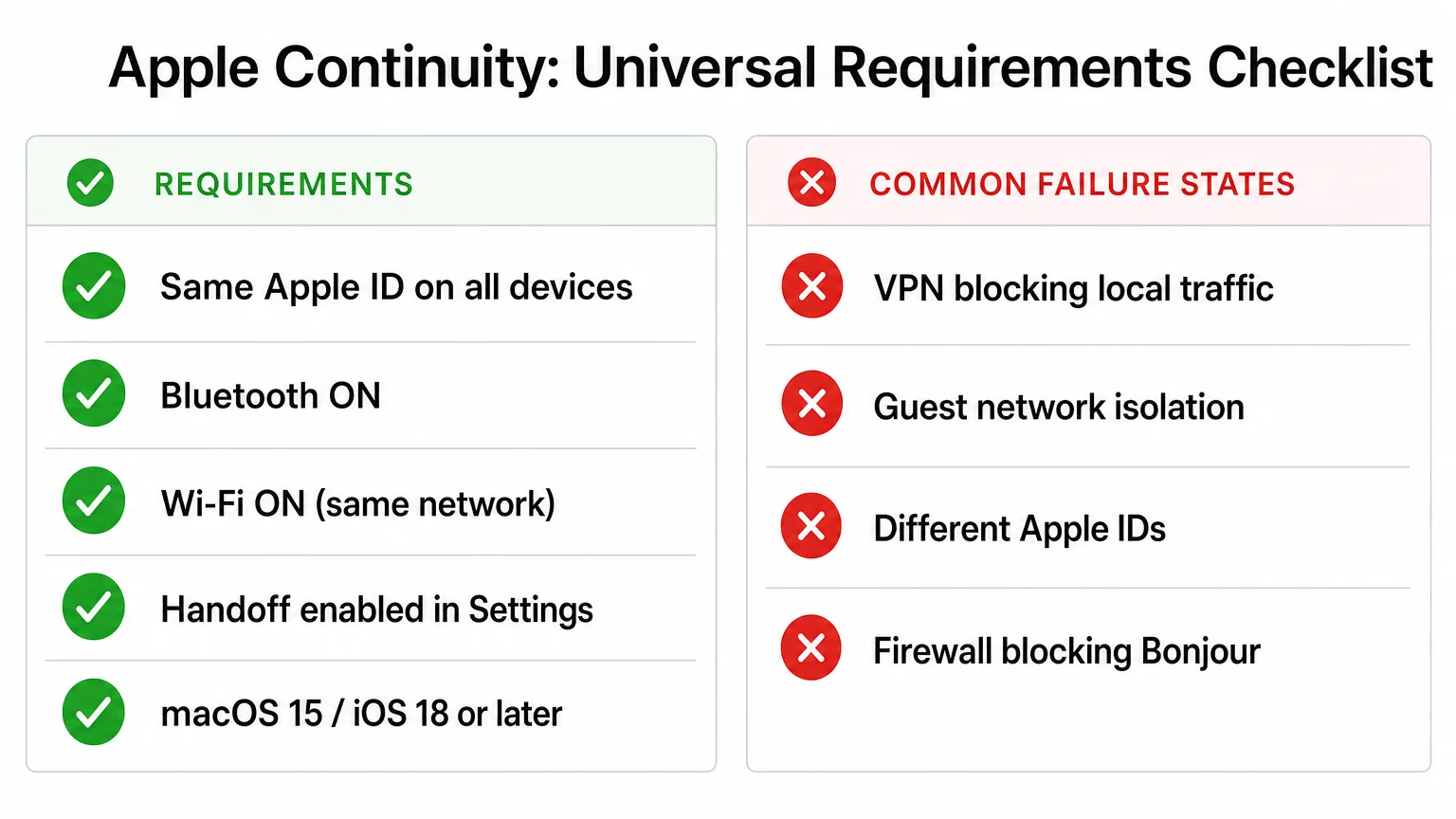
Guest networks almost universally isolate clients from each other. If a Mac is on the main network and an iPhone is on a guest SSID, they will not see each other for AirDrop, Handoff, or Universal Clipboard — even though both have internet access. The fix is straightforward: put every Apple device on the same primary network.
AP (Access Point) isolation is a security feature on many enterprise and prosumer routers — including popular mesh systems from Eero, Ubiquiti, and TP-Link Deco — that prevents devices connected to different access points from communicating directly. On home mesh systems this is sometimes called “client isolation” and may be enabled by default. Disabling it in the router’s admin panel restores local device communication. If the router is managed by an ISP, this setting may require a call to the provider.
VPNs route all traffic through a remote server, which means local network traffic — the kind Bonjour relies on — never reaches nearby devices. If a VPN is active on a Mac or iPhone, AirDrop, Handoff, and Universal Clipboard will often fail. The fix is to either disable the VPN temporarily, or configure split tunneling so local traffic bypasses the VPN tunnel. Many corporate VPN configurations do not support split tunneling, which means Continuity features may simply not work while connected to a work VPN.
Third-party firewalls (Little Snitch, Lulu, Murus) can block the mDNS traffic Bonjour uses. Check the firewall’s activity log for blocked connections from mDNSResponder and add an allow rule if needed.
Feature-by-Feature: Specific Causes and Fixes
Handoff and Universal Clipboard
Both require Handoff to be enabled: on Mac, go to System Settings → General → AirDrop & Handoff → turn on “Allow Handoff between this Mac and your iCloud devices.” On iPhone or iPad, Settings → General → AirDrop & Handoff → Handoff.
Universal Clipboard also requires that both devices be logged into iCloud with the same Apple ID and that iCloud Drive is enabled. If clipboard sharing stops working after a macOS or iOS update, toggling Handoff off and back on — followed by a restart of both devices — resolves it in most cases.
AirDrop
AirDrop uses Bluetooth for discovery and Wi-Fi for transfer. The most common failure modes: Bluetooth off, receiving set to “No One” (check Control Center on iPhone; check Finder → AirDrop on Mac), or firewall blocking the connection. On Mac, AirDrop also requires that the Mac’s firewall is not set to block all incoming connections — check System Settings → Network → Firewall → Options and ensure “Block all incoming connections” is off.
For transfers between a Mac and an iPhone that are not near each other, AirDrop over the internet (introduced in iOS 17 / macOS Sonoma) requires both devices to be signed into the same Apple ID or to have each other’s contact information.
Continuity Camera
Continuity Camera — which turns an iPhone into a Mac webcam — requires macOS Ventura or later, iOS 16 or later, and an iPhone XR or newer. The iPhone must be locked and placed near the Mac; it connects automatically when a compatible app opens. Third-party webcam stands and mounts designed for MagSafe attachment (such as those from Belkin or Joby) improve stability significantly and are worth the modest investment for anyone using Continuity Camera regularly. If the feature does not appear in a video app’s camera list, check that the iPhone is on the same Apple ID and that Continuity Camera is enabled in Settings → General → AirDrop & Handoff.
Sidecar and Universal Control
Sidecar (using iPad as a second display) and Universal Control (moving cursor and keyboard across Mac and iPad) have stricter hardware requirements than other Continuity features. Not every Mac and iPad combination is supported — Apple maintains a compatibility list, and older hardware is excluded even if it runs a current OS.
Both features require Wi-Fi and Bluetooth to be on, but the devices do not need to be on the same network — they communicate peer-to-peer. The most common failure: the iPad is connected to a USB-C cable for charging and the Mac tries to use a wired Sidecar connection, but the cable does not support data. Using a quality USB-C cable that supports data transfer resolves this. For wireless use, keep devices within 10 meters and ensure no other Bluetooth interference is present.
iPhone Mirroring
iPhone Mirroring, introduced with macOS Sequoia and iOS 18, allows a Mac to display and control an iPhone’s screen wirelessly. It requires both devices to be signed into the same Apple ID, two-factor authentication enabled, the iPhone to be locked and nearby, and Bluetooth and Wi-Fi active. It does not work while a VPN is active on the Mac in most configurations. If the feature is missing from the Mac’s application list entirely, verify that macOS 15 Sequoia or later is installed — this is a version requirement, not a bug.
Calls and Texts on Other Devices
To receive iPhone calls on a Mac or iPad, go to iPhone Settings → Phone → Calls on Other Devices and enable the toggle for each device. For SMS forwarding (green bubble texts), go to Settings → Messages → Text Message Forwarding. Both require the same Apple ID and Wi-Fi calling enabled on the carrier account. If calls ring on the Mac but audio does not work, check that the Mac’s default audio output is set correctly in System Settings → Sound.
Instant Hotspot
Instant Hotspot makes the iPhone’s Personal Hotspot appear automatically in the Mac’s Wi-Fi menu without requiring a password. It requires both devices on the same Apple ID, Bluetooth on, and the iPhone’s Personal Hotspot enabled. If the iPhone does not appear in the Mac’s Wi-Fi menu, toggle Bluetooth off and on on the Mac, then wait 15 seconds.
What Is the Correct Reset Order When Nothing Else Works?
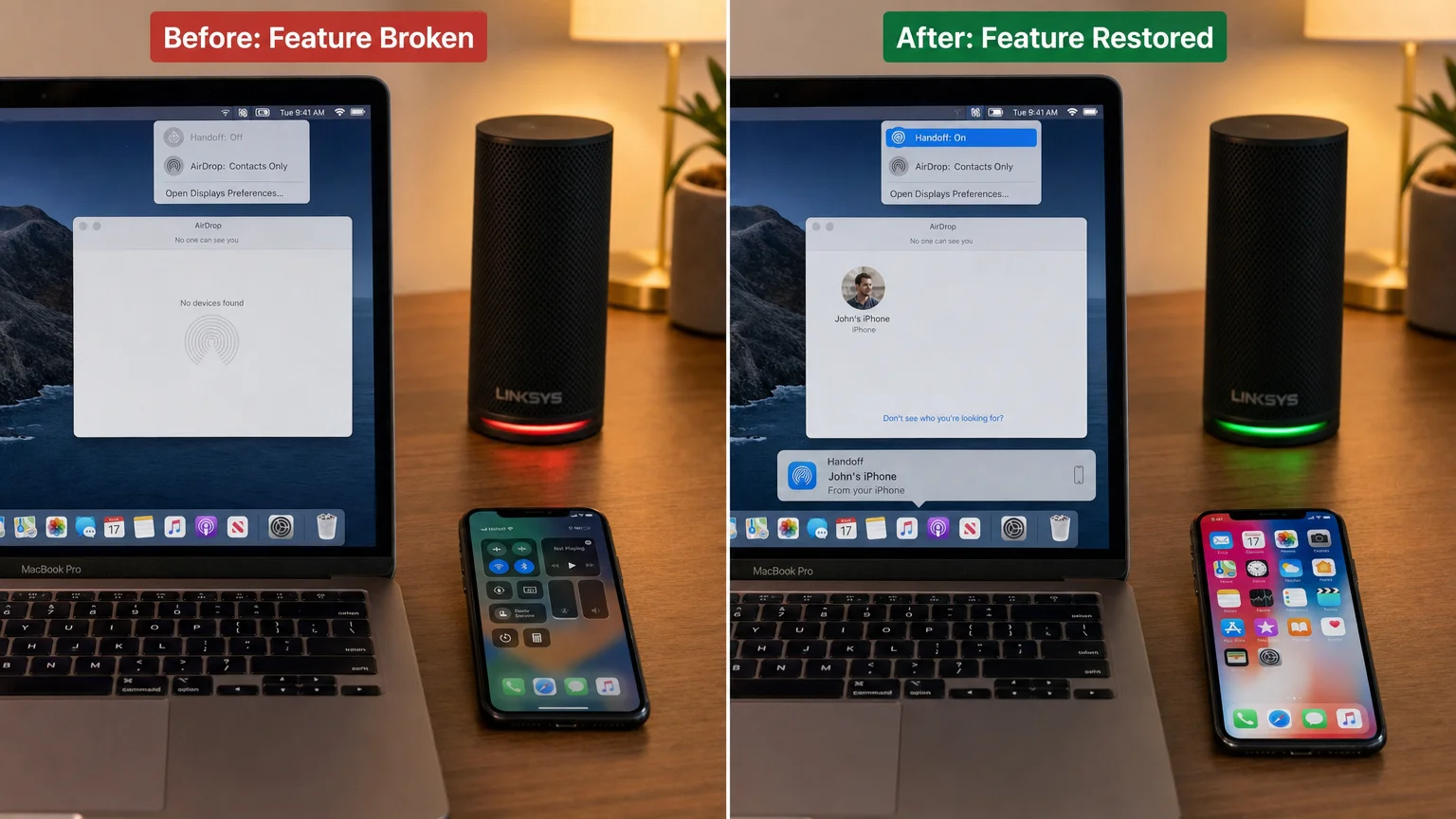
When individual toggles and restarts have not resolved a Continuity issue, a full account reset in the correct sequence is the most reliable recovery method. Skipping steps or doing them out of order often leaves the problem in place.
Recommended reset sequence:
- On the Mac: Sign out of iCloud (System Settings → Apple ID → Sign Out). Do not delete iCloud data when prompted.
- Restart the Mac.
- Sign back into iCloud with the correct Apple ID.
- On iPhone: toggle Airplane Mode on for 30 seconds, then off.
- Toggle Bluetooth off and on on both devices.
- Re-enable Handoff on both devices.
- Test the specific feature.
If the problem persists after this sequence, reset network settings on the iPhone (Settings → General → Transfer or Reset iPhone → Reset → Reset Network Settings). This clears saved Wi-Fi passwords and VPN configurations, so have credentials ready before proceeding.
For persistent AirDrop failures on Mac, running sudo killall -HUP mDNSResponder in Terminal restarts the Bonjour service without a full reboot.
Does Software Version Mismatch Cause Continuity Failures?
Yes, and it is more common than most users expect. Apple regularly updates the protocols underlying Continuity features, and a Mac running macOS 14 Sonoma alongside an iPhone running iOS 18 can produce inconsistent behavior — particularly for newer features like iPhone Mirroring, which requires both devices to be on the current major version.
The general rule: keep all devices within one major OS version of each other, and prioritize updating the device that received the new feature first. If an update is available but you are not ready to install it, reviewing whether the upgrade is worth it right now before proceeding is a reasonable approach — but be aware that delaying updates can introduce Continuity compatibility gaps.
Symptom-Based Diagnostic Quick Reference
| Symptom | Most Likely Cause | First Fix |
|---|---|---|
| AirDrop shows “No devices found” | Bluetooth off, or receiving set to No One | Enable Bluetooth; set AirDrop to Contacts or Everyone |
| Handoff icon never appears in Dock | Handoff disabled, or different Apple IDs | Enable Handoff in Settings on both devices |
| Universal Clipboard works once then stops | mDNSResponder crash | Restart both devices |
| Continuity Camera not in app’s camera list | Feature disabled, or wrong Apple ID | Check Settings → AirDrop & Handoff on iPhone |
| Sidecar shows “Cannot connect to iPad” | Hardware incompatibility, or USB cable issue | Check Apple’s Sidecar compatibility list |
| iPhone Mirroring option missing on Mac | macOS older than Sequoia | Update to macOS 15 Sequoia |
| Calls ring on Mac but no audio | Wrong audio output selected | System Settings → Sound → Output |
| Instant Hotspot not appearing | Bluetooth off on Mac | Toggle Bluetooth off/on on Mac |
Conclusion
Apple’s Continuity features are genuinely useful — but they sit on a foundation of invisible dependencies that can fail quietly. The most productive troubleshooting approach is to verify the universal requirements first (same Apple ID, Bluetooth, Wi-Fi, feature toggles), then move to network configuration, then to software versions, and only then to feature-specific settings. Most failures resolve at one of the first two layers.
For deeper reading on keeping your Apple devices secure and well-configured, the guide on setting up a privacy-first iPhone in 2026 covers account hygiene and system settings that also affect Continuity reliability. And if you are evaluating whether to upgrade your Mac to take advantage of iPhone Mirroring or other newer features, the MacBook Air vs. MacBook Pro workload comparison is a useful starting point.
Frequently Asked Questions
Why do Continuity features stop working after a macOS update?
Major macOS updates sometimes reset per-feature toggles — Handoff, AirDrop receiving settings, and Text Message Forwarding can all revert to default (off) states. After any major update, check System Settings → General → AirDrop & Handoff and re-enable the features you use.
Can Continuity features work over cellular instead of Wi-Fi?
Most Continuity features require both Wi-Fi and Bluetooth to be active on the same local network. AirDrop over the internet (iOS 17 and later) is the main exception — it can transfer files between devices not on the same network, provided both are signed into the same Apple ID or have each other's contact card.
Does a VPN always break Continuity features?
Not always, but frequently. VPNs that route all traffic (full-tunnel VPNs) block the local mDNS traffic that Continuity depends on. Split-tunnel VPNs that exclude local network traffic will generally allow Continuity to function. If you rely on Continuity features for productivity, check whether your VPN supports split tunneling.
Why does AirDrop work between two iPhones but not between iPhone and Mac?
This usually points to a Mac-side issue: the Mac's firewall blocking incoming connections, AirDrop receiving set to "No One" in Finder, or Bluetooth interference. Check Finder → AirDrop and ensure the Mac is set to be discoverable by Contacts or Everyone.
Do all mesh Wi-Fi systems block Continuity features?
Not all, but many enable AP isolation or client isolation by default. Eero, Google Nest Wi-Fi, and TP-Link Deco all have settings that can isolate clients. Log into the router's admin app and look for "client isolation," "AP isolation," or "device isolation" settings and disable them for your primary network.
Is Continuity Camera better than a dedicated external webcam?
For video quality, a recent iPhone (iPhone 15 or later) using Continuity Camera matches or exceeds most USB webcams under $150. The limitation is that the iPhone must be locked and mounted near the Mac, which requires a dedicated stand or MagSafe mount. For a permanent desk setup, a dedicated webcam may be more convenient; for occasional use, Continuity Camera is an excellent no-cost upgrade.
Why does Universal Control keep disconnecting?
Universal Control is sensitive to Bluetooth signal quality and occasionally loses the peer-to-peer connection when other Bluetooth devices are active nearby. Keeping the Mac and iPad within 5 meters, reducing the number of active Bluetooth peripherals, and ensuring both devices are plugged in (not in low-power mode) improves reliability significantly.
Independent guidance for making smarter, safer decisions across the Apple ecosystem.
