
Founder and editor of We Are MacWise, with more than 30 years of Apple-focused IT experience helping professionals and small businesses.
Nearly 70 percent of data breaches involve a credential or configuration weakness that the affected user could have addressed with routine maintenance. A structured annual Mac security checkup is one of the most practical steps any Mac owner can take — and yet most people skip it entirely. This guide delivers a professional 12-point checklist you can work through in under an hour, covering every layer from firmware to cloud accounts.
Key Takeaways
- macOS provides strong built-in security tools, but most require manual verification each year.
- FileVault, the firewall, and Gatekeeper are three settings that are frequently disabled without the owner realizing it.
- Passwords, login items, and app permissions accumulate silently and deserve an annual audit.
- iCloud and Apple ID security are as important as local Mac settings — treat them as one system.
- A verified backup is the single most effective recovery tool if anything goes wrong.
- Two-factor authentication should be active on every account that supports it, not just Apple ID.
- Third-party VPNs and DNS services add meaningful protection on public and home networks alike.
Why Does an Annual Mac Security Checkup Matter?
macOS is a well-defended operating system, but security is not a one-time configuration. Software accumulates, permissions drift, and threat patterns shift year to year. An annual review catches the gaps that open up between major OS upgrades — old browser extensions with excessive permissions, login items added by apps that were later deleted, or an iCloud setting changed during a device migration.
The professional approach treats Mac security as a recurring audit rather than a one-time setup. Scheduling it once a year — perhaps at the start of a new year or aligned with a major macOS release — keeps the habit consistent without becoming burdensome.
What Are the 12 Points in a Professional Mac Security Checklist?
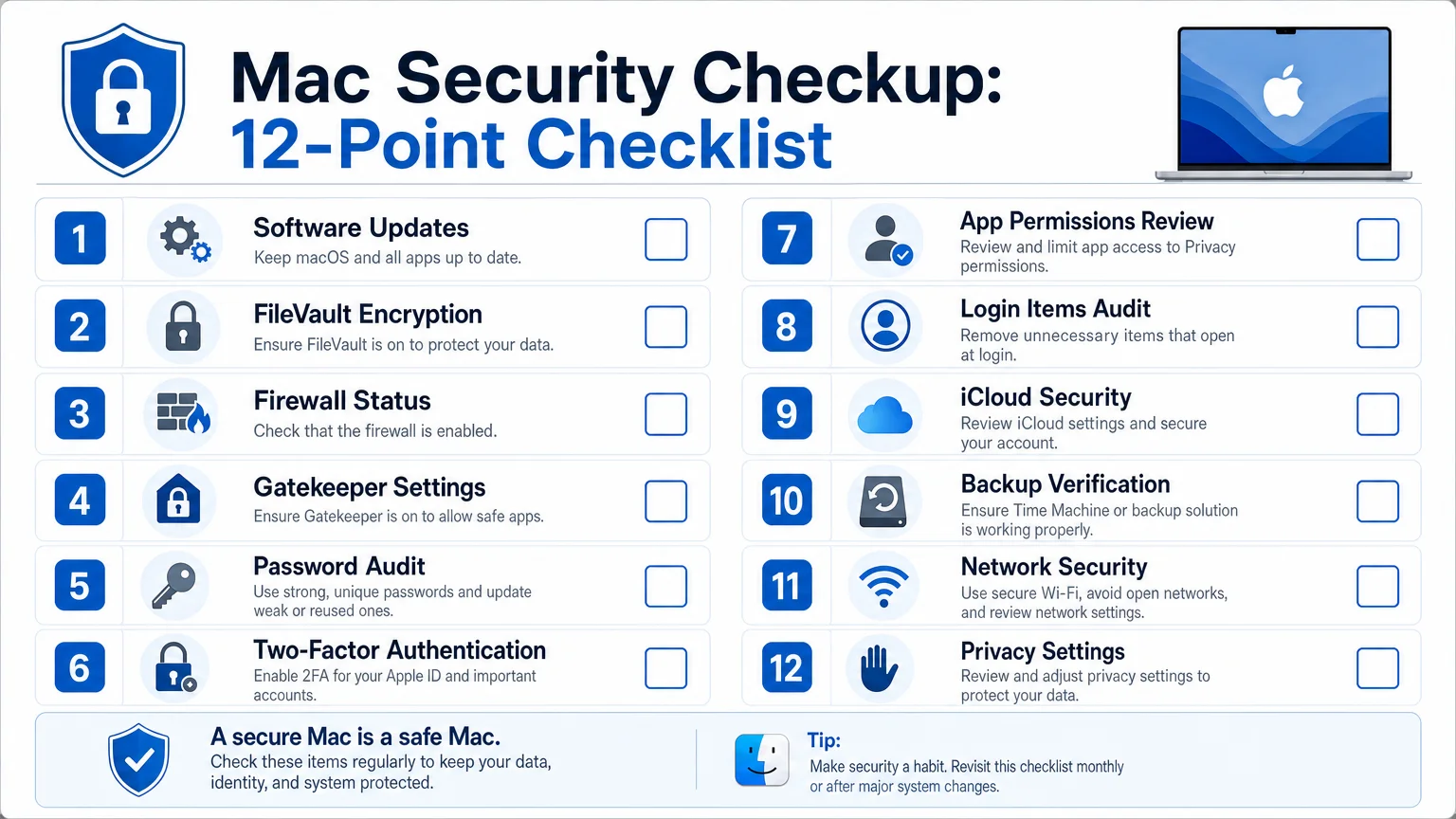
A thorough annual Mac security checkup covers these twelve areas, in roughly the order you should address them:
1. Confirm macOS Is Fully Up to Date
Open System Settings → General → Software Update. Install all pending updates, including any Rapid Security Responses Apple has issued. Running a current OS is the single highest-leverage action on this list — Apple patches actively exploited vulnerabilities through point releases, not just major versions.
2. Verify FileVault Is Enabled
System Settings → Privacy & Security → FileVault. FileVault encrypts the entire startup disk. If a Mac is lost or stolen, encrypted data is unreadable without the login password. Confirm it is on and that you have the recovery key stored somewhere safe — ideally in a password manager, not on the same machine.
3. Check the Firewall Status
System Settings → Network → Firewall. The macOS firewall blocks unsolicited incoming connections. It is off by default on some configurations and can be silently disabled by certain installers. Turn it on, then click Options to review which apps have been granted incoming connection access.
4. Review Gatekeeper and Security Settings
System Settings → Privacy & Security → Security. Gatekeeper should be set to allow apps from the App Store and identified developers. If it has been loosened to allow apps from anywhere — a common troubleshooting workaround — restore the stricter setting after confirming no legitimate app requires the exception.
5. Audit Login Items and Launch Agents
System Settings → General → Login Items & Extensions. This list grows without notice. Remove anything you do not recognize or no longer use. For deeper inspection, tools like Malwarebytes for Mac or the free KnockKnock from Objective-See can surface persistent items that the standard UI does not show.
6. Run a Password and Credential Audit
Open Passwords (the standalone app in macOS Sequoia and later, or Settings → Passwords in earlier versions). Review flagged passwords — reused, weak, or compromised entries. A dedicated password manager such as 1Password or Bitwarden provides more granular auditing. Every critical account should have a unique, randomly generated password.
7. Confirm Two-Factor Authentication Is Active
Visit appleid.apple.com and verify that two-factor authentication is enabled on your Apple ID. Then audit other high-value accounts — email, banking, work tools — and enable 2FA wherever it is offered. Hardware security keys (FIDO2/passkeys) offer the strongest protection where supported.
8. Review App Privacy Permissions
System Settings → Privacy & Security. Work through each category: Camera, Microphone, Location, Contacts, Calendars, Full Disk Access, and Screen Recording. Revoke access for any app that does not have an obvious need for that permission. This is especially important after installing new software or migrating from an older Mac.
9. Audit iCloud and Apple ID Security
Sign in to appleid.apple.com and review every device listed under your account. Remove any device you no longer own. Check which apps have access to your iCloud data under System Settings → [Your Name] → iCloud. Disable iCloud sync for any app category you do not actively use.
10. Verify Backups Are Working and Restorable
A backup that has never been tested is not a backup. Confirm Time Machine completed a recent backup (System Settings → General → Time Machine). If you use a cloud backup service, verify that a recent snapshot exists and that you know the restore procedure. Ideally, do a test restore of at least one file.
11. Assess Network Security
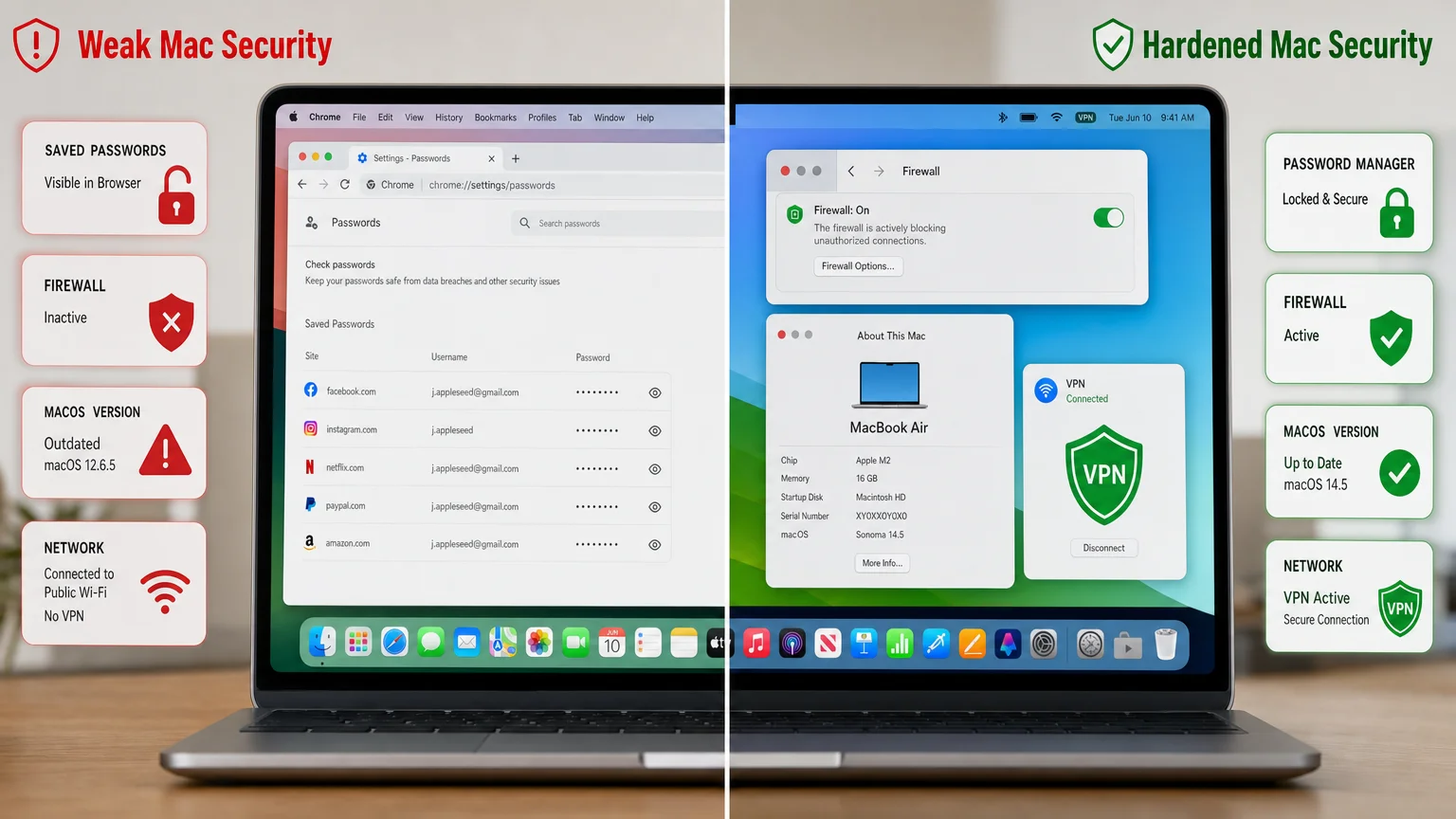
Check your home router’s firmware version and admin credentials — default passwords on routers are a common entry point. On public Wi-Fi, use a reputable VPN. Consider enabling Private Relay if you subscribe to iCloud+ for an additional layer of DNS and traffic obfuscation on Apple devices. Review which networks your Mac connects to automatically under System Settings → Wi-Fi → Known Networks and remove any you no longer trust.
12. Review Safari and Browser Security
In Safari → Settings → Privacy, confirm Prevent cross-site tracking is on and Hide IP address is enabled. Review installed extensions under Safari → Settings → Extensions — remove any you did not intentionally install or no longer use. If you use Chrome or Firefox, apply the same audit there. Browser extensions have broad data access and are a frequently overlooked attack surface.
How Do These Settings Compare: Default vs. Hardened?
| Setting | macOS Default | Recommended State |
|---|---|---|
| FileVault | Off on some configs | On |
| Firewall | Off | On |
| Gatekeeper | App Store + Identified Devs | App Store + Identified Devs |
| Two-Factor Auth (Apple ID) | Prompted but skippable | Required |
| Full Disk Access | Minimal | Audit annually |
| iCloud Drive | On for most apps | On only for trusted apps |
| Time Machine | Not configured | Configured + verified |
| Auto Software Update | On | On — confirm it ran |
Which Third-Party Tools Are Worth Adding?
The built-in macOS tools handle most of the checklist above. A few third-party additions are genuinely useful:
- Malwarebytes for Mac — free tier scans for adware and known malware; runs on demand.
- Objective-See tools (LuLu, KnockKnock, BlockBlock) — free, open-source, respected in the security community.
- 1Password or Bitwarden — more capable than the built-in Passwords app for teams or users with complex credential needs.
- A reputable VPN — Mullvad and ProtonVPN are consistently well-regarded for privacy-first policies.
For more on evaluating Mac software and productivity tools, the Apps & Workflows section covers current picks with honest assessments of where each tool falls short.
How Does Mac Security Fit Into a Broader Apple Ecosystem Review?
Your Mac does not operate in isolation. If you use an iPhone or iPad alongside it, the same Apple ID security posture affects all devices equally. A compromised Apple ID can expose iCloud backups, location data, and iCloud Keychain passwords across every device on the account. For a broader look at how Apple hardware choices intersect with security and productivity, the Mac section at We Are MacWise covers both buying decisions and ongoing management.
If you are choosing between Mac models and want to understand how hardware differences affect long-term security support timelines, the guide on MacBook Air vs. MacBook Pro addresses which configurations receive the longest active software support.
For iPhone and iPad security reviews that complement this Mac checklist, see the iPhone & iPad section.
Conclusion
A professional annual Mac security checkup is not about paranoia — it is about closing the small gaps that accumulate over 12 months of normal use. The 12-point checklist above covers every layer that matters: the OS, local encryption, network exposure, credentials, permissions, and backups. None of the steps require technical expertise, and the whole process takes less time than most people expect.
For ongoing coverage of macOS security developments, privacy tools, and Apple platform news, explore the Security & Services section at We Are MacWise — updated regularly as Apple’s security landscape evolves.
Frequently Asked Questions
How long does a full Mac security checkup take?
Most users can complete all 12 points in 45 to 60 minutes. The longest steps are typically the password audit and the app permissions review, especially on a Mac that has accumulated software over several years.
Do I need to run antivirus software on a Mac in 2026?
macOS includes XProtect and Malware Removal Tool, which Apple updates silently. A dedicated on-demand scanner like Malwarebytes adds a useful second opinion but is not a mandatory daily-running antivirus in the traditional sense. Real-time third-party antivirus tools can introduce performance overhead; the built-in protections are solid for most users who keep macOS current.
Is FileVault encryption slow on modern Macs?
On any Mac with Apple silicon (M1 or later) or a T2 chip, FileVault encryption and decryption happen in hardware with no measurable performance impact. On older Intel Macs without a T2 chip, there can be a minor overhead, but enabling it is still strongly recommended.
What should I do if I find an unfamiliar login item?
Do not delete it immediately. Search the filename online first — many legitimate apps install helper tools with non-obvious names. If no credible result identifies it as legitimate software, remove it and monitor for any app breakage. Tools like KnockKnock can help identify the parent application.
How do I store the FileVault recovery key safely?
The safest approach is to save it in a password manager that is not stored exclusively on the same Mac. A printed copy in a physically secure location is a reasonable secondary backup. Avoid storing it only in iCloud Notes or on the encrypted disk itself — both options defeat the purpose.
Should I use iCloud Keychain or a third-party password manager?
iCloud Keychain is well-integrated and free, and it has improved significantly with the standalone Passwords app. Third-party managers like 1Password or Bitwarden offer better cross-platform support, more granular sharing controls, and richer audit features. For users who work exclusively in the Apple ecosystem, iCloud Keychain is a reasonable choice; for mixed environments or teams, a dedicated manager is worth the subscription cost.
How often should I actually run this checklist?
Once a year is the minimum. A practical trigger is the annual macOS major release — typically in September or October — which prompts a natural review of what has changed. Users who manage Macs for a team or small business may benefit from a semi-annual review.
Founder and editor of We Are MacWise, with more than 30 years of Apple-focused IT experience helping professionals and small businesses.
